Showing order cost and profit in your admin new order email lets you see the money side of each sale the moment it lands in your inbox. Cost of Goods: Product Cost & Profit Calculator for WooCommerce can add the total cost and profit, and per-item cost and profit, to the WooCommerce admin new order email. This is a Pro feature.
Before you start #
- WooCommerce, active, with product costs set (so there is profit to report).
- Cost of Goods: Product Cost & Profit Calculator for WooCommerce Pro. These email options are Pro-only and are off by default.
Step-by-step #
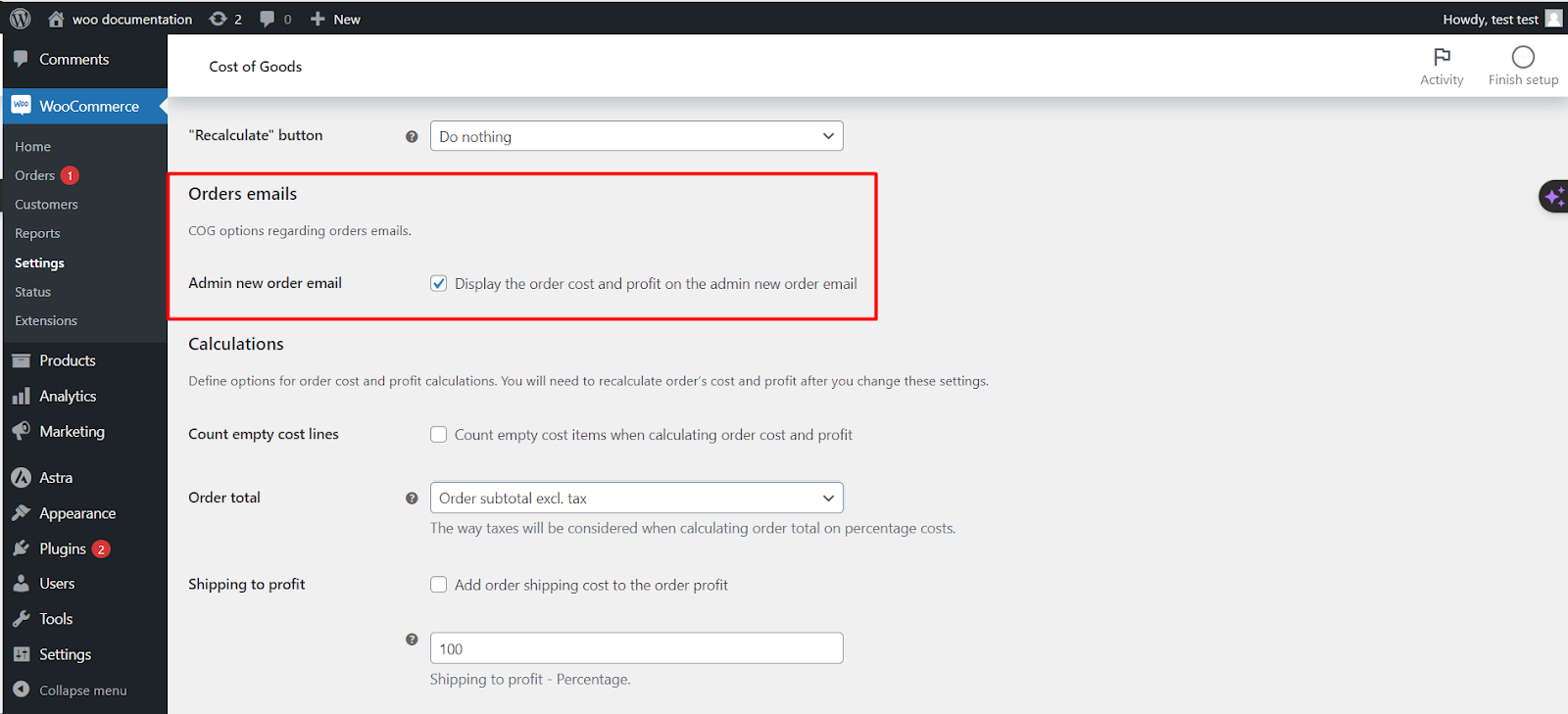
- Go to WPFactory > Cost of Goods (also reachable at WooCommerce > Settings > Cost of Goods).
- Open the Orders sub-tab.
- Find the Admin New Orders emails group.
- Tick Total cost and profit to show the order’s total cost and profit.
- Optionally tick Order item cost and profit to show cost and profit for each line item.
- Click Save changes.
Options reference #
| Label | Option ID | Default | Free/Pro |
|---|---|---|---|
| Total cost and profit | alg_wc_cog_order_admin_new_order_email_profit_and_cost |
no |
Pro |
| Order item cost and profit | alg_wc_cog_order_admin_new_order_email_item_profit_and_cost |
no |
Pro |
Both options add to the admin new order email (the one sent to the store, not to the customer). They are off until you enable them.
Troubleshooting #
- Nothing shows in the email. Confirm you are on Pro, the options are ticked, and the products in the order have costs set.
- Profit looks wrong. Review your Orders > Calculations settings (shipping, fees and taxes to profit), which change how profit is calculated.
Ready to set this up? #
This is a Pro feature of Cost of Goods. If you are still on the free version, upgrading unlocks cost and profit in your order emails. Get Cost of Goods Pro.