Adding cost and profit columns to your WooCommerce orders list lets you see the cost, profit, profit percent and profit margin of each order without opening it. Cost of Goods: Product Cost & Profit Calculator for WooCommerce adds these columns to the admin orders screen, and they are free.
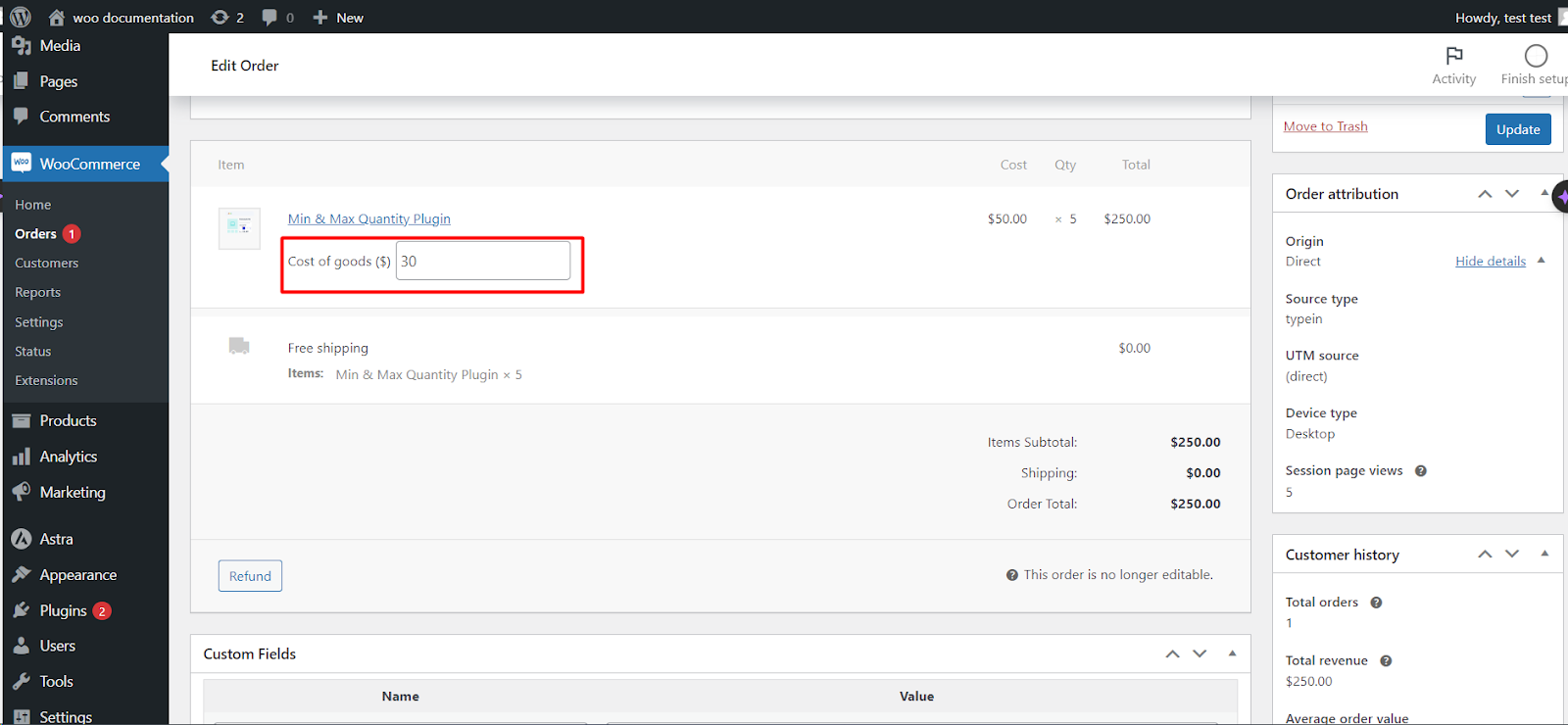
Step-by-step #
- Go to WPFactory > Cost of Goods (also reachable at WooCommerce > Settings > Cost of Goods).
- Open the Orders sub-tab.
- In the Cost column group, tick Order cost to add the cost column.
- In the Profit columns group, tick any of Profit, Profit percent and Profit margin.
- Click Save changes, then open your orders list to see the columns.
Options reference #
| Label | Option ID | Default |
|---|---|---|
| Order cost | alg_wc_cog_orders_columns_cost |
no |
| Profit | alg_wc_cog_orders_columns_profit |
yes |
| Profit percent | alg_wc_cog_orders_columns_profit_percent |
no |
| Profit margin | alg_wc_cog_orders_columns_profit_margin |
no |
The Profit column is on by default; the others are off. Each column has its own width setting in the same groups.
Limit the columns to certain order statuses #
Both the cost group and the profit group have an Order statuses selector (alg_wc_cog_orders_columns_cost_order_status and alg_wc_cog_orders_columns_profit_order_status). Choose statuses to show values only for those orders, or leave empty to show for all orders.
Older orders show blank or zero #
Profit percent and profit margin were added in a later plugin version, and orders placed before you set up costs may not carry cost data yet. To backfill them, run Tools > Orders recalculation tool (a Pro feature). This recalculates cost and profit across your existing orders.
Get more from Cost of Goods #
These columns are free. Cost of Goods: Product Cost & Profit Calculator for WooCommerce Pro adds the orders recalculation tool for historical orders, plus cost and profit inside WooCommerce Analytics. See what Pro unlocks.