To see every product’s cost in the WooCommerce products list, turn on the cost column in Cost of Goods: Product Cost & Profit Calculator for WooCommerce. Go to WPFactory > Cost of Goods, stay on the Products sub-tab, tick Product cost under Admin products list columns and save. The column is free.
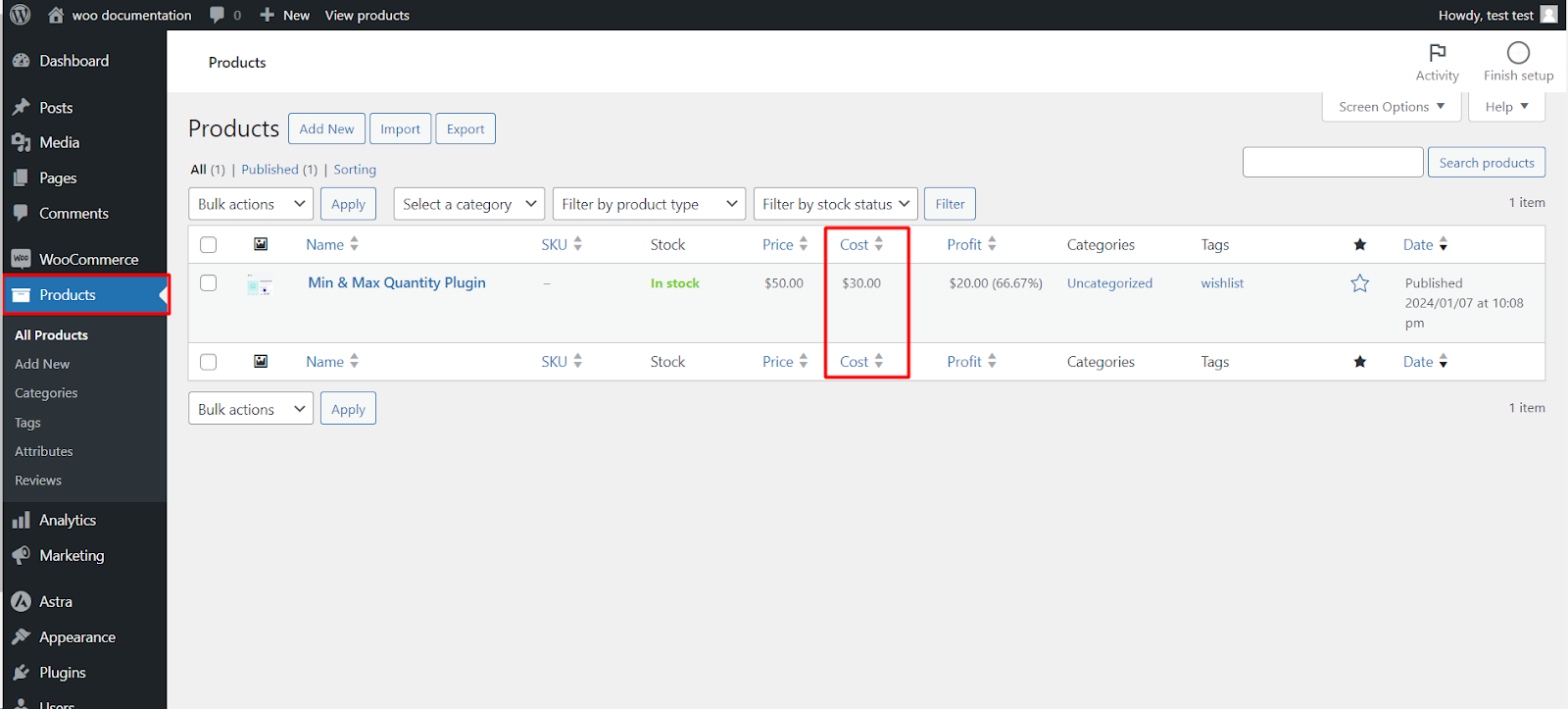
Note: this column appears in the products list (the table at Products > All Products), not on the single product edit screen. To see or edit the cost on the edit screen, use the Cost field itself.
Step-by-step #
- Go to WPFactory > Cost of Goods (also reachable at WooCommerce > Settings > Cost of Goods).
- Stay on the Products sub-tab.
- Find the Admin products list columns group.
- Tick Product cost (“Add product cost column”).
- Optionally set the Column width and Width unit.
- Click Save changes, then open Products > All Products to see the new column.
Options reference #
| Label | Option ID | Type | Default | Free/Pro |
|---|---|---|---|---|
| Product cost | alg_wc_cog_products_columns_cost |
Checkbox | no |
Free |
| Column width | alg_wc_cog_products_columns_cost_width |
Number | 10 |
Free |
| Width unit | alg_wc_cog_products_columns_width_unit |
Text | % |
Free |
A zero or empty width disables the fixed width. The width unit accepts any CSS unit, for example %, px or ch, and is shared with the profit column.
What you see in the products list #
- A new column titled Cost, placed right after the Price column.
- Each cost is formatted as a store price, using the Cost decimals setting in the same sub-tab.
- Variable products show a range from the lowest to the highest variation cost when the variations differ. A variation with no cost of its own uses the parent’s cost.
- A product with no cost entered shows a cost of 0.
Make the column sortable #
To click the column header and sort products by cost, turn on Advanced > Columns sorting > Sortable columns (alg_wc_cog_columns_sorting, on by default). This makes both the cost and profit columns sortable. The option below it, Exclude empty lines on sorting (on by default), leaves products without a cost out of the sorted list.
Who can see the column #
By default every user who can open the products list sees the column. In Pro, Advanced > Restrict by user role limits the column, and the rest of the plugin’s data, to the roles you select. Administrators always see it.
If the column does not appear #
- Make sure you clicked Save changes after ticking Product cost.
- Open Screen Options at the top of the products list and check that Cost is ticked.
- If you use Pro, check that your role is allowed in Restrict by user role.
FAQ #
Is the product cost column free? #
Yes. The cost and profit columns, their widths and sorting are all in the free version.
Can I edit the cost from the products list? #
Not from the column itself. Pro adds a Cost field to Quick Edit and Bulk Edit, see Add a Cost Field to Product Quick Edit and Bulk Edit.
Why does a product show 0 in the Cost column? #
No cost has been entered for it. Open the product and fill in the Cost field in Product data.
Related guides #
- Add a Product Profit Column to the Admin Products List
- Customize the Cost Field Label and Position
- Add Cost and Profit Columns to the Admin Orders List
Get more from Cost of Goods #
This feature is free. Cost of Goods: Product Cost & Profit Calculator for WooCommerce Pro adds cost and profit columns and totals inside WooCommerce Analytics, plus the orders recalculation tool. See what Pro unlocks.
Need a hand? Our team answers every ticket on the Cost of Goods support forum.