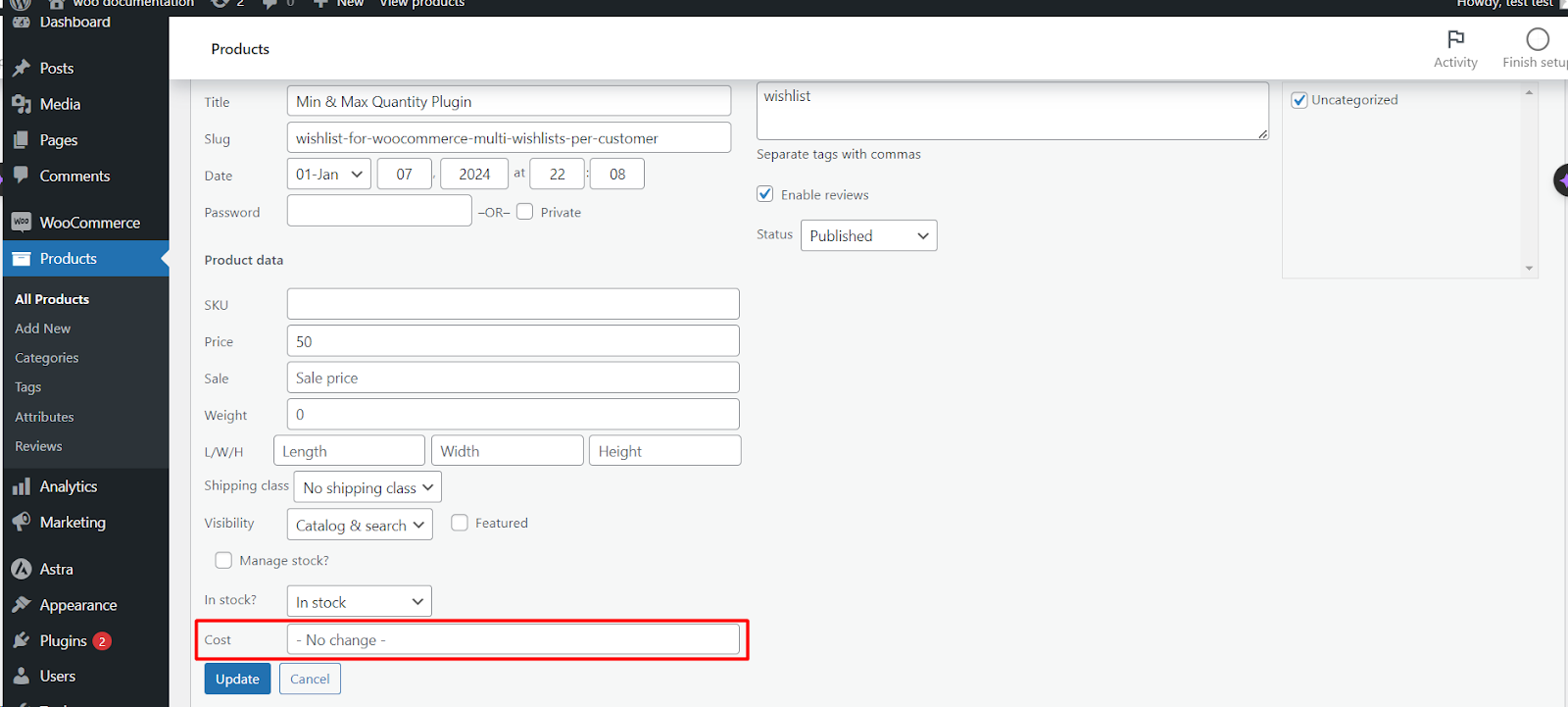
Adding a cost field to WooCommerce Quick Edit and Bulk Edit lets you update product costs straight from the products list, without opening each product. Cost of Goods: Product Cost & Profit Calculator for WooCommerce adds this cost field to both Quick Edit and Bulk Edit. This is a Pro feature.
Before you start #
- WooCommerce, active.
- Cost of Goods: Product Cost & Profit Calculator for WooCommerce Pro. The Quick Edit and Bulk Edit cost fields are Pro-only; in the free version these options are disabled.
Step-by-step #
- Go to WPFactory > Cost of Goods (also reachable at WooCommerce > Settings > Cost of Goods).
- Stay on the Products sub-tab.
- Find the Quick and Bulk Edit group.
- Tick Cost field > Quick Edit and, if you want it in bulk edits too, Bulk Actions > Edit.
- Click Save changes.
Options reference #
| Label | Option ID | Default | Free/Pro |
|---|---|---|---|
| Cost field: Quick Edit | alg_wc_cog_products_quick_edit |
no |
Pro |
| Cost field: Bulk Actions > Edit | alg_wc_cog_products_bulk_edit |
no |
Pro |
| Replace all variations from the main variable product | alg_wc_cog_products_quick_edit_replace_variations |
no |
Pro |
With Replace all variations on, the cost you set on a variable product’s Quick Edit is copied down to every variation.
Using it #
- Open Products > All Products.
- Hover a product and click Quick Edit, or select several products and choose Bulk actions > Edit > Apply.
- Enter or update the Cost, then click Update.
Prefer a dedicated screen? #
For large catalogs, the free Bulk Edit Costs tool under Tools gives you a single editable table of costs, prices and stock. See the Bulk Edit Costs tool guide.
Ready to set this up? #
This is a Pro feature of Cost of Goods. If you are still on the free version, upgrading unlocks Quick and Bulk Edit cost fields along with the rest of the Pro toolkit. Get Cost of Goods Pro.