Adding a product profit column to your WooCommerce products list shows the profit on every product at a glance, calculated from its cost and price. Cost of Goods: Product Cost & Profit Calculator for WooCommerce adds this column to the admin Products list, and it is free.
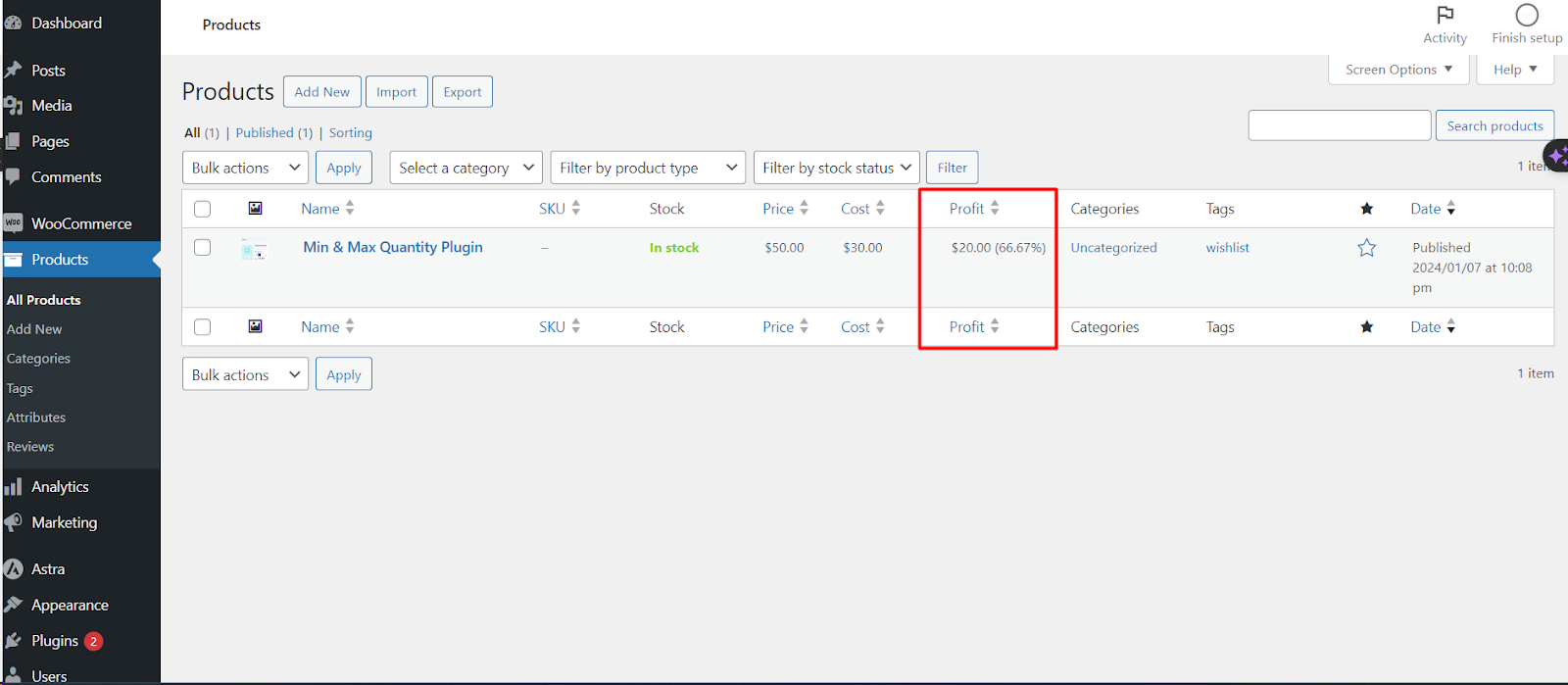
Note: the column appears in the products list at Products > All Products, not on the single product edit screen.
Step-by-step #
- Go to WPFactory > Cost of Goods (also reachable at WooCommerce > Settings > Cost of Goods).
- Stay on the Products sub-tab.
- Find the Admin products list columns group.
- Tick Product profit (“Add product profit column”).
- Optionally set the Column width.
- Click Save changes, then open Products > All Products.
Options reference #
| Label | Option ID | Type | Default |
|---|---|---|---|
| Product profit | alg_wc_cog_products_columns_profit |
Checkbox | no |
| Column width | alg_wc_cog_products_columns_profit_width |
Number | 11 |
How profit is displayed #
The profit shown in this column uses the Profit HTML template (alg_wc_cog_product_profit_html_template, default %profit% (%profit_percent%)) from the same Products sub-tab. You can change it to show any mix of these placeholders:
%profit%: the profit amount (price minus cost).%profit_percent%: profit divided by cost, as a percentage.%profit_margin%: profit divided by price, as a percentage.
Make the column sortable #
To sort by profit, keep Advanced > Columns sorting > Sortable columns (alg_wc_cog_columns_sorting) enabled. It is on by default.
Get more from Cost of Goods #
This feature is free. Cost of Goods: Product Cost & Profit Calculator for WooCommerce Pro adds cost and profit columns and chart totals inside WooCommerce Analytics. See what Pro unlocks.