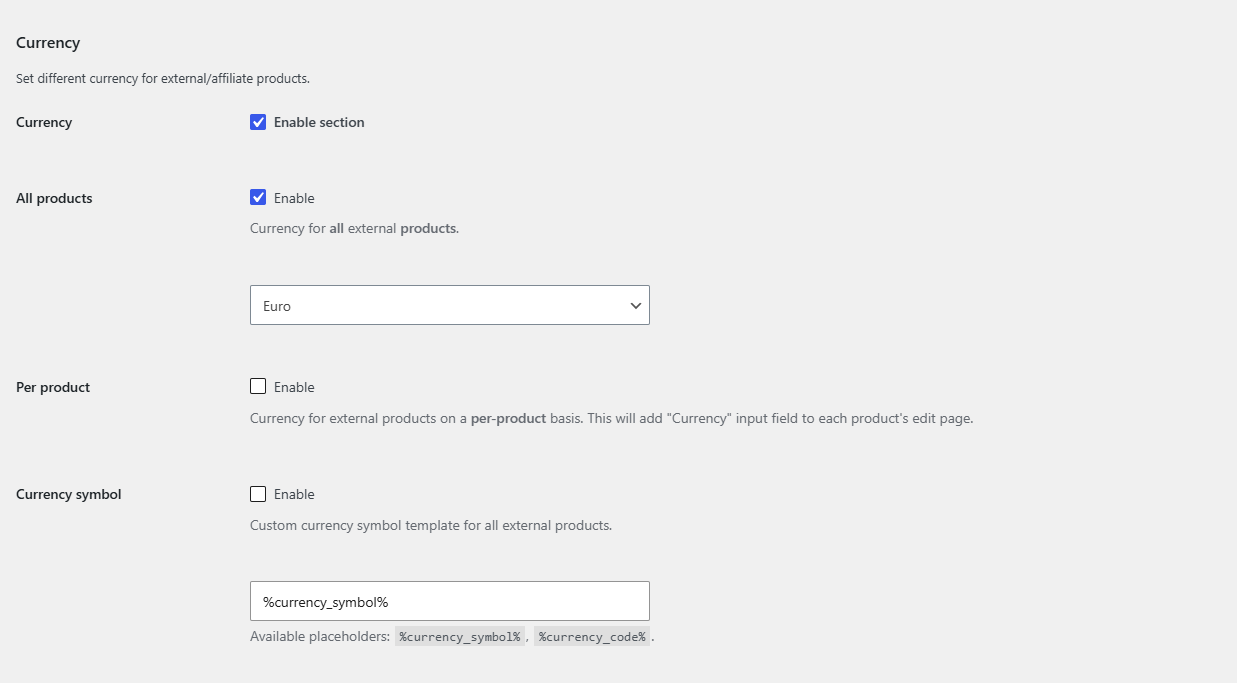
To set a different currency for WooCommerce affiliate products, use Multiple External Products URLs & Currencies for WooCommerce: go to WPFactory > Advanced External Products > Currency (also reachable at WooCommerce > Settings > Advanced External Products > Currency), enable All products and pick the currency. External products then show prices in that currency.
Note: the plugin changes the currency code and symbol only. It does not convert prices. Enter the external product’s price in the currency you choose, for example the USD price shown on the merchant’s site.
Set one currency for all external products (free) #
- Go to WPFactory > Advanced External Products > Currency (also reachable at WooCommerce > Settings > Advanced External Products > Currency).
- Make sure Currency (Enable section) is checked. It is on by default.
- Next to All products, check Enable.
- In the currency list below it, choose the currency, for example United States (US) dollar.
- Click Save changes.
- Edit your external products and enter their prices in that currency.
Set the currency per product (Pro) #
- Go to WPFactory > Advanced External Products > Currency (also reachable at WooCommerce > Settings > Advanced External Products > Currency).
- Next to Per product, check Enable and click Save changes.
- Edit an external product. On the General tab of the Product data box, choose a currency in the new Currency field.
- Click Update.
Leave the field on Default to use the All products currency (if enabled) or the store currency.
Which currency wins #
| Order | Rule |
|---|---|
| 1 | Per product currency (Pro), when set on the product |
| 2 | All products currency, when enabled |
| 3 | Your store currency from WooCommerce > Settings > General |
Customize the currency symbol (free) #
Use Currency symbol to change how the symbol looks on external products, for example to show US$ or the code instead of a bare $.
- Go to WPFactory > Advanced External Products > Currency (also reachable at WooCommerce > Settings > Advanced External Products > Currency).
- Next to Currency symbol, check Enable.
- Enter a template in the field below. Placeholders:
%currency_symbol%(the normal symbol) and%currency_code%(for example USD). Examples:US%currency_symbol%shows US$;%currency_code%shows the code (for example USD) instead of the symbol. - Click Save changes.
The symbol template applies to all external products, whatever currency they use.
FAQ #
Will customers pay in this currency? #
External products are bought on the merchant’s site, not in your cart, so the currency here is for display only. Customers pay on the site the buy button links to.
Does the plugin convert my prices with exchange rates? #
No. It changes the currency code and symbol shown next to the price. Enter the price in the target currency.
Why don’t I see the Currency field on my product? #
The field is a Pro feature. It appears after Per product is enabled and only on products saved as External/Affiliate product.
Can I show different currencies for products in the same list? #
Yes. The currency is decided per product, so on a shop page each external product shows its own currency while other products keep the store currency.
Get more control #
This feature is free. External Products URLs & Currencies Pro adds a per-product currency field, so each affiliate product can use its merchant’s currency. See what Pro unlocks.
Need a hand? Our team answers every ticket on the External Products URLs & Currencies support forum.