To add multiple buy links to a WooCommerce external product, use Multiple External Products URLs & Currencies for WooCommerce: enable Single at WPFactory > Advanced External Products > Multiple URLs (also reachable at WooCommerce > Settings > Advanced External Products > Multiple URLs), then enter one URL per line in the product’s Extra product URLs field.
Before you start #
- The product type is External/Affiliate product and the product has been saved with that type.
- The main Product URL is filled in. The extra buttons are added next to the main button, so they do not show without it.
- The Multiple product URLs section is enabled (it is by default).
Step 1: turn on the extra buttons #
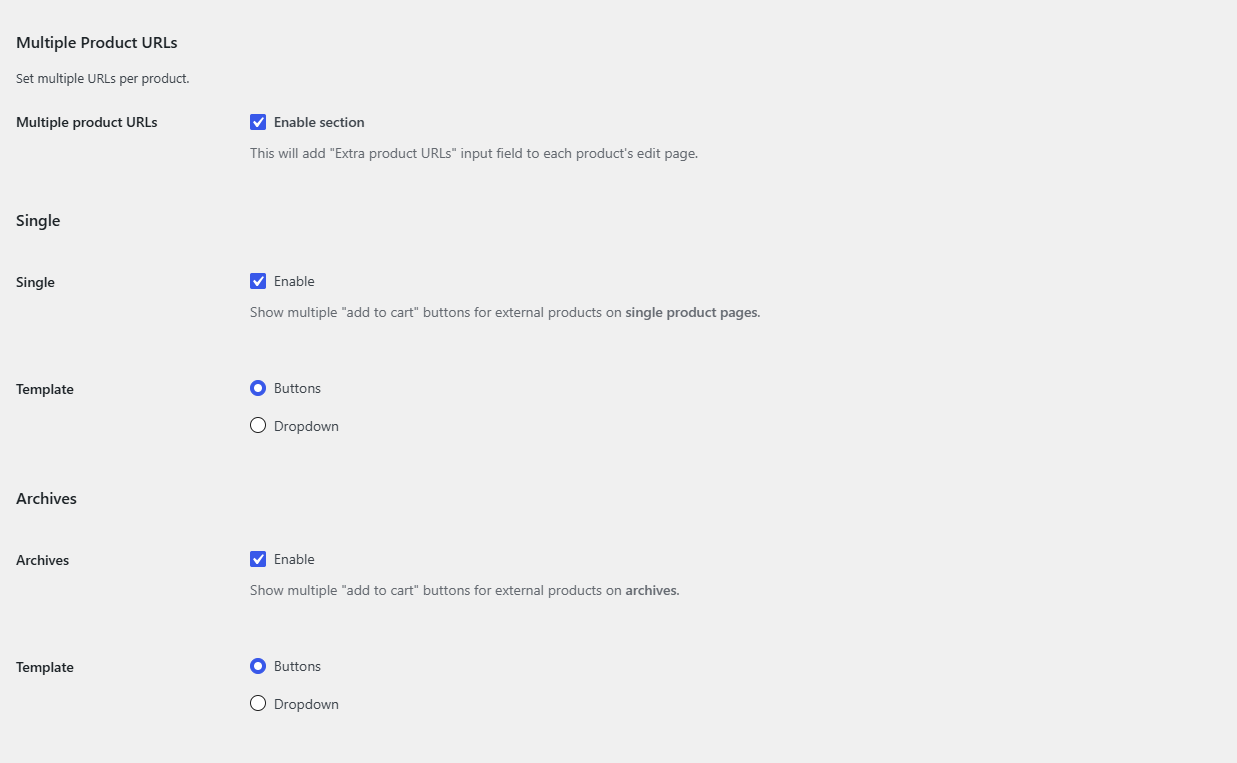
- Go to WPFactory > Advanced External Products > Multiple URLs (also reachable at WooCommerce > Settings > Advanced External Products > Multiple URLs).
- Under Single, check Single to show the extra buttons on single product pages.
- Under Archives, check Archives to show them on the shop, category and other product lists.
- Leave both Template options on Buttons (free). Dropdown is covered below and requires Pro.
- Click Save changes.
Step 2: add the extra URLs to the product #
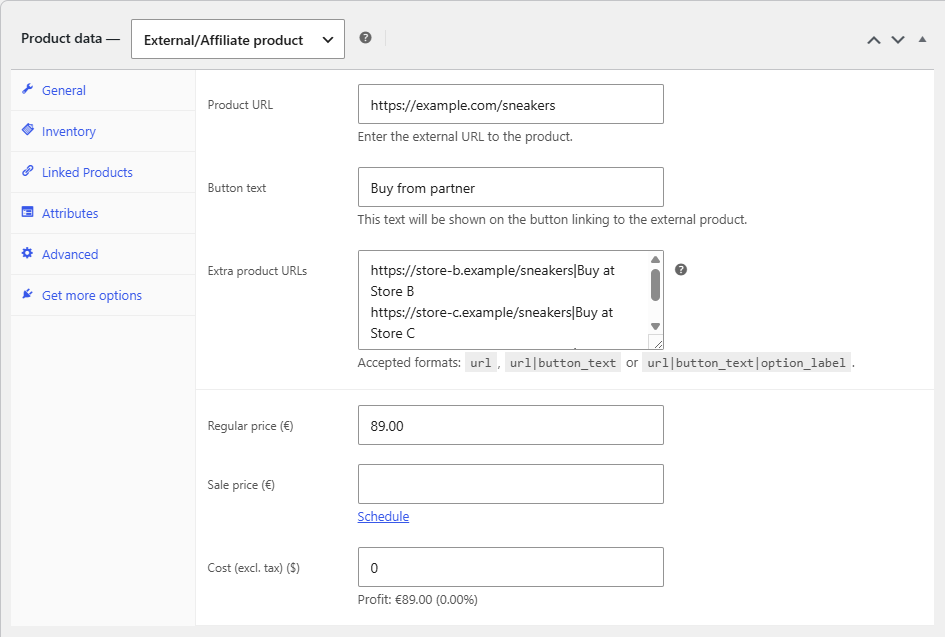
- Go to Products and edit the external product.
- In the Product data box, on the General tab, find Extra product URLs below the Product URL and Button text fields.
- Enter one link per line, in one of the accepted formats shown in the table below.
- Click Update and view the product.
| Format | Example | Result |
|---|---|---|
url |
https://store-b.example/item |
Button with the product’s normal button text |
url|button_text |
https://store-b.example/item|Buy at Store B |
Button with your own text |
url|button_text|option_label |
https://store-b.example/item|Buy at Store B|Store B, ships in 2 days |
Same button; the label is used by the Dropdown template |
Note: do not leave empty lines in the field. An empty line becomes a button without a link.
Show the links as a dropdown (Pro) #
With Pro, you can list all links in one dropdown with a single buy button instead of a stack of buttons. The button text changes to the text of the selected link.
- Go to WPFactory > Advanced External Products > Multiple URLs (also reachable at WooCommerce > Settings > Advanced External Products > Multiple URLs).
- Set Template to Dropdown for Single, Archives or both, and make sure the matching Single or Archives option is checked.
- Click Save changes.
- Edit the product. A Default label field now appears: enter the label for the main Product URL, for example “Store A”. If you leave it empty, the dropdown shows the URL itself.
- Add an
option_labelto each extra line so the dropdown shows readable names instead of URLs.
FAQ #
Why don’t I see the Extra product URLs field? #
The field appears only on products saved as External/Affiliate product. Change the product type, click Update, and the field shows up. Also check that Multiple product URLs is enabled in the Multiple URLs section.
Can the extra links open in a new tab? #
Yes. The new tab options in the Links section apply to the extra buttons too. See opening external product links in a new tab.
Is there a limit to the number of extra links? #
The plugin does not set a limit. Each line in the field becomes one button or dropdown option.
Can I set a different price for each link? #
No. All links share the product’s price. The plugin changes only the URL, the button text and the dropdown label.
Get more control #
This feature is free. External Products URLs & Currencies Pro adds a Dropdown template for extra links, plus per-product currency and new tab control. See what Pro unlocks.
Need a hand? Our team answers every ticket on the External Products URLs & Currencies support forum.