To get more control over WooCommerce external (affiliate) products, install Multiple External Products URLs & Currencies for WooCommerce, then go to WPFactory > Advanced External Products (also reachable at WooCommerce > Settings > Advanced External Products). Its Currency, Links and Multiple URLs sections add extra buy links, change the displayed currency and open links in a new tab.
What the plugin does #
External Products URLs & Currencies works only on products of the External/Affiliate product type. Other product types are not changed.
| Section | What it does | Free | Pro |
|---|---|---|---|
| Currency | Shows external product prices with a different currency code and a custom currency symbol | All external products | Also per product |
| Links | Opens the external product button in a new browser tab on single product pages and archives | All external products | Also per product |
| Multiple URLs | Adds extra buy buttons, each with its own URL and button text, on single product pages and archives | Buttons template | Also Dropdown template |
See Free vs Pro for the full comparison.
Requirements #
- WordPress with WooCommerce active.
- At least one product set to External/Affiliate product with a Product URL.
- The plugin declares compatibility with WooCommerce High-Performance Order Storage (HPOS).
Install and activate #
- Go to Plugins > Add New Plugin > Upload Plugin and upload the plugin zip, then click Install Now and Activate.
- If you upgrade from free to Pro, install and activate Pro. The free build detects Pro and stays idle, and your settings carry over.
- Go to WPFactory > Advanced External Products. The Currency section opens first; Links and Multiple URLs are the other section tabs.
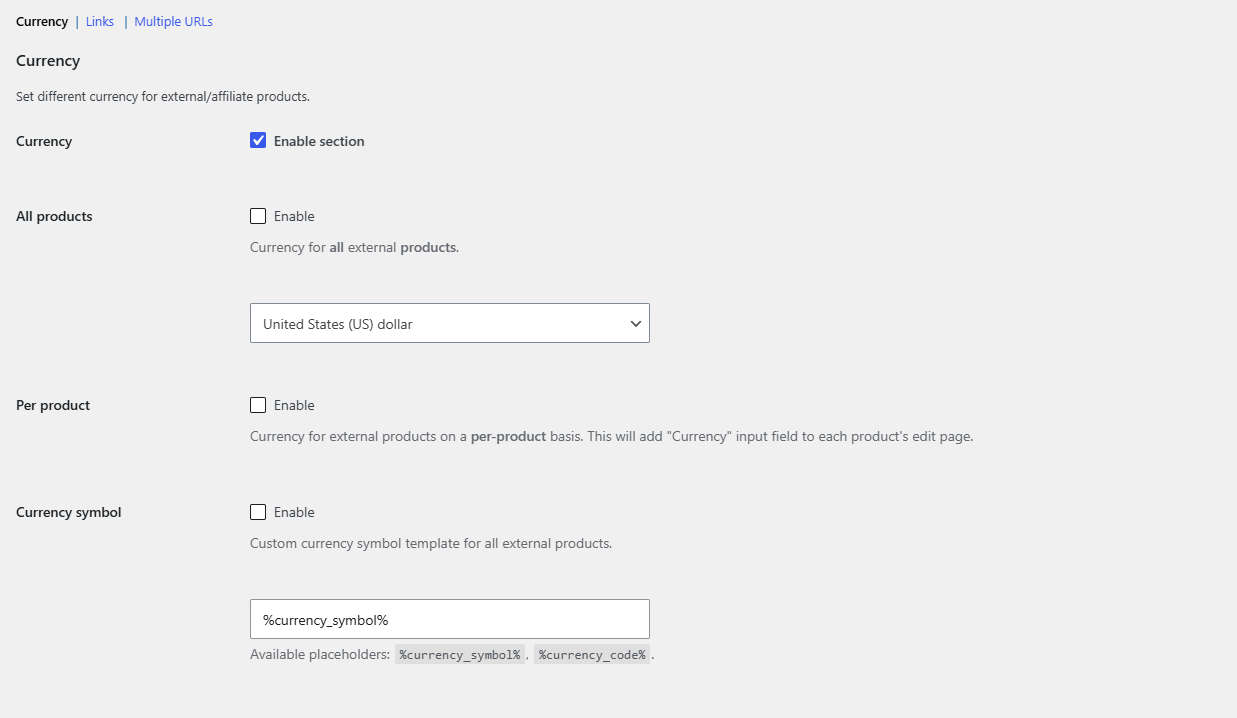
Default state after activation #
All three sections are enabled by default, but every individual option is off. Nothing changes on your storefront until you turn an option on. The one visible change is the Extra product URLs field that appears on the edit page of external products, because the Multiple URLs section is enabled by default.
Where to go next #
- How to add multiple buy links to a WooCommerce external product
- How to set a different currency for WooCommerce affiliate products
- How to open external product links in a new tab
- Settings reference
- Troubleshooting
Get more control #
This feature is free. External Products URLs & Currencies Pro adds per-product currency, per-product new tab control and a Dropdown template for extra buy links. See what Pro unlocks.
Need a hand? Our team answers every ticket on the External Products URLs & Currencies support forum.