How to customize the offer form fields #
To customize the offer form fields in Name Your Price: Make Your Own Offer for WooCommerce, go to WPFactory > Price Offers and open the Form section. Use Enabled fields to choose which optional fields appear, such as quantity, customer name, phone, and reCAPTCHA, and Required fields to make them mandatory. All of these field options are free.
Go to WPFactory > Price Offers (also reachable at WooCommerce > Settings > Price Offers) and open the Form section.
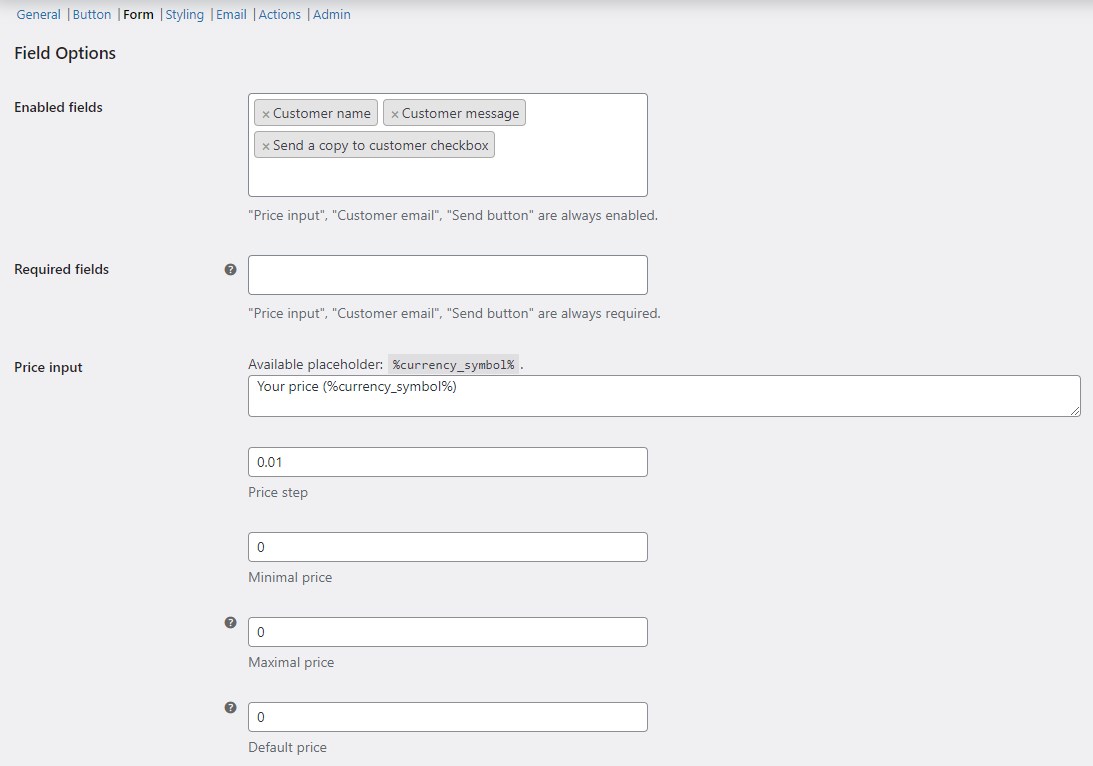
Correction to an earlier version of this article: price step, minimal price, maximal price, default price, customer name, customer phone, and the send-a-copy checkbox are free, not Pro. The only Pro parts of Name Your Price are per-product/category/variation targeting, archive-page button positions, and the auto-accept/auto-reject rules.
Enabled and required fields #
Price input, Customer email, and the Send button are always enabled and always required. You choose the rest.
- Enabled fields (
alg_wc_price_offerings_form[enabled_fields]): which optional fields appear. Default: Customer name, Customer message, and Send a copy to customer checkbox are enabled by default. Quantity, Customer phone, and reCAPTCHA are available but off by default. - Required fields (
alg_wc_price_offerings_form[required_fields]): which enabled fields the customer must complete. Default: none of the optional fields are required. A field must also be enabled to be required.
Price input options (all free) #
| Label | Option ID | Default |
|---|---|---|
| Price input label | alg_wc_price_offerings_form[price_label] |
Your price (%currency_symbol%) |
| Price step | alg_wc_price_offerings_form[price_step] |
0.01 |
| Minimal price | alg_wc_price_offerings_form[price_min] |
0 |
| Maximal price | alg_wc_price_offerings_form[price_max] |
0 (disabled) |
| Default price | alg_wc_price_offerings_form[price_default] |
0 (disabled) |
Use %currency_symbol% in the price label to show your store’s currency symbol. Minimal price sets the lowest amount a customer can enter; Maximal price and Default price are ignored when set to zero.
Quantity and customer fields (all free) #
- Quantity label (
alg_wc_price_offerings_form[quantity]) and Default quantity (alg_wc_price_offerings_form[quantity_default], default 1). - Customer email label (
alg_wc_price_offerings_form[customer_email], default “Your email”). - Customer name label (
alg_wc_price_offerings_form[customer_name], default “Your name”). - Customer phone label (
alg_wc_price_offerings_form[customer_phone], default “Your phone”). - Customer message label (
alg_wc_price_offerings_form[customer_message], default “Your message”). - Send a copy to customer checkbox label (
alg_wc_price_offerings_form[customer_copy], default “Send a copy to your email”).
To collect a phone number or a quantity, add those fields to Enabled fields. To force customers to complete them, add them to Required fields as well.
reCAPTCHA (free) #
Add reCAPTCHA to Enabled fields to protect the form from spam, then enter your Google reCAPTCHA v2 site and secret keys. See Add reCAPTCHA to the offer form.
Get more control #
Every form field option above is free. Name Your Price: Make Your Own Offer for WooCommerce Pro adds per-product price rules (per-product minimum, maximum, step, and default), per-category and per-variation targeting, and auto-accept/reject. See what Pro unlocks.