Install Catalog Health Scanner #
Installing Catalog Health Scanner takes a couple of minutes: upload, activate, then answer five questions that are already filled in for you. Catalog Health Scanner for WooCommerce Pro is distributed as a ZIP from your WPFactory account, so you install it through the WordPress plugins screen rather than searching for it.
Requirements #
| Requirement | Minimum | Notes |
|---|---|---|
| WordPress | 6.0 | Declared as Requires at least: 6.0. |
| PHP | 7.4 | Declared as Requires PHP: 7.4. |
| WooCommerce | Required | Declared as a hard dependency (Requires Plugins: woocommerce), so WordPress will not let you activate Catalog Health Scanner until WooCommerce is active. Tested up to WooCommerce 10.9. |
| User capability | manage_woocommerce |
Every screen, form and AJAX action requires it. Change it with the wpfchs_capability filter. |
| HPOS | Compatible | Declared compatible with High-Performance Order Storage. Catalog Health Scanner only reads products, so order storage does not affect it. |
Step-by-step #
- Download the plugin ZIP from your WPFactory account.
- In WordPress, go to Plugins > Add New > Upload Plugin, choose the ZIP and click Install Now. You can also upload the extracted folder to
/wp-content/plugins/over SFTP. - Click Activate. On activation the plugin creates its three database tables (
wpfchs_scans,wpfchs_issues,wpfchs_fixlog, each prefixed with your table prefix) and sets a one-time flag that sends you straight to the setup wizard. - Answer the five setup questions, or click Skip setup. Either way you land on the dashboard.
- Run your first scan. See run your first scan.
The tables are also refreshed whenever the plugin version changes, so future updates need no manual step.
Where the screens live #
Catalog Health Scanner attaches itself to the shared WPFactory admin menu when that menu is available, which it is in this build. Open WPFactory > Catalog Health.
If the shared menu library is not present, for example because it has been removed or disabled on your install, the plugin falls back to its own top-level Catalog Health menu item instead. The screens are identical either way; only the entry point moves.
Only the dashboard is listed in the menu. Everything else is reached from the tab bar that every plugin screen shares:
- Dashboard: the score, the scan controls, and the summary panels.
- Purchasability, Inventory, Shipping, Tax, Media, Structure, Downloads, Content, Feed Readiness, Pricing: one tab per check category, where you triage findings.
- History: past scans, comparison, and the fix log.
- Profiles (
admin.php?page=wpfchs-profiles), Settings (admin.php?page=wpfchs-settings) and Setup (admin.php?page=wpfchs-setup) sit at the right-hand end of the same tab bar.
Two more surfaces appear outside the plugin’s own pages: a sortable Health column on Products, and a Catalog Health panel in the sidebar of the product edit screen. Both are covered in triage issues in the category tabs.
The five-question setup wizard #
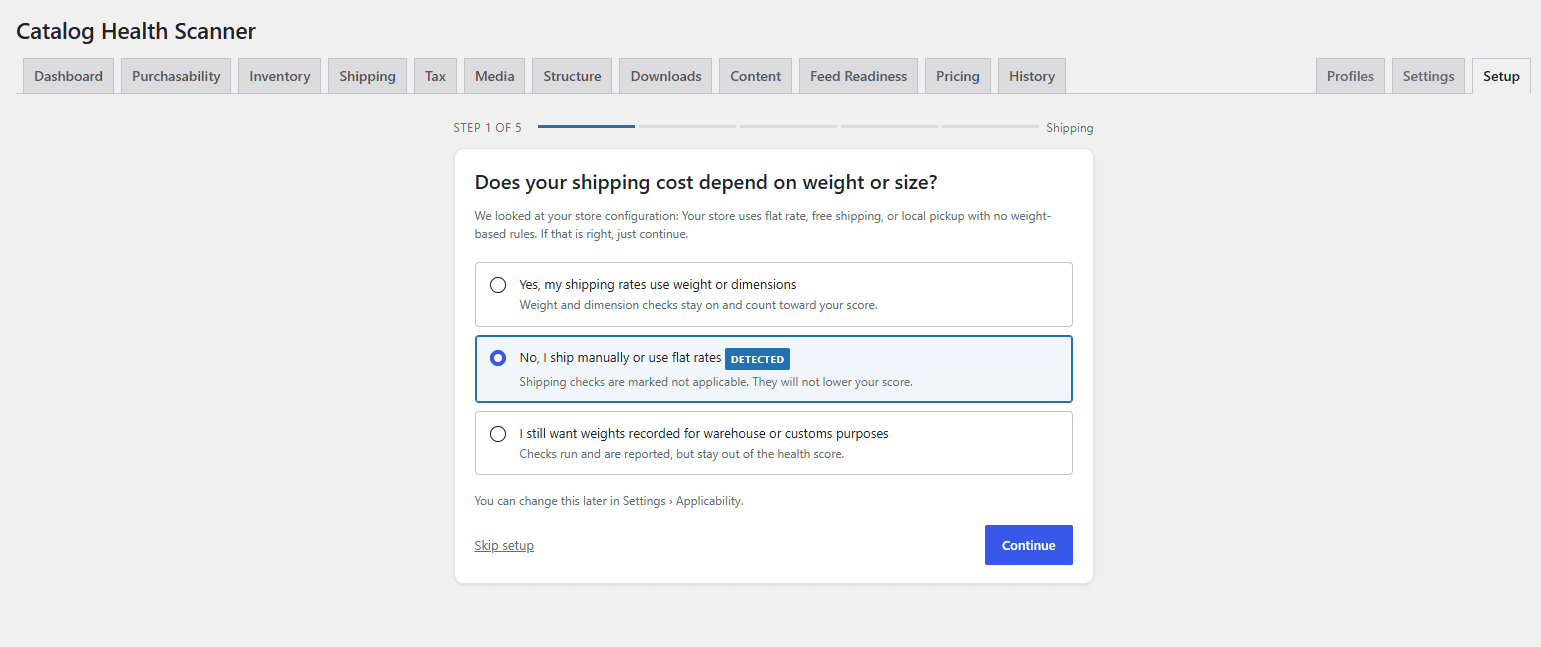
The wizard exists to answer one question: which groups of checks actually apply to your store. A store that ships flat rate should not be marked down for missing product weights, and a store with no shopping feed should not be marked down for missing GTINs.
You are not filling in a form. Before each question, Catalog Health Scanner inspects your store configuration, preselects the answer it detected, marks it with a Detected badge, and shows the reasoning it used (“An active shipping method appears to use weight or dimensions”, “No downloadable products found”). If the detection is right, click Continue. The wizard shows a step counter and progress bars, and has a Back button on every step after the first.
| Step | Question | Group | How it is detected |
|---|---|---|---|
| 1. Shipping | Does your shipping cost depend on weight or size? | shipping |
Any enabled shipping method that is not flat rate, free shipping, local pickup or pickup location is assumed to use weight or dimensions. |
| 2. Feeds | Do you list products on Google Shopping, Meta, or a comparison engine? | feed |
A known feed plugin is active, or at least one product has a feed identifier field populated. |
| 3. Costs | Do you track cost of goods and margin? | cog |
Cost of goods meta is present on at least one product. |
| 4. Downloads | Do you sell downloadable or virtual products? | downloads |
At least one product is marked downloadable. |
| 5. Tax | Do you sell to multiple tax regions or use multiple tax classes? | tax |
Tax is enabled and more than the standard tax class exists. |
The three answers #
Every question offers Yes and No. Answering No marks that group not applicable: its checks are skipped during the scan and excluded from the score entirely, so they neither lower it nor pad it.
The shipping question adds a third option: I still want weights recorded for warehouse or customs purposes. That is the report-only state. The checks run and appear in the Shipping tab, but they stay out of the health score. It is the right answer when the data matters to you operationally even though your shipping rates do not use it.
Confirming versus overriding #
This distinction is worth knowing. If you accept the detected answer, the group stays on Auto-detect, so it keeps re-evaluating as your store changes: install a feed plugin next month and the feed checks switch themselves on. If you choose a different answer, the group is pinned to that manual state and auto-detect stops overriding you.
All five answers are stored in the wpfchs_applicability option, and finishing the last step sets wpfchs_setup_complete.
Skipping the wizard #
The wizard is entirely optional. Skip setup is available on every step and takes you to the dashboard. Skipping is not the same as answering No to everything: every group simply stays on auto-detect, which is what the wizard would have set anyway if you had confirmed each detection.
Changing your answers later #
Go to Settings and open the Applicability panel. Every group is listed there, including three the wizard does not ask about: Inventory & stock, Product reviews and FAQ / Q&A content. Each row offers Auto-detect (recommended), Applicable, Report, but do not score, and Not applicable, alongside what auto-detect currently concludes and why.
Changing applicability also recalculates the scores of past scans from their stored counters, so the trend line stays comparable rather than jumping the moment you change a setting. See applicability: why checks are skipped.
You can also re-run the whole wizard: Settings > Reset & setup > Reset & re-run setup restores settings and profiles to their defaults and starts the wizard again. Scan history, issues and the fix log are kept.
Troubleshooting #
- The plugin will not activate. WooCommerce must be installed and active first. WordPress blocks activation while the declared dependency is missing.
- You cannot see the menu. The account needs the
manage_woocommercecapability. Shop managers and administrators have it by default; editors and authors do not. - You landed on the dashboard instead of the wizard. The redirect is one-shot and is cleared before it runs, so it never loops. Open Setup in the tab bar to start it manually.
- A detection looks wrong. Override it, in the wizard or in Settings. Auto-detect results are cached for an hour and refreshed on every settings save and after every completed scan.
Where to go next #
Need a hand? Our team answers every ticket on the Catalog Health Scanner support forum.