Every issue Catalog Health Scanner finds is triaged in a category tab: ten tabs, one per check category, each grouping its findings by check rather than by product. Catalog Health Scanner for WooCommerce Pro puts the filters, the multi-select and the bulk actions in the same place, so a group of two hundred products is as quick to deal with as a group of two.
Get there from WPFactory > Catalog Health and the tab bar, or by clicking a card on the dashboard, a chip in the critical banner, or a View link in Top issues.
The category header #
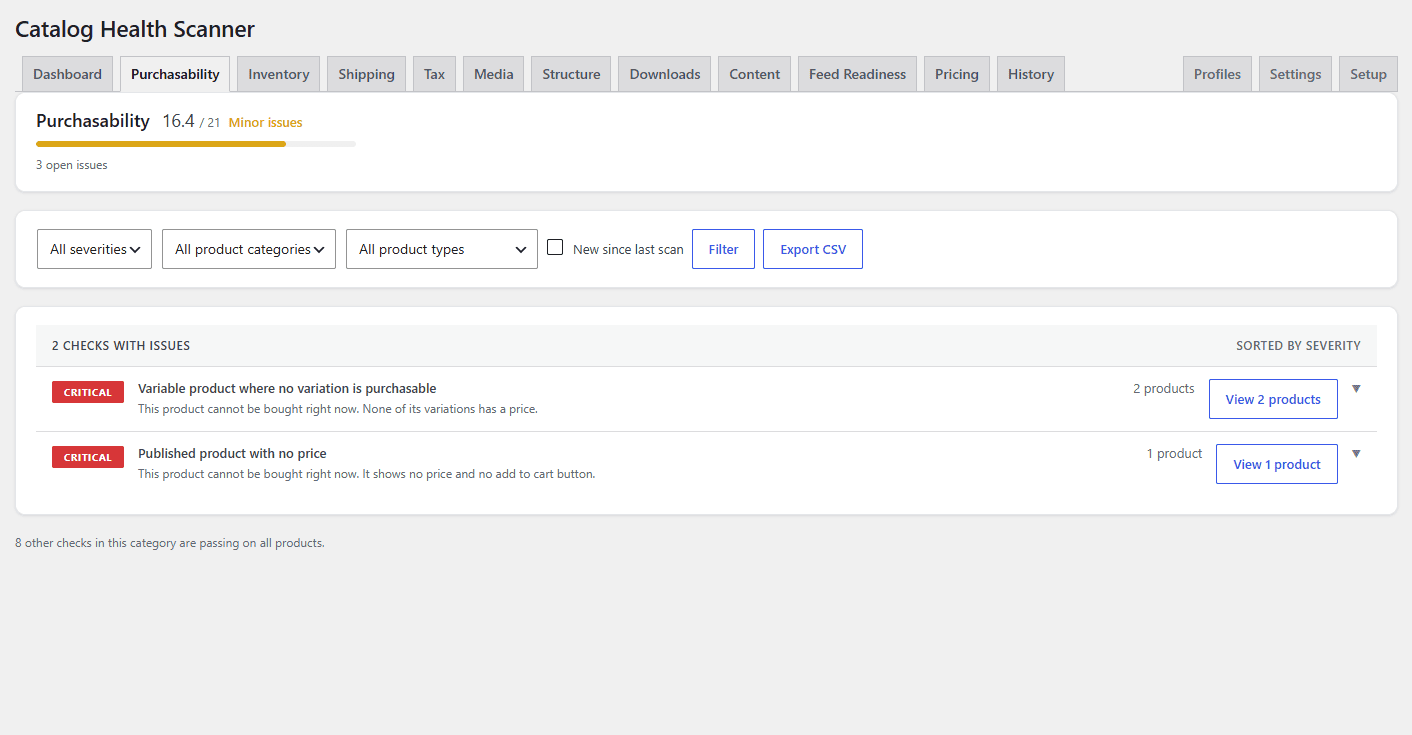
Each tab opens with the category name, its score as earned points out of possible points, its band, and the count of open issues. On the right sits the applicability state and the reasoning behind it, with a Change link into Settings. The state is one of three:
- Applicable: the checks run and count toward the score.
- Reported, not scored: the checks run and findings appear here, but they stay out of the health score. This is the report-only state.
- Not applicable: the checks never ran.
Why issues are grouped by check, not by product #
A per-product list would put a product with four problems in four places and give you nothing to act on collectively. Grouping by check inverts that, and it matches how catalog data actually breaks and gets fixed.
- One cause, one decision. Two hundred products missing a weight is one import that dropped a column, not two hundred separate problems. You decide once.
- A group is the unit a fix applies to. Auto-fixes, bulk assignment and bulk ignore all operate on a check and a set of products, which is exactly what a group is.
- Severity becomes visible. Groups are sorted by severity first, then by size, so the Critical group of three sits above the Low group of nine hundred.
- Passing checks stay out of the way. Checks with no open issues are not listed. A line at the bottom counts them: 7 other checks in this category are passing on all products.
When you do want the per-product view, it is one click away: the Health column on the products list and the Catalog Health panel on the product edit screen, both described at the end of this article.
The filter toolbar #
Above the groups sits a filter bar. It is a plain GET form, so the filters end up in the URL: the filtered view survives a reload, can be bookmarked, and can be pasted to a colleague.
| Filter | URL parameter | What it does |
|---|---|---|
| All severities | severity |
Shows only groups whose check has that severity: critical, high, medium or low. |
| All product categories | product_cat |
Limits every group to products in one product category. Lists up to 500 categories that have products. |
| All product types | product_type |
Limits every group to one WooCommerce product type: simple, variable, grouped, external, and any type another plugin registers. |
| New since last scan | new_since |
Shows only issues first seen in the most recent completed scan. This is the “what did I break yesterday” view. |
Set your filters, click Filter, and the group counts update to match. Export CSV at the right of the bar exports the current category. The filters also travel into the expanded product tables and into the bulk actions, so a bulk action can never reach beyond what you can see.
Two more parameters are useful in links: tab selects the category, and check names a check ID to open with that group already expanded. The dashboard uses both.
Issue groups #
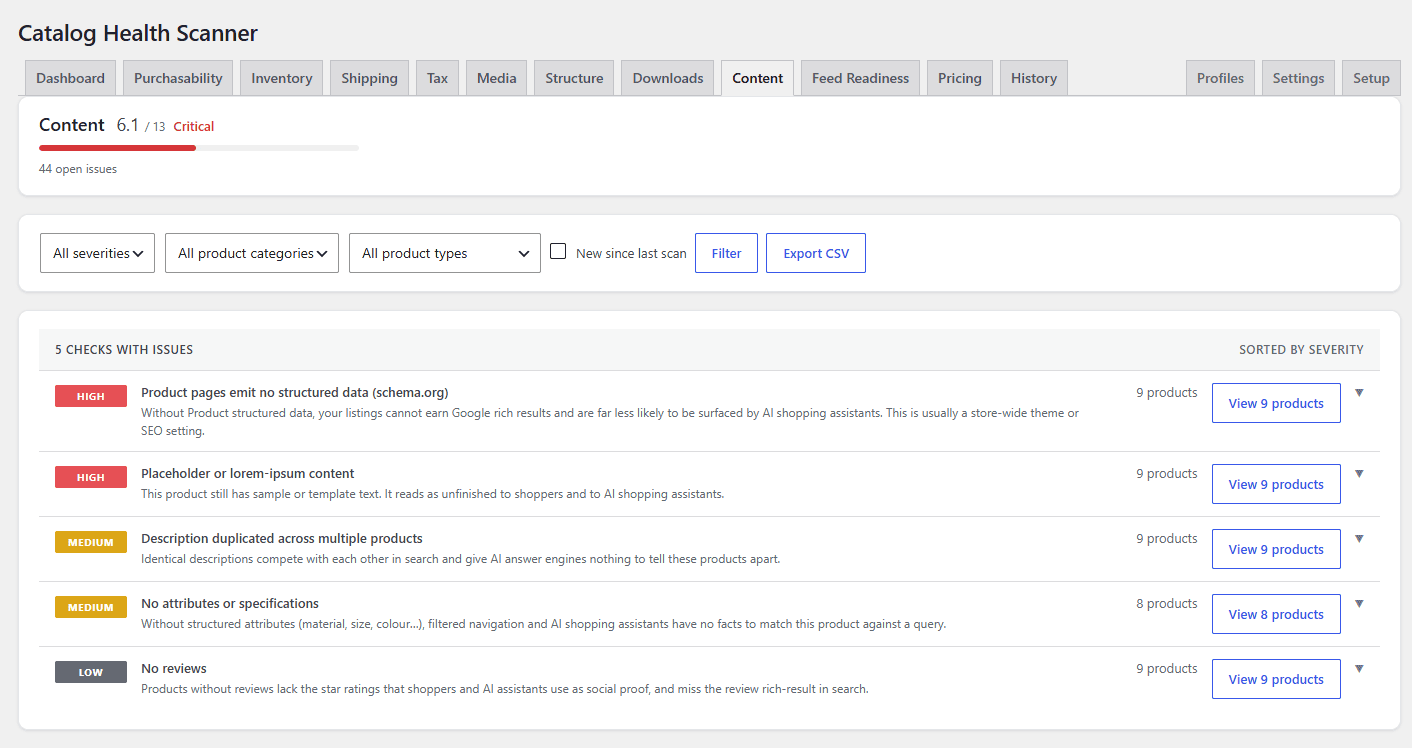
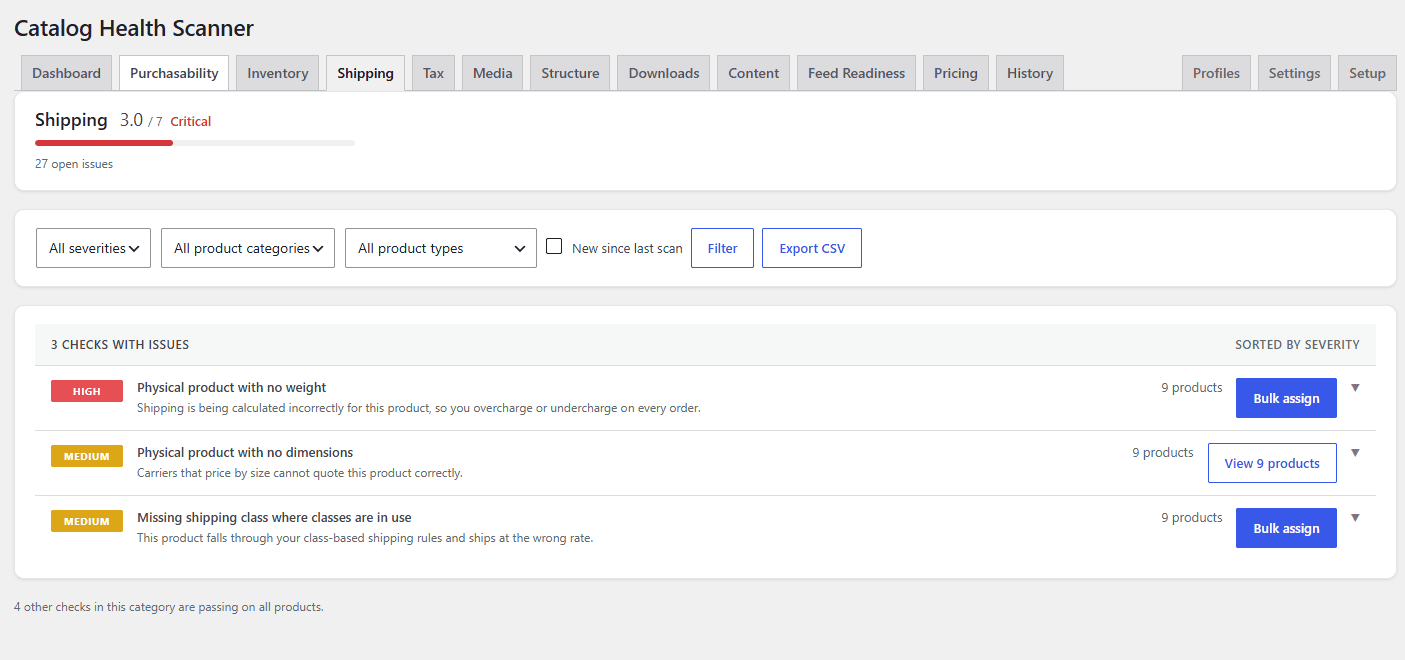
Each group is one row until you open it. The row carries the severity badge, the check label, a one-line explanation of why it matters, the number of affected products, and an action button whose wording depends on what can be done:
| Button | Fix type | Meaning |
|---|---|---|
| Fix all | auto |
The correct value can be derived from the product itself. Opens a preview of every change before anything is written. |
| Bulk assign | bulk |
A fix exists but needs a value from you, such as a weight, a shipping class or a tax class. Expands the group and shows the input next to a Preview changes button. |
| View N products | manual |
No automatic fix exists, so the useful next step is the products themselves. The button names the destination and its size rather than saying “Review”. |
Clicking anywhere on the row expands the group. The product table is fetched at that moment rather than rendered up front, so a tab with thirty groups stays fast.
Inside an expanded group #
The product table shows 20 products at a time with these columns:
- Checkbox for selection.
- Thumbnail, so you recognise the product without opening it.
- Product: the name, linked to its edit screen, with the SKU underneath.
- Type: the WooCommerce product type.
- Offending value: the actual data that failed the check, for example the duplicated SKU, the expired sale date, or the missing file path. This is the column that turns “something is wrong” into “here is what is wrong”.
- Actions: Edit and Ignore.
The footer shows the total matching products and a page counter with previous and next buttons. Below the table, where one applies, a single neutral dismissible line may suggest a WPFactory plugin that manages the missing data properly, for instance for EAN codes, cost of goods or EU VAT.
Selecting products #
The selection bar sits above the table and offers three levels of reach.
- Individual ticks. Click any row checkbox. A live counter reads N selected and the selection-scoped buttons appear.
- Shift-click for a range. Tick one row, hold Shift, tick another, and every row between the two is selected. This behaves the same way as WordPress list tables.
- Select all on this page. The checkbox in the selection bar, mirrored in the table header, ticks the 20 rows currently shown. It is a page-level action: it does not reach onto page 2.
With a selection active you get:
- Fix selected, on auto-fixable checks only. Bulk-assign checks already have their own Preview changes button beside the value they need.
- Ignore selected, which asks for confirmation and tells you what it means: the selected products will count as passing until you restore them from Settings.
Acting on every matching issue #
Next to the selection actions is the escape hatch: Ignore all N products, where N is every issue matching the active filters, not just the visible page. It is the right tool when a check is simply wrong for your store, for example a weight check on a catalog of services. It confirms first, and states plainly that the issues will count as passing until restored.
Because it respects the filter bar, you can also use it surgically: filter to a single product category, then ignore all within it.
Ignoring is permanent per product per check, and reversible from Settings > Ignored issues, which supports the same selection model plus a restore-all action. See ignore false positives.
The Health column on the products list #
Outside the plugin’s own screens, Products gains a Health column showing each product’s number of open issues, or a dash when there are none. The column is sortable, so one click brings the worst products to the top.
It reads a per-product counter (_wpfchs_open_issues) that is rebuilt at the end of every scan and patched immediately whenever you fix or ignore something, so the column stays honest between scans without any extra queries on the list screen.
The panel on the product edit screen #
Editing a single product, a Catalog Health box appears in the sidebar listing that product’s open issues, up to 50, each with its severity badge, the check label, the offending value, and an Ignore for this product link. A link at the bottom opens the dashboard.
The panel is read-only: it has no fields of its own and saves nothing when you update the product. It exists so that someone already fixing a product can see everything else the scanner found on it without leaving the screen. When the product is clean, it simply says so.
A practical triage order #
- Start from the dashboard’s critical banner and clear the Critical groups first. They are the ones capping your score and blocking sales.
- In each category, apply Fix all to the auto-fixable groups. Every change is previewed and reversible.
- Work the bulk-assign groups, filtering by product category so one value fits the whole selection.
- Ignore what is genuinely not applicable to your store, rather than leaving it open and learning to overlook it.
- Leave the manual groups for a scheduled block of work, sorted by size.
- Re-scan, then use New since last scan to confirm nothing new arrived while you were working.
Troubleshooting #
- A group shows fewer products than you expected. A filter is active. The counts in the group rows already reflect the filter bar.
- Shift-click selects nothing. The range needs an earlier tick in the same table to anchor to. Tick one row normally first.
- Ignore all acted on more products than the page showed. That is its purpose: it targets every matching issue. Narrow the filters first if you want a smaller reach.
- The Health column is empty for every product. It is populated when a scan completes. Run a scan.
- A whole category tab is empty and marked Not applicable. Its checks never ran. Change the group in Settings > Applicability, then re-scan.
Where to go next #
- Fix issues safely: preview, undo, log
- Ignore false positives
- Check library: all 70 checks
- CSV export and PDF audit report
Need a hand? Our team answers every ticket on the Catalog Health Scanner support forum.