Fix catalog issues safely #
Fixing catalog issues in Catalog Health Scanner for WooCommerce Pro is built around one rule: nothing is written to your products until you have seen the exact before and after values, and everything that is written can be undone in one click. Catalog Health Scanner is honest about what it can and cannot repair, so each check falls into one of three tiers rather than pretending everything is a button press away.
The three honesty tiers #
| Tier | Value | What it means |
|---|---|---|
| Auto-fixable | auto |
There is only one correct answer and the plugin already knows it. Clearing an expired sale price or removing a reference to a deleted image needs no decision from you. |
| Bulk-assignable | bulk |
The plugin can write the change, but only you know the value. You supply one weight, category, brand, tax class, or cost percentage and it is applied across the selection. |
| Manual only | manual |
No safe automatic answer exists. A duplicate SKU, a thin description, or a price outlier is a judgement call, so the finding links you to the product edit screen and stops there. |
Most of the 70 checks are manual only, and that is deliberate. Nineteen of them ship with a fixer.
The checks that can be fixed from the plugin #
Auto-fixable (one click, no input) #
| Check | Category | Fixer | What it writes |
|---|---|---|---|
| Expired sale still set | Purchasability | clear_expired_sale |
Clears the sale price and both sale dates. |
| Stock status does not match quantity | Inventory | sync_stock_status |
Sets the stock status to match the quantity and backorder setting. |
| Stock quantity with stock management off | Inventory | clear_unmanaged_stock |
Deletes the orphaned _stock value. |
| Gallery references deleted attachments | Media | clean_gallery |
Removes the dead ids from the gallery. |
| Virtual product carries weight or dimensions | Shipping | clear_virtual_dimensions |
Clears weight, length, width and height. |
| Shipping class no longer exists | Shipping | unassign_deleted_shipping_class |
Removes the relationship rows pointing at deleted terms. |
| Invalid tax class | Tax | reset_tax_class |
Resets the product to the standard rate. |
| Cross-sells or upsells point at deleted products | Structure | clean_linked_products |
Removes the broken references, keeps the valid ones. |
| Grouped product lists invalid children | Structure | clean_grouped_children |
Removes the broken child references. |
| Orphaned variation | Structure | delete_orphaned_variations |
Moves the variation to the trash. See the warning below. |
| Encoding artifacts in the title | Content | clean_title_artifacts |
Repairs double-encoded entities and mojibake, and leaves the title alone when a safe repair is not possible. |
Bulk-assignable (you supply the value) #
| Check | Category | Fixer | What you provide |
|---|---|---|---|
| SKU missing | Inventory | generate_skus |
Nothing: SKUs are generated from the product slug and the product id, so they are unique by construction. |
| Variation SKU missing | Inventory | generate_skus |
Nothing: each variation without its own SKU gets one based on the parent SKU. |
| Weight missing | Shipping | set_weight |
One weight, in your store weight unit. |
| Shipping class missing | Shipping | assign_shipping_class |
One shipping class. |
| Product category missing | Structure | assign_category |
One product category, added to whatever the product already has. |
| Brand missing | Feed Readiness | assign_brand |
One brand term, from whichever brand taxonomy your store uses. |
| Inconsistent tax class | Tax | assign_tax_class |
One tax class, or the standard rate. |
| Cost of goods missing | Pricing | set_cog_percent |
A percentage of the price, between 1 and 100, written as a starting estimate you can refine later. |
Everything else in the check library is manual only.
The safety model #
1. Preview is mandatory #
There is no path that writes to your catalog without a preview step first. Clicking Fix all on a quick win, Fix selected in the selection bar, or Preview changes on a bulk control all open the same dialog: a table of Product, Current, and After fix, one row per product, with the real values that would be written.
The preview is computed by the same code that performs the write, so what you see is what happens. It is a read-only pass: nothing is saved while the dialog is open. Products the fixer would not actually change are silently dropped from the list, so the count in the dialog title is the true number of products that will be touched, not the number of open issues.
Long lists are truncated for display (200 rows for a single check, 60 for the combined quick-wins preview) with a line telling you how many of the total you are looking at. The fix itself still covers everything.
2. One-click undo for the whole batch #
Every applied fix is recorded as one batch in the {prefix}wpfchs_fixlog table, together with the before and after value for each product. Undo replays those recorded before-values back onto the products, marks the batch as undone, and reopens the issues the fix had resolved.
Undo is a whole-batch action. There is no per-product undo inside a batch, and no redo after an undo.
3. Everything is logged #
The Fix activity log at the bottom of the History tab lists the 25 most recent batches with the date, the user who ran it, the check, the number of products, and the status. The status column is where the Undo button lives while the batch is still inside the undo window; after that it reads Applied, and once undone it reads Undone.
4. The undo window #
The undo window defaults to 30 days and is a threshold setting: Settings > Thresholds > Fix undo window (days), stored as undo_window_days inside the wpfchs_thresholds option. The window is shown to you in the preview dialog before you commit (“This action can be undone for 30 days”), so you always know what you are getting.
After the window passes, the log row stays for the record but the Undo button is gone, and attempting the action returns “The undo window for this fix has expired.”
Applying a fix #
- Open WPFactory > Catalog Health and go to the category tab holding the issue, or use the Quick wins panel on the dashboard.
- Expand the issue group to see the affected products. Auto-fixable groups carry a Fix all button on the group row; bulk-assignable groups carry Bulk assign, which opens the group and its controls.
- For a bulk-assignable check, set the value in the controls row above the table (weight, class, category, brand, tax class, or cost percentage).
- Optionally tick individual products. Shift-click selects a range, and the header checkbox selects the whole page. With nothing ticked, the fix targets every open issue for that check.
- Click Preview changes or Fix selected.
- Read the before and after table, then confirm.
If the preview comes back empty for a bulk check, the message “Nothing to change with these settings” almost always means the bulk value was left blank or is invalid.
Quick wins and “Fix all” #
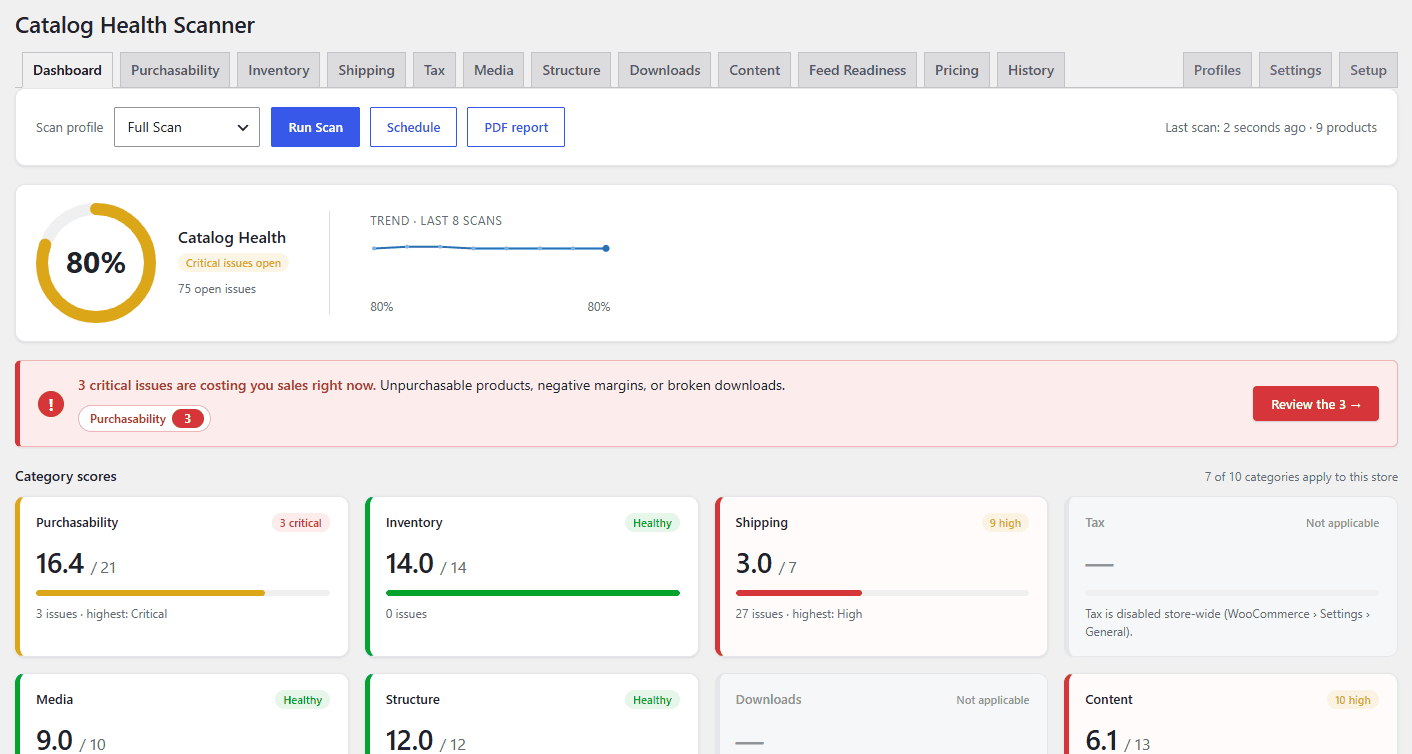
The Quick wins panel on the dashboard lists the auto-fixable checks that currently have open issues, largest first, each with its own Fix all button. The Fix all button in the panel header covers every auto-fixable check at once.
The combined action still previews first: you get a summary line (“N products will be fixed across M checks”), a per-check breakdown, and a sample of before and after rows drawn from each check. Each check is then written as its own batch in the fix log, so you can undo one of them without undoing the rest.
Bulk-assignable checks are never part of quick wins. They need a value from you, so they can only be run from their own category tab.
Optional auto-fix after scheduled scans #
Under Settings > Scheduled scans & email digest there is an opt-in checkbox: Automatically apply the unambiguous “quick win” fixes after each scheduled scan (auto_fix_enabled inside the wpfchs_schedule option). It is off by default.
When it is on, a completed scheduled scan runs exactly the same quick-wins pass an operator would run by hand, with the same logging and the same undo. It only ever runs the auto tier, never bulk-assignable checks, and it only fires for scans whose trigger was the schedule, not for manual scans. Because it runs before the digest is built, the email reflects the catalog after the fixes rather than before. See scheduled scans, digest and alerts.
Turning this on means unattended writes to your catalog. It is reversible, but review the fix log after the first scheduled run so you know what it does on your data.
The one destructive fixer #
Exactly one fixer removes something rather than correcting it: delete_orphaned_variations, attached to the Orphaned variation check in the Structure category. An orphaned variation is a product_variation row whose parent product no longer exists, so it can never be bought or edited through the product screen.
Even this one does not hard-delete. It calls the WordPress trash, exactly as the Trash link on any post does, and undo untrashes the variation again. The preview labels it plainly: “Orphaned variation” becomes “Moved to trash”.
The caveat is WordPress, not the plugin: trashed posts are permanently purged after EMPTY_TRASH_DAYS (30 days by default). If the trash is emptied, by WordPress or by hand, the variation is gone and undo can no longer bring it back, even if the plugin’s own undo window has not expired yet.
What undo cannot restore #
Undo is a faithful replay of what the plugin wrote. It is not a general-purpose rollback of your database, and it is worth knowing its limits before you rely on it:
- Changes you made afterwards. Undo writes the recorded before-value back. If you edited that field by hand after the fix, undo overwrites your edit with the old value.
- Anything outside the fixed field. Only the specific fields a fixer touched are recorded and restored. Side effects of saving a product elsewhere in your stack are not captured.
- Batches past the undo window. Default 30 days, then the button is gone.
- Batches already undone. There is no redo, and a batch cannot be undone twice.
- Products that no longer exist. If a product or variation was deleted after the fix, its row cannot be reverted and the restored count comes back lower than the fixed count.
- Variations purged from the trash. As described above, untrash only works while the post is still in the trash.
- The fix log itself. Undo depends entirely on the
{prefix}wpfchs_fixlogrows. If that table is dropped, undo goes with it. - Your health score. Undo reopens the issues and refreshes the per-product counters immediately, but the score attached to a completed scan is a record of that scan. Re-run a scan to see the score move.
For anything larger than a single reversible batch, take a database backup before you start. That advice is not specific to this plugin, but a first pass over a freshly imported catalog can touch a lot of products at once.
Related settings and hooks #
| Key | Type | Default |
|---|---|---|
undo_window_days (in wpfchs_thresholds) |
Number of days | 30 |
auto_fix_enabled (in wpfchs_schedule) |
yes / no | no |
wpfchs_fix_applied |
Action, fires after a batch is written | Receives the log id, check id, and items. |
wpfchs_fix_undone |
Action, fires after a batch is undone | Same arguments. |
wpfchs_generated_sku |
Filter | Changes the SKU pattern used by generate_skus. |
wpfchs_brand_taxonomies / wpfchs_cog_meta_keys |
Filters | Point the brand and cost fixers at your own taxonomy or meta key. |
Related reading #
- Triage issues in the category tabs
- Ignore false positives for findings that are correct for your store as they stand
- Scan history and comparison, where the fix activity log lives
Need help? #
If a fix did not behave the way the preview described, note the batch date from the fix activity log and contact WPFactory support.