Ignore false positives #
Ignoring a false positive in Catalog Health Scanner for WooCommerce Pro permanently silences one check on one product, so a finding that is simply not true for your store stops coming back on every scan. Catalog Health Scanner treats an ignored issue as passing when it calculates your health score, and it always tells you how many you have ignored right next to that score.
Why this exists #
Any tool that checks 70 rules against every product in a catalog will be wrong about something. A gift card with no weight is not a shipping problem. A made-to-order product that has sat out of stock for a year is not stale. A deliberately identical description across a size run is not duplicate content.
False positives are the single biggest reason people abandon an audit tool: once a list contains findings you know are wrong, you stop trusting the list, and then you stop opening it. Ignore is the answer to that. It is not a snooze and not a filter. Once you ignore an issue, it is gone from the working list for good unless you deliberately restore it.
Ignore is per product and per check #
An ignore applies to exactly one product (or one variation) for exactly one check. Ignoring “weight missing” on a gift card does nothing to any other product, and does nothing to any other check on the gift card. The state is stored on the issue row in the {prefix}wpfchs_issues table, as status ignored, together with the user who did it and when.
Every scan afterwards re-tests the product and finds the same thing, then sees the ignore and leaves the issue ignored. That is what makes it permanent rather than a one-scan dismissal.
If you want to silence a rule for the whole catalog rather than one product, do not use Ignore. Untick the check under Settings > Individual checks instead, or set a whole group to not applicable. See check applicability for the difference.
Ignoring one issue #
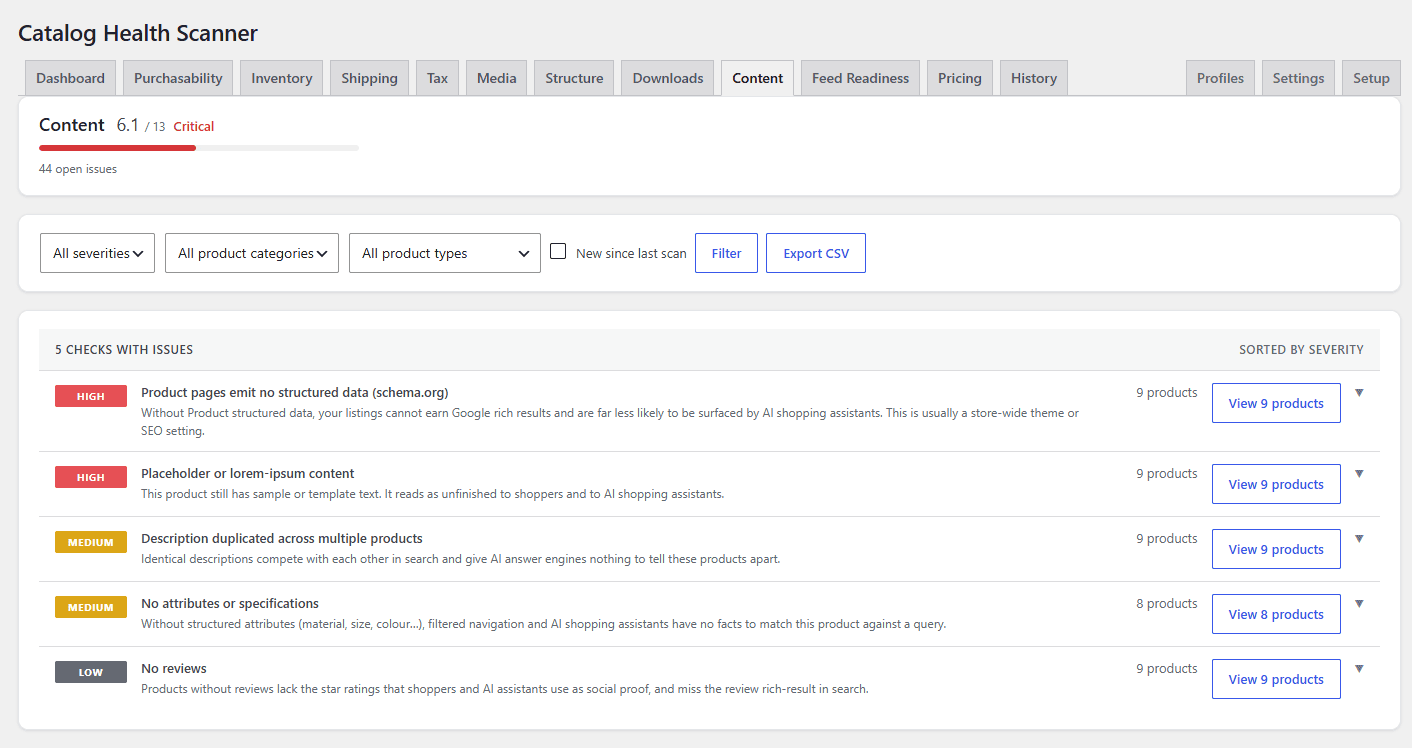
- Go to WPFactory > Catalog Health and open the category tab holding the finding.
- Expand the issue group so the product table is showing.
- In the Actions column of the product row, click Ignore.
The row is removed from the list, the product’s open-issue counter is recalculated straight away, and a confirmation appears telling you the issue counts as passing until you restore it from Settings.
Ignoring in bulk #
The selection bar above every product table gives you two bulk paths, and they cover different amounts of ground.
| Action | Scope |
|---|---|
| Ignore selected | Exactly the rows you ticked. Shift-click selects a range; the header checkbox selects the whole visible page. The button appears as soon as one row is ticked, and the bar shows a live count of the selection. |
| Ignore all N products | Every open issue matching the filters currently applied to the tab, not just the visible page. The number in the button label is that total, so you can see the size of the action before you take it. |
“Ignore all” respects the toolbar filters exactly as they are set: severity, product category, product type, and the “new since last scan” toggle all narrow it. That is deliberate, so a bulk action can never reach further than what you were looking at. Filter down to the group you are confident about, confirm the count in the button, then act.
A single bulk call is capped at 20,000 issues as a safety ceiling, and the writes are chunked internally so a very large selection cannot build an oversized query. If you have more than that, run it twice.
How ignoring affects your score #
An ignored issue counts as passing. It never increments the failed count for its check, so the check’s contribution to the score is calculated as though that product were fine. This is the honest interpretation: you have looked at the finding and decided it is not a problem, so the score should reflect your decision rather than argue with it.
Because that could quietly flatter a catalog, the count is declared everywhere the score is shown:
- On the dashboard, immediately after the score, as “N ignored, not counted”. The text is a link straight to the ignore list.
- On the PDF audit report cover, under “Excluded from this score”, alongside any products the scan skipped. The report is a document you hand to a client, so a score that quietly omitted ignored findings would misrepresent the store.
An ignored issue is still a broken product. It is only excluded from the arithmetic, never hidden from the record. The full scoring rules are in how the health score is calculated.
One practical note: the score attached to a scan is that scan’s record. Ignoring issues updates the product counters immediately, but re-run a scan to see the headline number change.
The ignore list: review and restore #
Everything you have ignored is reviewable in one place: WPFactory > Catalog Health > Settings, in the Ignored issues panel at the bottom of the screen. The dashboard link and the anchor #wpfchs-ignored both land there.
The table lists, for each ignored issue:
| Column | Contents |
|---|---|
| Product | Product name, linked to its edit screen. |
| Check | The check that was silenced. |
| Ignored by | The user who made the decision. |
| Ignored on | The date it was ignored. |
| Actions | A Restore link that puts the issue back to open. |
Auditing who ignored what, and when, is the point of those middle two columns. On a shop run by more than one person it is the difference between a considered decision and a mystery.
Restoring #
- Restore on a row puts that single issue back to open.
- Restore selected handles the rows you ticked, with the same select-all-on-this-page checkbox as the issue tables.
- Restore all N issues clears the entire ignore list in one action. This one is not limited to the current page: the button label carries the true total, and the panel says so explicitly when there are more ignored issues than fit on screen.
The panel shows the 200 most recent ignores at a time. That is a display limit only; “Restore all” always covers every ignored issue in the database.
After restoring, the affected products’ issue counters are refreshed immediately and the confirmation reminds you to re-run the scan to refresh the score.
When to ignore, and when not to #
| Situation | Better tool |
|---|---|
| One product is a genuine exception (a gift card, a service, a made-to-order item) | Ignore |
| A whole rule does not fit how you run your shop | Untick it under Settings > Individual checks |
| A whole area is irrelevant (no shipping, no feed, no downloads) | Set the group to not applicable in Applicability |
| You want the findings listed but out of the score | Set the group to report_only |
| The finding is correct and you just do not want to deal with it today | Leave it open. Ignoring it removes it from the working list permanently. |
| A whole product category should not be scanned at all | Exclude it under Settings > Scan scope |
Related reading #
Need help? #
If a check is producing findings you believe are wrong across many products rather than a handful, that is worth reporting rather than ignoring. Contact WPFactory support with the check name and a couple of example products.