Scan profiles #
A scan profile decides which of the 70 checks a scan actually runs. Catalog Health Scanner for WooCommerce Pro ships six built-in profiles, each shaped around a real moment in a store’s life, and lets you build your own from any combination of checks.
Profiles exist because “scan everything” is rarely the right first move. Right after a migration you care about orphans and encoding damage, not about alt text. Before a launch you care about images and descriptions, not about feed identifiers. Picking the right profile turns a wall of findings into a short worklist.
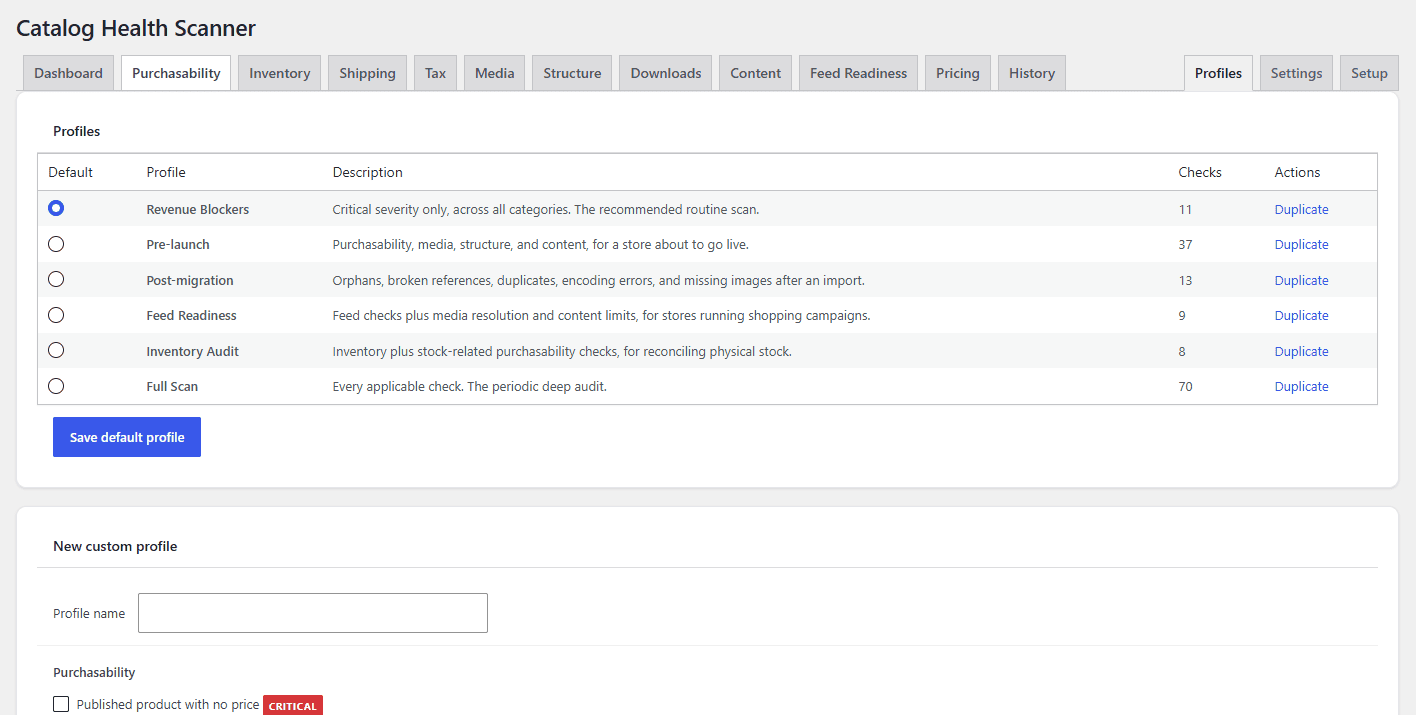
The six built-in profiles #
| Profile | Profile ID | What it runs | When to use it |
|---|---|---|---|
| Revenue Blockers | revenue_blockers |
Every Critical-severity check, across all ten categories. | The recommended routine scan, and the default. Short, fast, and every finding is something costing you sales right now. |
| Pre-launch | pre_launch |
Every check in Purchasability, Media, Structure and Content. | A store about to go live, where products must be buyable, look right and read right. |
| Post-migration | post_migration |
A fixed list of 13 checks covering orphans, broken references, duplicates, encoding damage and missing images: orphaned_variation, linked_products_deleted, grouped_children_invalid, sku_duplicate, sku_near_duplicate, title_duplicate, title_artifacts, broken_shortcodes, image_missing, image_file_missing, gallery_deleted_refs, shipping_class_deleted, tax_class_invalid. |
Straight after an import or a platform migration. These are the failures that a move creates and that nothing else reports. |
| Feed Readiness | feed_readiness |
Every Feed Readiness check, plus image_missing, image_low_res and title_duplicate. |
Before submitting or refreshing a shopping feed. The three extra checks are the non-feed reasons products get disapproved. |
| Inventory Audit | inventory_audit |
Every Inventory check, plus out_of_stock_stale. |
Reconciling the catalog against physical stock, or cleaning up SKUs. |
| Full Scan | full |
Every applicable check. | The periodic deep audit, and the profile behind a complete PDF report. |
Built-in profiles cannot be edited or deleted. If you want a variation of one, duplicate it and edit the copy.
A profile is a request, not a guarantee #
Three filters decide what a scan actually runs, in this order:
- The check must not be switched off in Settings > Individual checks.
- The check must be in the selected profile.
- The check’s applicability group must apply to your store.
So a Full Scan on a flat-rate store still skips the shipping checks, and a Feed Readiness scan on a store with no feed will tell you there are no applicable checks in the profile rather than reporting hundreds of missing GTINs. That is the applicability engine doing its job. See applicability: why checks are skipped.
Where profiles live #
Open WPFactory > Catalog Health and click Profiles in the tab bar (admin.php?page=wpfchs-profiles). The table lists every profile, built-in and custom, with its description, its check count, and the actions available on it.
Create a custom profile #
- Scroll to New custom profile below the profile table.
- Type a Profile name. This is required.
- Tick the checks you want. They are grouped by category, and each one shows its severity badge.
- Click Save custom profile.
Checks that belong to a group your store has marked not applicable appear greyed out, disabled, and labelled (excluded by applicability). You cannot add them to a profile while the group is off, which saves you building a profile that would silently run nothing.
A profile needs a name and at least one check to save. Custom profiles are stored in the wpfchs_custom_profiles option and their IDs are prefixed custom_.
Edit, duplicate, rename and delete #
| Action | Available on | What it does |
|---|---|---|
| Edit | Custom profiles | Loads the profile into the editor below the table, with its name and current checks filled in. The heading changes to Edit profile: [name] and the button to Save changes. A Cancel editing link returns to a blank editor. |
| Duplicate | Every profile | Creates a new custom profile named Copy of [name] with the same checks. Duplicating Full Scan expands it to an explicit list of all 70 checks, so the copy is a fixed set rather than “everything applicable”. |
| Rename | Custom profiles | Edit the profile and change the Profile name field. The underlying profile ID does not change, so scans that already used it stay linked to it. |
| Delete | Custom profiles | Asks for confirmation (“Delete this profile? Scans that used it keep their history.”) and removes it. Past scans keep their stored profile name and their check list, so History and the trend line are unaffected. |
To turn a built-in profile into a starting point, duplicate it and edit the copy. That is the supported way to get, for example, “Revenue Blockers plus the two Media checks I care about”.
Set the default profile #
The Default radio column at the left of the profile table sets which profile is used when nothing else is chosen. Select a row and click Save default profile. The choice is stored in wpfchs_default_profile and defaults to revenue_blockers.
The default is used in two places:
- Manual scans. The dashboard dropdown preselects the last profile you ran manually, falling back to the default when there is no such history, or when the profile you last used has since been deleted.
- Scheduled scans. These have their own Profile dropdown in Settings > Scheduled scans & email digest, so a nightly Revenue Blockers scan can coexist with a manual Full Scan whenever you feel like one. See scheduled scans, digest and alerts.
If the stored default ever points at a profile that no longer exists, Catalog Health Scanner falls back to Revenue Blockers rather than failing.
Use cases #
- Nightly Revenue Blockers, monthly Full Scan. Schedule Revenue Blockers daily for the alerting value, and run Full Scan by hand when you have time to work through the long tail.
- A supplier import profile. Duplicate Post-migration, add the feed identifier and image checks your supplier feed keeps getting wrong, and run it after every import.
- A handover profile for an agency. Duplicate Full Scan, untick the Low-severity checks the client will not act on, and use it as the basis for the PDF report.
- A pricing-only sweep. Build a custom profile from the Pricing category alone and run it after a bulk price change.
Troubleshooting #
- The profile saved with fewer checks than you ticked. Only known check IDs are stored. Anything unrecognised, for example a check added by a filter that is no longer active, is dropped on save.
- A check you want is greyed out. Its applicability group is marked not applicable. Change it in Settings > Applicability, then reload the profile editor.
- The dropdown does not show your new default. The dashboard preselects the last profile you ran manually, which wins over the default. Run the new one once and it sticks.
- You want profiles managed in code. The whole profile array, built-in plus custom, passes through the
wpfchs_profilesfilter. A profile whosechecksvalue isnullmeans “every applicable check”.
Where to go next #
- Run your first scan
- Check library: all 70 checks
- Applicability: why checks are skipped
- Developer reference
Need a hand? Our team answers every ticket on the Catalog Health Scanner support forum.