Table of Contents
Letting customers place orders above the limit #
Sometimes you want to warn about a limit without blocking the sale. Maximum Products per User for WooCommerce Pro can turn limit errors into non-blocking notices, so customers can still check out, and optionally move those orders to a special status for review. This is a Pro feature in the Advanced section.
Before you start #
How to enable it #
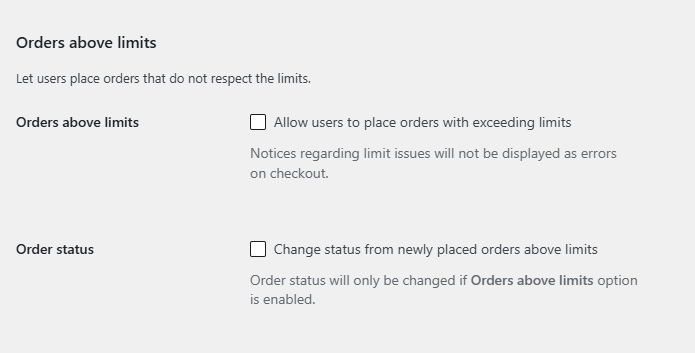
- Go to WPFactory > Max Products per User (also reachable at WooCommerce > Settings > Maximum Products per User) and open the Advanced section.
- Under Orders above limits, enable Allow users to place orders with exceeding limits (
alg_wc_mppu_orders_above_limits_allowed). Limit messages now appear as notices, not checkout-blocking errors. - Optionally enable Order status (
alg_wc_mppu_orders_above_limits_change_status) to move over-limit orders to a status you choose. - When status change is on, pick the target status (
alg_wc_mppu_orders_above_limits_status, default “Above limit”) and set a custom label if you want (alg_wc_mppu_orders_above_limits_custom_status_label).
Options #
| Label | Option ID | Default |
|---|---|---|
| Orders above limits | alg_wc_mppu_orders_above_limits_allowed |
No |
| Change order status | alg_wc_mppu_orders_above_limits_change_status |
No |
| Order status used | alg_wc_mppu_orders_above_limits_status |
Above limit |
| Custom status label | alg_wc_mppu_orders_above_limits_custom_status_label |
Above limit |
Use cases #
- Soft limits: nudge customers with a notice but still take the order.
- Manual review: route over-limit orders to a dedicated status so staff can approve or cancel them.
Ready to set this up? #
Orders above limits is a Pro feature of Maximum Products per User. Get Maximum Products per User Pro.