Table of Contents
Showing customers their limits in My Account #
Maximum Products per User for WooCommerce can add a tab to the WooCommerce My Account page where each customer sees how much they have bought, how much remains and the maximum for each product or category. This feature is free.
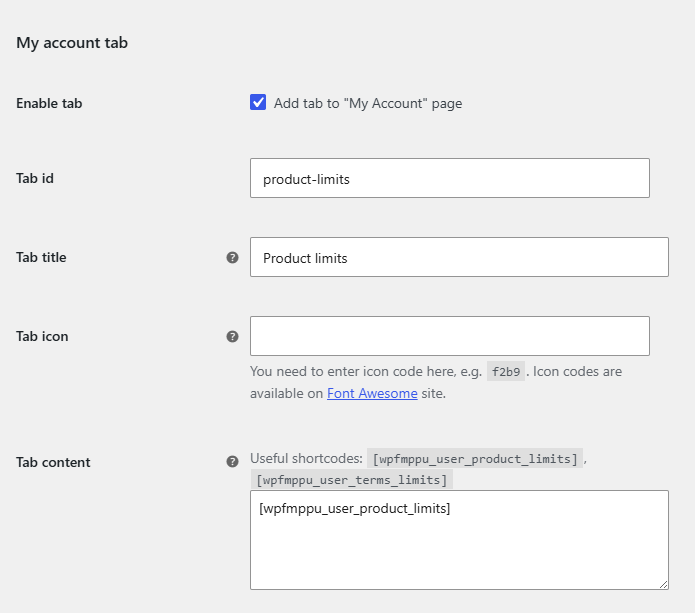
Where to find it #
Go to WPFactory > Max Products per User (also reachable at WooCommerce > Settings > Maximum Products per User), open the Frontend section and find My account tab.
Step by step #
- Enable Enable tab (
alg_wc_mppu_my_account_enabled). - Set the Tab id (
alg_wc_mppu_my_account_tab_id, defaultproduct-limits) used in the endpoint URL. - Set the Tab title (
alg_wc_mppu_my_account_tab_title, default “Product limits”). - Optionally set a Tab icon (
alg_wc_mppu_my_account_tab_icon) using a Font Awesome code such asf2b9. - Edit the Tab content (
alg_wc_mppu_my_account_tab_content). By default it shows[wpfmppu_user_product_limits]. - Save. If the tab does not appear right away, go to Settings > Permalinks and click Save to flush rewrite rules.
Shortcodes you can put in the tab #
[wpfmppu_user_product_limits]: a table of products with Remaining, Bought and Max.[wpfmppu_user_terms_limits taxonomy="product_cat"]: category limits (needs Per product category enabled, Pro). Usetaxonomy="product_tag"for tags.
Note: these are the current shortcode tags. The alg_wc_mppu_user_product_limits and alg_wc_mppu_user_terms_limits versions are deprecated as of 4.5.0.
Get more control #
The My Account tab is free. Maximum Products per User for WooCommerce Pro adds the per-category and per-tag limits that power the terms table. See what Pro unlocks.