To disable Cash on Delivery for local pickup in WooCommerce, use Payment Gateways by Shipping Method for WooCommerce: go to WPFactory > Payment Gateways by Shipping (also reachable at WooCommerce > Settings > Payment Gateways by Shipping), select every shipping method except Local pickup in the Cash on delivery field, and save. Checkout then hides it for Local pickup.
How the rule works #
Each gateway field is an allow list. Payment Gateways by Shipping keeps a payment gateway at checkout only when the customer’s chosen shipping method is in that gateway’s list. There is no separate “exclude” list, so to block one method you allow all the others.
Note: an empty field means the gateway is available for every shipping method. Only gateways you fill in are restricted.
Before you start #
- Local pickup and your delivery methods (for example Flat rate or Free shipping) are set up in WooCommerce > Settings > Shipping.
- Cash on delivery is enabled in WooCommerce > Settings > Payments.
Steps #
- Go to WPFactory > Payment Gateways by Shipping (also reachable at WooCommerce > Settings > Payment Gateways by Shipping).
- Decide how precise the rule must be. With Use shipping instances off (the default), the list shows shipping method types such as Flat rate, Free shipping and Local pickup, and a rule applies in every zone. Turn it on and save if you want to choose methods zone by zone, see restricting payment methods by shipping zone.
- In the Payment Gateways section, find Cash on delivery.
- Click Select all under the field.
- Remove Local pickup from the field (click the small x on its tag).
- Click Save changes.
- Test on the storefront: add a physical product to the cart, go to checkout, select Local pickup and confirm Cash on delivery disappears. Switch to a delivery method and it comes back.
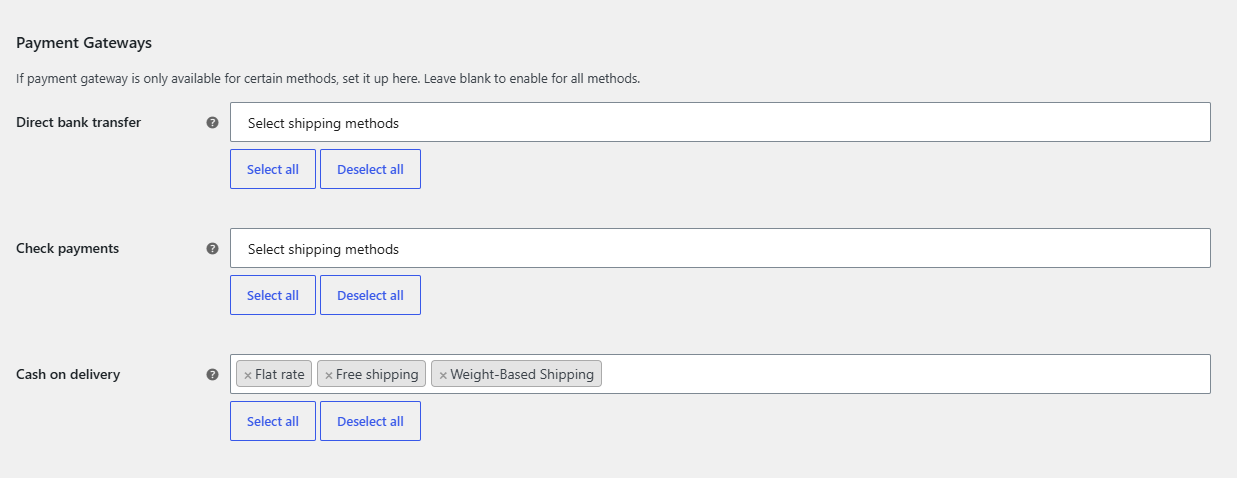
Keep new shipping methods in mind #
Because the list is an allow list, a shipping method you add later is not in the Cash on delivery field until you add it. After creating a new delivery method, return to the settings and add it to the field, or Cash on delivery stays hidden for that method.
The opposite rule: pay in store only for pickup #
If you want a gateway to appear only for pickup (for example Check payments used as “pay at the counter”), select just Local pickup in that gateway’s field and save. The gateway is then hidden for every delivery method.
FAQ #
Does WooCommerce not already have this setting for Cash on delivery? #
The Cash on delivery gateway has its own Enable for shipping methods option in WooCommerce > Settings > Payments. Both rules apply at the same time, so if Cash on delivery disappears unexpectedly, check that field too. Payment Gateways by Shipping gives you the same kind of list for every other gateway as well.
What happens if the cart only has virtual or downloadable products? #
When the cart does not need shipping, Payment Gateways by Shipping does not hide any gateway, so Cash on delivery stays available. Disable it in the gateway settings or with another rule if you do not want it for virtual orders.
Why is Cash on delivery missing before the customer picks a shipping method? #
A restricted gateway is shown only after exactly one shipping method is chosen. Until WooCommerce has a chosen method, for example before the address is filled in, restricted gateways stay hidden.
Will this work if the cart ships in several packages? #
If the packages use different shipping methods, restricted gateways are hidden, because the plugin requires a single shipping method for the whole order. Gateways with an empty field are not affected.
Get Payment Gateways by Shipping #
Every feature described here is included in Payment Gateways by Shipping. Set a rule once and WooCommerce checkout hides the wrong payment methods on its own.
Need a hand? Our team answers every ticket on the Payment Gateways by Shipping support forum.