Additional Custom Emails & Recipients for WooCommerce can hold a custom email for a set amount of time after its trigger fires, instead of sending it immediately. This is how you build follow-ups such as a review request three days after an order is completed, or a reminder one week after purchase.
Set a delay #
Open the email under WooCommerce > Settings > Emails and find the Triggers section. Two fields control timing:
| Label | Option ID | Default | Notes |
|---|---|---|---|
| Delay | delay |
0 |
How long to wait. 0 means send immediately. Decimals are allowed (step 0.01). |
| Delay unit | delay_unit |
seconds | seconds, minutes, hours, days, or weeks. |
The wait is measured from the moment the trigger fires. For example, Delay 3 with unit days schedules the email for three days after the order reaches the trigger status.
These fields are part of the standard email set: delayed and scheduled sending is available on the single email in the free version as well as on every email in Pro.
Choose the scheduler #
Delayed emails are queued by a scheduler. Pick which one under WPFactory > Custom Emails > General (also reachable at WooCommerce > Settings > Custom Emails > General), in Advanced Options:
| Label | Option ID | Choices | Default |
|---|---|---|---|
| Scheduler | alg_wc_custom_emails_scheduler |
WP Cron, Action Scheduler | WP Cron |
WP Cron is the built-in WordPress scheduler and needs no extra setup. Action Scheduler is the queue that ships with WooCommerce; choose it if you already rely on it or run a real system cron. Both send at the scheduled time; Action Scheduler tends to be more reliable on high-traffic stores.
View and cancel scheduled emails #
Every pending delayed email is listed under WPFactory > Custom Emails > Scheduled (also reachable at WooCommerce > Settings > Custom Emails > Scheduled). The table shows the email title, the scheduled date and time in your site’s local time, and the Object ID (usually the order ID). A trash icon at the end of each row cancels that individual scheduled send.
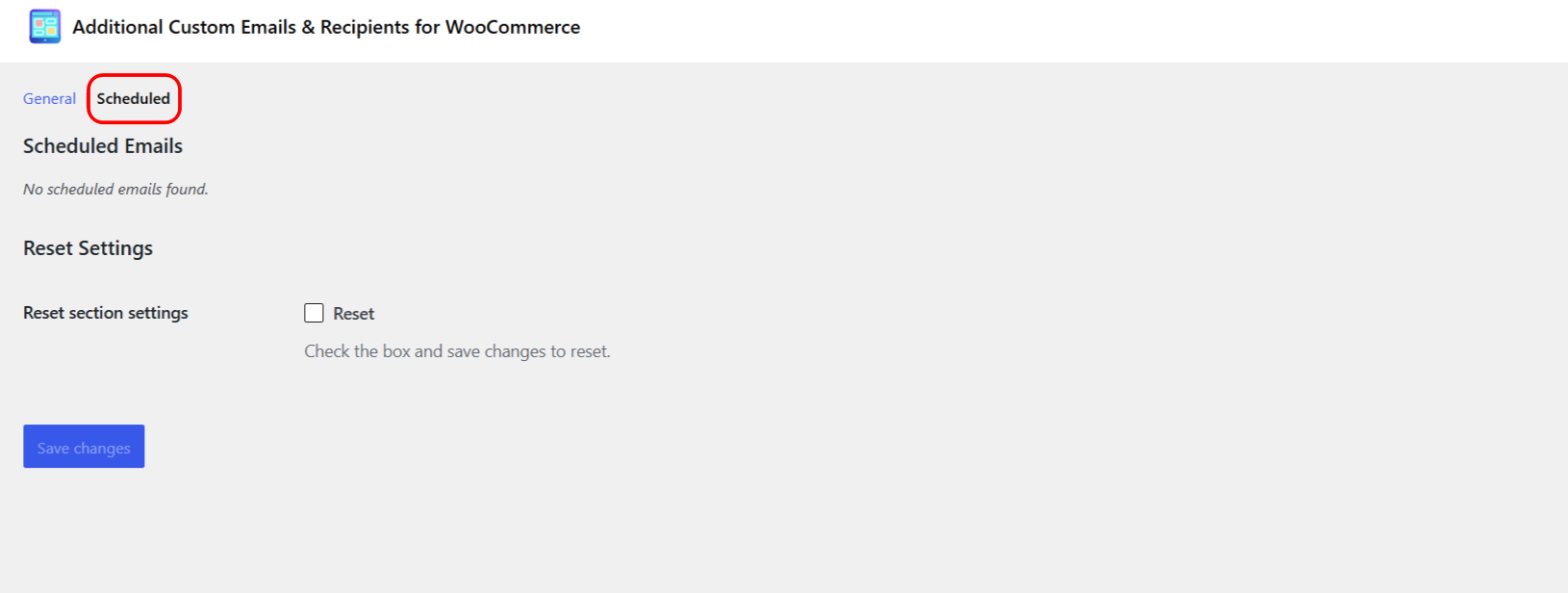
The list reads from whichever scheduler is active, so both WP Cron and Action Scheduler entries appear here. Use the “Refresh list” link to update it.
Stop a delayed email from firing after the order moves on #
A common need with delayed emails: you scheduled a “thanks for your order” email for three days after Processing, but the order was cancelled or refunded in the meantime. Use the Require order status and Exclude order status fields in the email’s Order Options section to guard against this. Their descriptions say it plainly: they are “developed to use with the scheduled emails (Delay option) to ensure order status has not changed.”
- Require order status: the email is sent only if the order still has one of the chosen statuses when the delay elapses. Set it to Processing (and Completed) so a cancelled order is skipped.
- Exclude order status: the email is skipped if the order has moved into one of the chosen statuses, for example Cancelled or Refunded.
Notes and limits #
- Manual sends (from the order screen) ignore the delay and go out immediately, because you asked for them explicitly.
- The delay is stored in seconds internally (Delay multiplied by the unit), so mixing decimals and units is fine:
1.5hours works. - Scheduled emails survive as queued events; if you change the email content before it sends, the new content is used at send time.
Build your follow-up sequence #
With unlimited custom emails in Additional Custom Emails & Recipients for WooCommerce Pro, you can chain several delayed emails off the same trigger to create a full post-purchase sequence. Get Pro to remove the one-email limit.