Customize the standard WooCommerce product tabs #
The Standard Tabs section of Additional Custom Product Tabs for WooCommerce lets you rename, reorder or remove the three tabs WooCommerce shows on every product page: Description, Additional information and Reviews. This is free.
Where to find it #
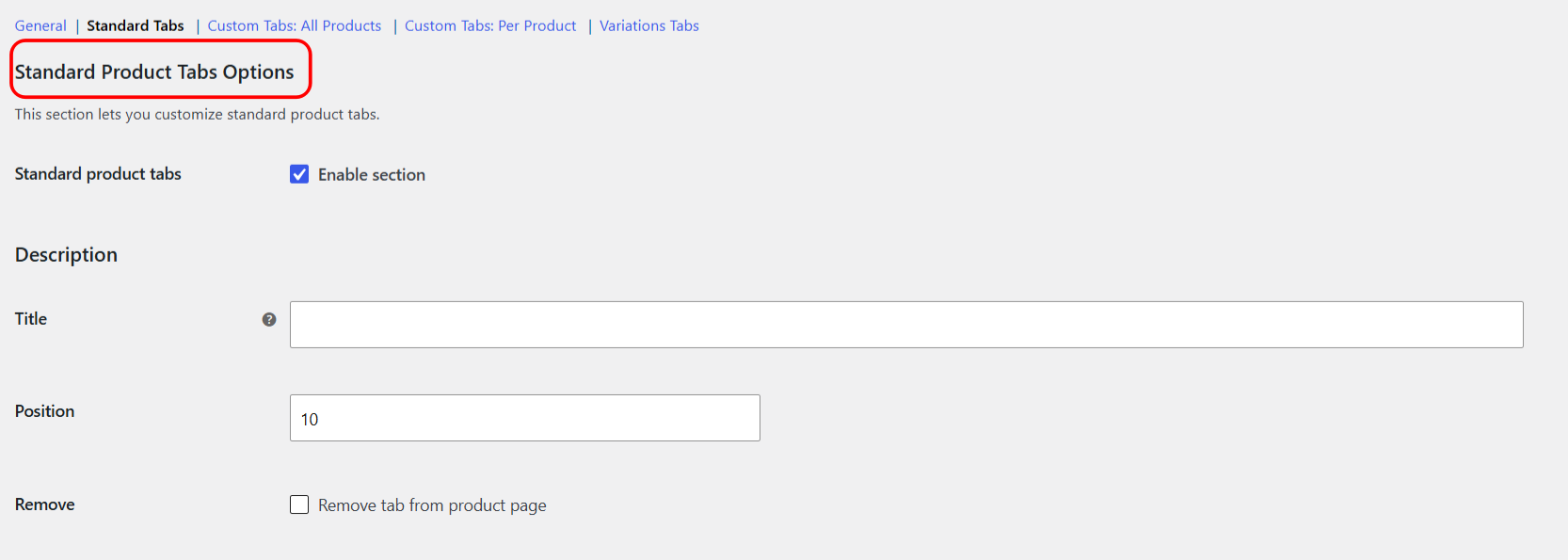
Go to WPFactory > Product Tabs (also reachable at WooCommerce > Settings > Product Tabs) and open the Standard Tabs section.
Options for each standard tab #
At the top, Standard product tabs (alg_wc_product_tabs_standard_tabs_enabled, default Yes) enables the whole section. Below it, each of the three tabs has the same three settings.
| Setting | Option ID (Description tab) | Default | What it does |
|---|---|---|---|
| Title | alg_product_info_product_tabs_description_title |
(empty) | Sets a new tab title. Leave blank to keep the WooCommerce default. You can use shortcodes here. |
| Position | alg_product_info_product_tabs_description_priority |
10 | A number that sets the order of the tab. Lower numbers appear first. Type a value: this is a number field, not drag and drop. |
| Remove | alg_product_info_product_tabs_description_disable |
No | Removes the tab from the product page for all products. |
The Additional information and Reviews tabs use the same option names with additional_information and reviews in place of description. Their default positions are 20 and 30.
Default positions at a glance #
| Tab | Default position |
|---|---|
| Description | 10 |
| Additional information | 20 |
| Reviews | 30 |
Shortcodes in the title #
The Title field accepts shortcodes, so you can pull in live product data. For example, [alg_wc_pt_product_function name="get_name"] outputs the product name. See the full product tabs shortcodes reference for every option.
Reset the section #
Each section has a Reset section settings checkbox at the bottom. Tick it and save to restore that section to its defaults.
Troubleshooting #
- A renamed tab still shows the old title: clear any page cache after saving.
- The Reviews tab did not disappear: the Reviews tab only appears when reviews are enabled in WooCommerce > Settings > Products. Removing it here hides it when it would otherwise show.
Get more control #
Customizing the standard tabs is free. Additional Custom Product Tabs for WooCommerce Pro adds unlimited custom tabs on top of the built-in ones. See what Pro unlocks.