To add a tab for each variation on WooCommerce variable products, go to WPFactory > Product Tabs > Variations Tabs in Additional Custom Product Tabs for WooCommerce and tick Enable section. Every variable product then gets one tab per available variation, showing that variation’s name, price, description and an add to cart button.
The Variations Tabs feature is automatic: you do not edit each product. It is off by default and free.
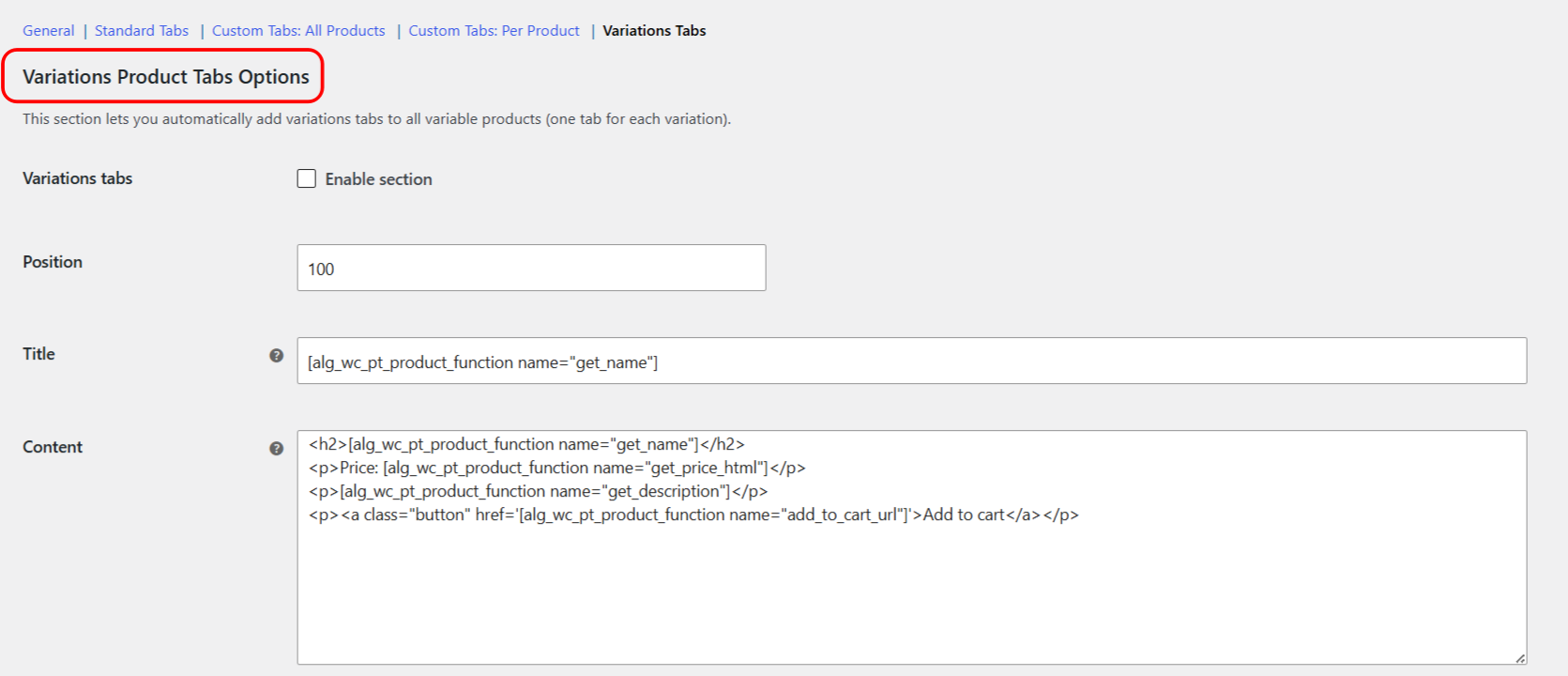
Turn it on #
- Go to WPFactory > Product Tabs (also reachable at WooCommerce > Settings > Product Tabs).
- Open the Variations Tabs section and tick Enable section next to Variations tabs.
- Optionally change Position, Title and Content (see below).
- Click Save changes and open any variable product on the front end.
Options #
| Setting | Option ID | Default | Free/Pro |
|---|---|---|---|
| Variations tabs (Enable section) | alg_wc_product_tabs_variations_tabs_enabled |
No | Free |
| Position | alg_wc_product_tabs_variations_tabs_priority |
100 | Free |
| Title | alg_wc_product_tabs_variations_tabs_title |
[alg_wc_pt_product_function name="get_name"] |
Free |
| Content | alg_wc_product_tabs_variations_tabs_content |
A ready-made template (see below) | Free |
One tab is created for every variation of a variable product. The Title and Content fields are shared by all of them, and shortcodes fill in the values for each variation. The default title outputs the variation name. The default content is a small template:
<h2>[alg_wc_pt_product_function name="get_name"]</h2>
<p>Price: [alg_wc_pt_product_function name="get_price_html"]</p>
<p>[alg_wc_pt_product_function name="get_description"]</p>
<p><a class="button" href='[alg_wc_pt_product_function name="add_to_cart_url"]'>Add to cart</a></p>
The shortcodes here resolve against each variation in turn, so get_name, get_price_html and the rest return that variation’s own values. For every shortcode you can use, see the product tabs shortcodes reference.
Choosing the position #
Position is the tab order number, and all variation tabs share it, so they appear side by side. The standard WooCommerce tabs default to 10 (Description), 20 (Additional information) and 30 (Reviews) in the plugin’s Standard Tabs section, so the default of 100 places variation tabs after them. Enter 15, for example, to show them between Description and Additional information.
Customizing the tab content #
- Show the SKU: add
<p>SKU: [alg_wc_pt_product_function name="get_sku"]</p>. - Show a custom field saved on each variation: use
[alg_wc_pt_product_meta], see how to display dynamic product data in a tab. - Hide empty values with a fallback:
[alg_wc_pt_product_function name="get_description" on_empty="No details yet."]. Thebeforeandafterattributes wrap a value only when it is not empty.
Use cases #
- Give each color or size its own tab with a matching description.
- Show a per-variation add to cart button inside the tab.
Troubleshooting #
- No variation tabs appear: the feature is off by default. Enable the Variations Tabs section, and remember it only affects variable products. Also check that Enable plugin is on in the General section.
- Some variations have no tab: only available variations get a tab. A variation that is disabled, has no price, or is out of stock while WooCommerce hides out-of-stock items is skipped.
- A tab shows raw shortcode text: check that the shortcode name and attributes match the reference exactly.
- Line breaks are ignored in the content: use HTML tags, or enable HTML paragraph tags under Advanced Options in the General section.
FAQ #
Can I turn variation tabs on for some products only? #
No. When enabled, the section applies to every variable product in the store.
Does this add a variations table? #
No. It adds one tab per variation. Each tab uses the same template filled with that variation’s data.
Can each variation have different tab text? #
The template is shared, but shortcodes pull each variation’s own name, price, description and meta, so the output differs per variation.
Related: custom tabs for all products, per product and variations.
Get more control #
Variations tabs are free. Additional Custom Product Tabs for WooCommerce Pro adds unlimited global and per-product custom tabs alongside them. See what Pro unlocks.
Need a hand? Our team answers every ticket on the Product Tabs support forum.