The Custom Tabs: Per Product feature of Additional Custom Product Tabs for WooCommerce lets you add a tab to a single product, right from its edit screen. Use it for details that only apply to that one product. The free version allows one per-product tab; Product Tabs Pro lets you add several per product.
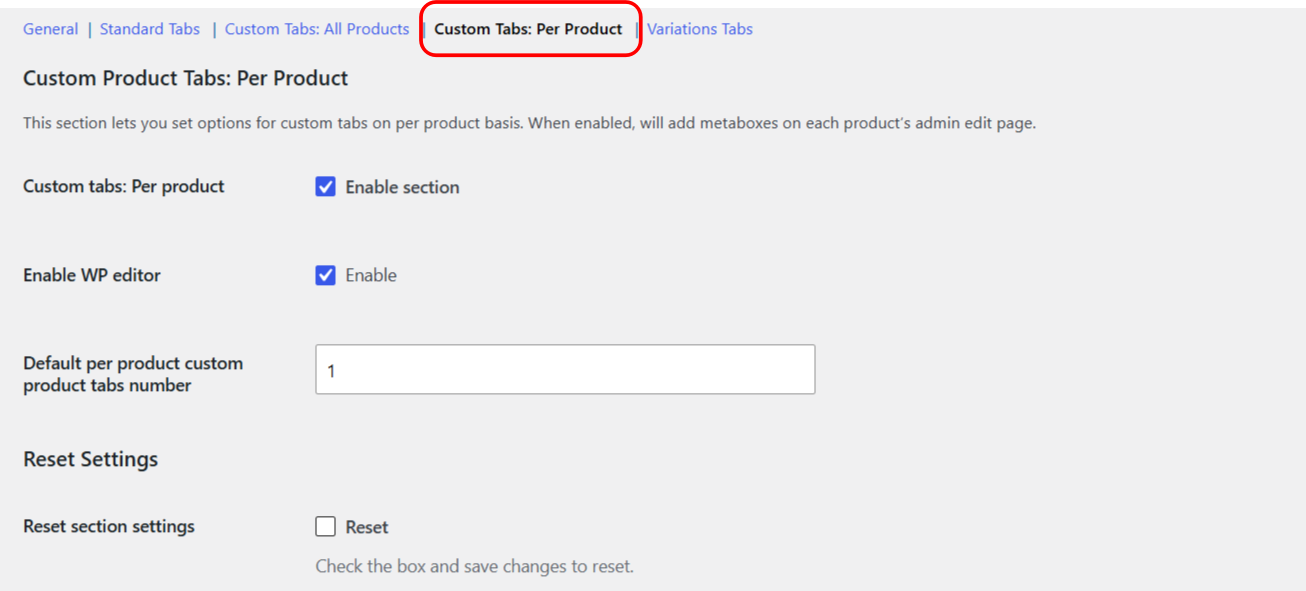
Turn the feature on #
Go to WPFactory > Product Tabs (also reachable at WooCommerce > Settings > Product Tabs) and open the Custom Tabs: Per Product section. The settings here are:
| Label | Option ID | Default | Free/Pro |
|---|---|---|---|
| Custom tabs: Per product (Enable section) | alg_custom_product_tabs_local_enabled |
Yes | Free |
| Enable WP editor | alg_custom_product_tabs_local_wp_editor_enabled |
Yes | Free |
| Default per product custom product tabs number | alg_custom_product_tabs_local_total_number_default |
1 | Read only in Free, editable in Pro |
When Enable WP editor is on, each tab content field uses the full WordPress visual editor. Turn it off to use a plain text area instead. Default per product custom product tabs number sets how many tab slots each product starts with; it is fixed at 1 in the free version.
Add the tab on the product #
- Edit any product. Scroll to the Custom Product Tabs meta box below the product data panel.
- Fill in the tab fields:
- Title (meta key
_alg_custom_product_tabs_title_local_1): the tab heading. Shortcodes are allowed. - ID (
_alg_custom_product_tabs_id_local_1): a unique key, defaults tolocal_1. - Position (
_alg_custom_product_tabs_priority_local_1): the order number, defaults to 50. - Content (
_alg_custom_product_tabs_content_local_1): the tab body.
- Title (meta key
- Click Update to save the product. As with global tabs, a tab shows only when both Title and Content are set.
Note: the Total number of custom tabs field in the meta box is read only in the free version. To add more than one tab to a product, change this number in Pro and click Update.
Reset the section #
The section has a Reset section settings checkbox at the bottom of the settings page that restores its options to their defaults.
Get more control #
One tab per product is free. Additional Custom Product Tabs for WooCommerce Pro lets you add as many per-product tabs as you need. Get Product Tabs Pro.