Table of Contents
- Step 1: Navigate to WooCommerce Wishlist Settings
- Step 2: Access Wishlist Text Options
- Step 3: Translate Wishlist Buttons and Messages
- Customize the text for various buttons and messages
- Step 4: Translate Sharing Options
- Translate the text related to sharing
- Step 5: Save Changes
- Save your changes to apply the translated text options
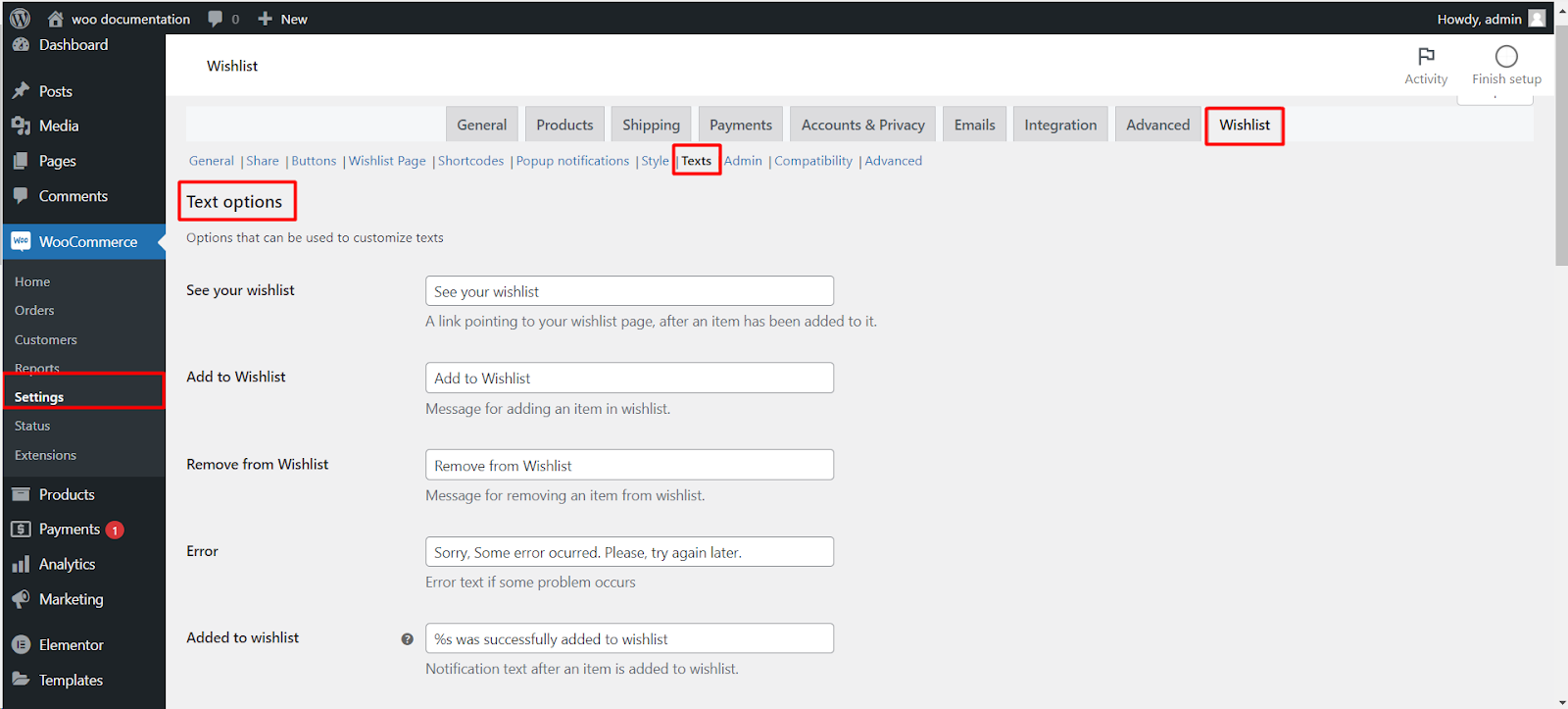
To translate or change the texts of Wishlist for WooCommerce, go to WooCommerce > Settings > Wishlist and open the Text tab. There you can edit button labels such as “Add to Wishlist” and “See your wishlist”, notification and error messages, the empty wishlist text, and the sharing texts, then save your changes.
Step 1: Navigate to WooCommerce Wishlist Settings #
- Log in to your WordPress dashboard.
- Click on “WooCommerce“ in the left-hand menu.
- Find and click on the “Wishlist“ tab under WooCommerce settings.
Step 2: Access Wishlist Text Options #
- Within the Wishlist settings, click on the “Text“ tab.
Step 3: Translate Wishlist Buttons and Messages #
Customize the text for various buttons and messages #
- “See your wishlist“: Modify the link text pointing to the wishlist page.
- “Add to Wishlist”: Change the message for adding an item to the wishlist.
- “Remove from Wishlist“: Edit the message for removing an item from the wishlist.
- “Error“: Customize the error text displayed if an issue occurs.
- “Added to wishlist“: Adjust the notification text after adding an item to the wishlist.
- “Removed from wishlist“: Modify the notification text after removing an item from the wishlist.
- “Disallow Unlogged“: Change the notification text for unlogged users trying to interact with the Wishlist.
- “Empty Wishlist“: Customize the text when the wishlist is empty.
- “Remove all from wishlist“: Modify the button label for removing all items from the wishlist.
- “Success notification“: Customize the success notification text after removing all items from the wishlist.
Step 4: Translate Sharing Options #
Translate the text related to sharing #
- “Before Sharing Icons“: Adjust the text displayed before sharing icons.
- “Twitter message“: Modify the text displayed on Twitter.
- “Email Sharing“: Customize options for email sharing.
- “Email message“: Adjust the pre-filled email text for sending the wishlist by email.
- “Link text”: Modify the text containing a link to the Wishlist.
Step 5: Save Changes #
Save your changes to apply the translated text options #
Now, your WooCommerce Wishlist experience will reflect your language preferences, providing a more personalized touch for your customers.
