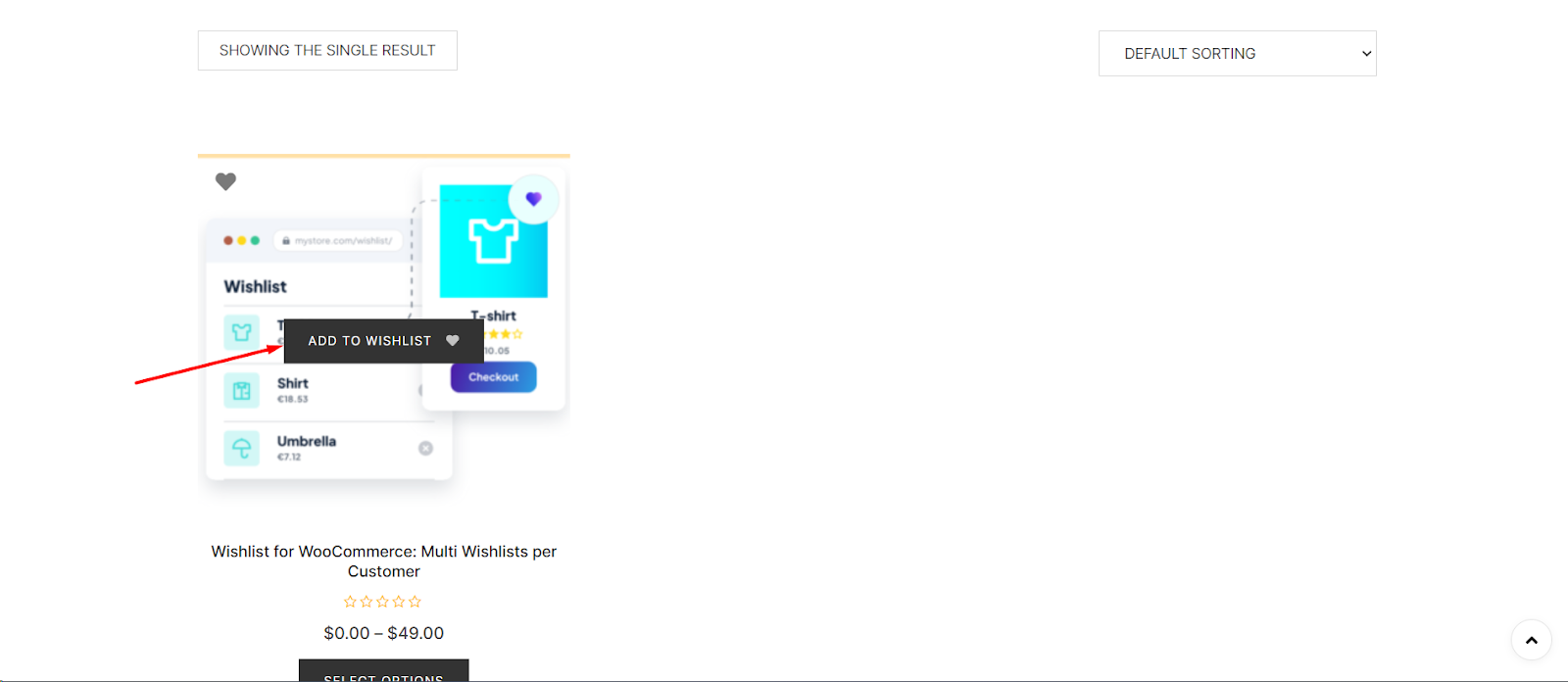
To add a wishlist button to WooCommerce shop and archive pages, install Wishlist for WooCommerce, go to WPFactory > Wishlist (also at WooCommerce > Settings > Wishlist), open the Buttons tab and tick Loop in the Default button – Loop section. This is free. The icon-only Thumb button already shows on shop pages by default.
Can WooCommerce add a wishlist without a plugin? #
No. WooCommerce core has no wishlist feature and no add to wishlist button, so shoppers can only add products to the cart. To let customers save products for later from your shop and archive pages, you need a wishlist plugin such as Wishlist.
Step-by-step guide: #
Step 1: Log Into Your WordPress Dashboard #
- Begin by signing into your site’s backend to access the dashboard.
Step 2: Access WooCommerce Settings #
- In the dashboard, click on ‘WooCommerce’ and select ‘Settings’ from the expanded menu.
Step 3: Locate Wishlist Settings: #
- At the top of the WooCommerce settings page, find and click on the ‘Wishlist‘ tab.
Step 4: Navigate to the Button Settings: #
- Within the Wishlist settings, click on the ‘Buttons’ tab where you’ll find various button configuration options.
Step 5: Configure the Product Loop Settings: #
- Scroll down to the section labeled ‘Default button – Loop’.
- Here, you can enable the wishlist button for shop and archive pages by checking the ‘Enable button on product loop’ option.
- This option is free.
Step 6: Choose the Button’s Position: #
- Set the position of the wishlist button by selecting an option from the ‘Hook priority’ dropdown menu. Choose 9 – Before add to cart button or 11 – After add to cart button (the default).
Step 7: Save Your Changes: #
- After setting the button’s position, click on the ‘Save changes’ button to apply your updates.
Frequently asked questions #
Is the shop page wishlist button free? #
Yes. The Loop option (Enable button on product loop) in the Default button – Loop section is part of the free version.
Why do I already see a wishlist icon on my shop page? #
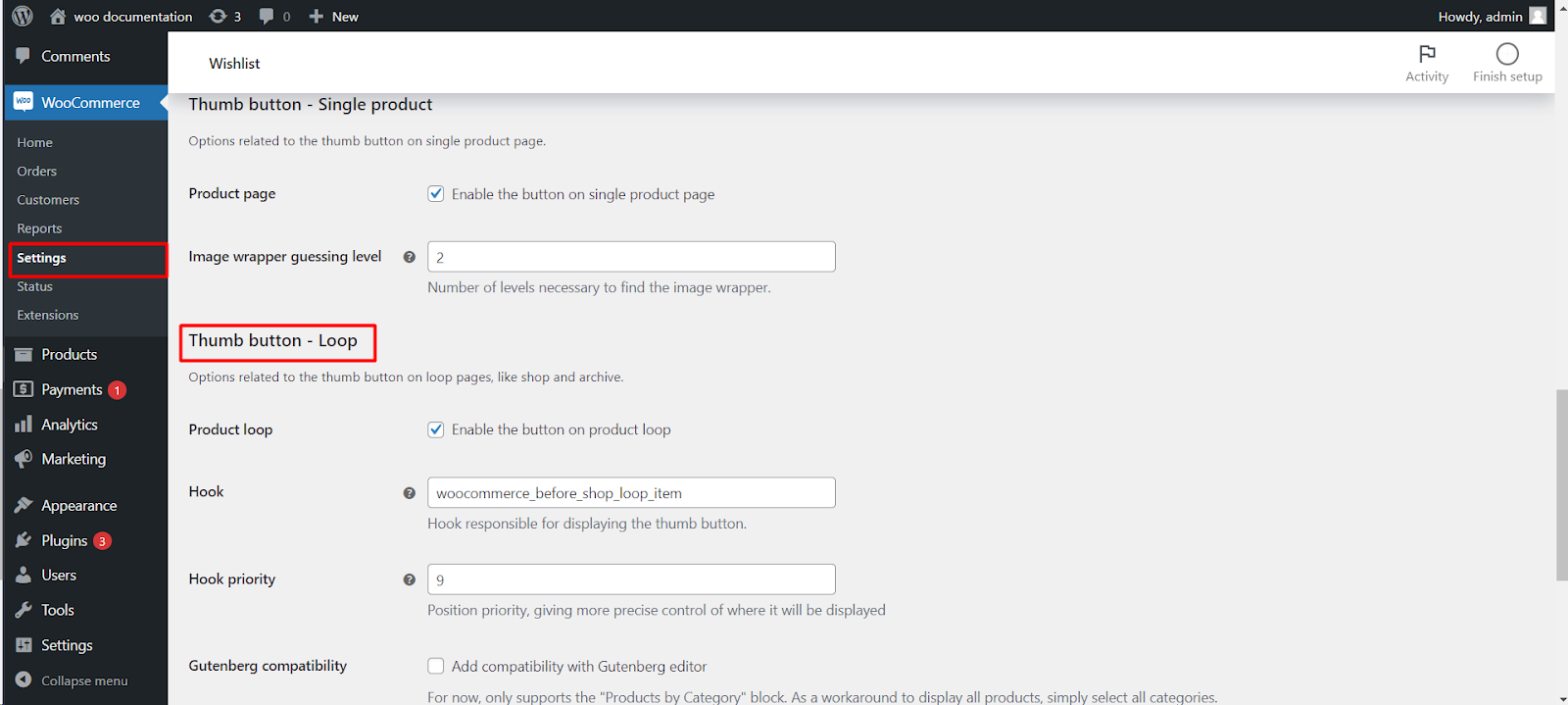
That is the Thumb button, an icon over the product image. It is enabled on shop pages by default through the Product loop option in the Thumb button – Loop section, separately from the Default button.
Can I show the button before the Add to cart button? #
Yes. Set Hook priority in the Default button – Loop section to 9 – Before add to cart button. The default is 11 – After add to cart button.
Can I place the wishlist button somewhere else with a shortcode? #
Yes. Use [alg_wc_wl_toggle_item_btn], add product_id="123" to target a specific product, or btn_type="thumb_btn" to show the icon version. The shortcode is included in the free version.
Can I hide the button on some products? #
Yes, with Pro. Use the Hide by tag field in the Default button and Thumb button sections, as explained in how to hide or remove the wishlist button.
