To remove the wishlist from WooCommerce, go to WPFactory > Wishlist (also at WooCommerce > Settings > Wishlist) in Wishlist for WooCommerce and untick the button placements on the Buttons tab. You can also hide the buttons from logged-out visitors, switch the wishlist off store-wide, or, with Pro, hide it only on products with chosen tags.
Can WooCommerce hide the wishlist without a plugin? #
WooCommerce core does not include a wishlist, so it has no setting that adds or removes a wishlist button. Any wishlist button on your store comes from a plugin or your theme, and it is hidden from that tool’s own settings. For Wishlist, use the options below.
How to hide or remove the wishlist button in WooCommerce #
The two wishlist buttons #
Wishlist has two buttons, each with its own settings on the Buttons tab:
- Default button: a button with text and an icon. It is off by default on both single product pages and shop (loop) pages.
- Thumb button: an icon over the product image. It is on by default on both single product pages and shop (loop) pages.
To hide a button everywhere, untick every placement of that button. To hide it on one kind of page only, untick just that placement. These placement options are free.
Hide the wishlist button on specific products by tag (Pro) #
- Go to WPFactory > Wishlist and open the Buttons tab.
- In the Default button section, choose one or more product tags in Hide by tag.
- In the Thumb button section, choose the same tags in its own Hide by tag field, so both buttons are hidden.
- Click Save changes.
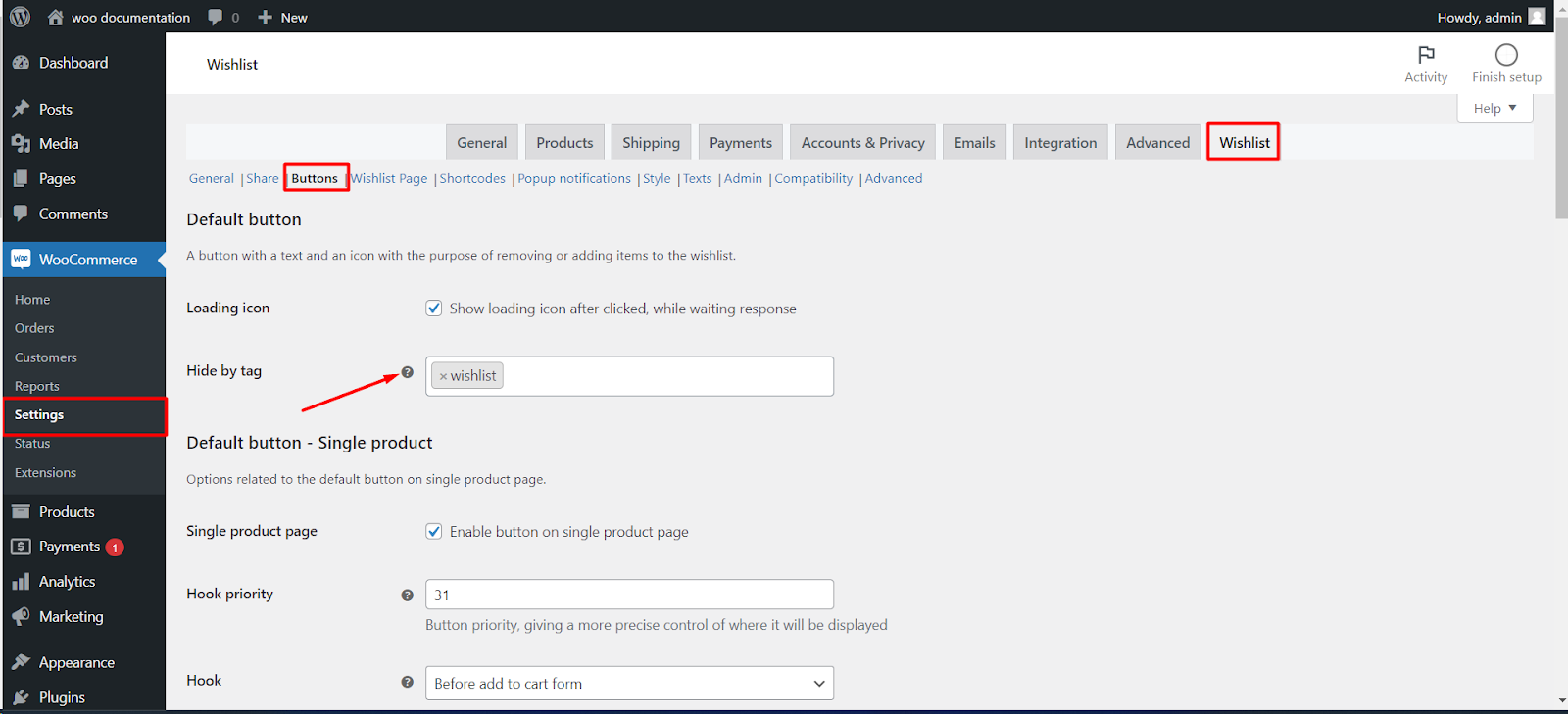
Wishlist then hides the button on every product that has any of the selected tags. To hide it on another product later, add one of those tags to that product.
Hide the wishlist from logged-out visitors (Free) #
In the Interaction with unlogged Users section of the Buttons tab, untick Visibility so visitors who are not logged in no longer see the buttons.
Remove the wishlist from your whole store (Free) #
On the General tab, untick Wishlist for WooCommerce and save. This switches the wishlist off everywhere. To remove it permanently, deactivate the plugin under Plugins.
Options reference #
| Setting | Option ID | Default | Version |
|---|---|---|---|
| Default button: Single product page | alg_wc_wl_dbtn_single_enable |
No | Free |
| Default button: Loop | alg_wc_wl_dbtn_loop_enable |
No | Free |
| Default button: Hide by tag | alg_wc_wl_dbtn_hide_by_tag |
None | Pro |
| Thumb button: Product page | alg_wc_wl_tbtn_single_enable |
Yes | Free |
| Thumb button: Product loop | alg_wc_wl_tbtn_loop_enable |
Yes | Free |
| Thumb button: Hide by tag | alg_wc_wl_tbtn_hide_by_tag |
None | Pro |
| Visibility (unlogged users) | alg_wc_wl_unlogged_can_see_buttons |
Yes | Free |
| Wishlist for WooCommerce (General tab) | alg_wc_wl_enabled |
Yes | Free |
Use cases #
- Hide the wishlist button on gift cards, samples or services by giving them a shared tag.
- Show the wishlist only to logged-in customers.
- Keep the wishlist on product pages but remove the icons from busy shop pages.
Frequently asked questions #
Can I remove the wishlist button from shop pages but keep it on product pages? #
Yes. On the Buttons tab, untick Loop for the Default button and Product loop for the Thumb button, and leave the single product placements on. This is free.
Why does a wishlist icon still show after I turned off the Default button? #
That icon is the Thumb button, which has its own settings and is on by default on both product pages and shop pages. Untick Product page and Product loop in the Thumb button sections to hide it.
Can I hide the wishlist only from visitors who are not logged in? #
Yes. Untick Visibility in the Interaction with unlogged Users section, and the buttons are hidden for logged-out visitors while logged-in customers still see them. This is free.
Is hiding the wishlist button by product tag free? #
No. Hide by tag is a Pro feature, and it is set separately for the Default button and the Thumb button. Every other option in this article is free.
Get more control #
Hiding the button by tag is a Pro feature of Wishlist for WooCommerce; the other options in this article are free. See what Pro unlocks.
