To remove items from a WooCommerce wishlist automatically, use Wishlist for WooCommerce: go to WPFactory > Wishlist > Wishlist Page, scroll to Auto remove items, and tick When purchased, When added to cart, or both. A saved product then leaves the customer’s wishlist as soon as it is bought or moved to the cart. Both options are free.
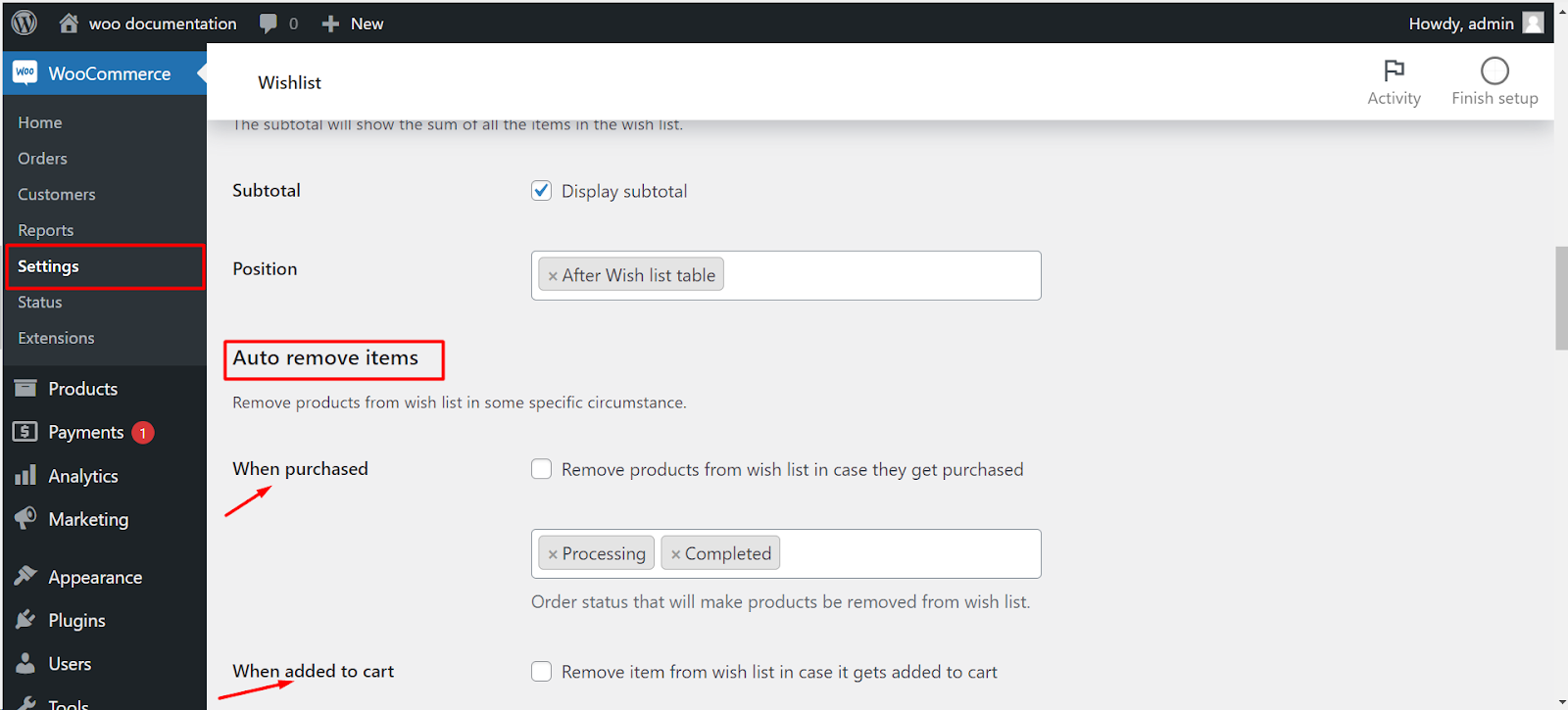
Step-by-step setup #
- Go to WPFactory > Wishlist (also reachable at WooCommerce > Settings > Wishlist).
- Open the Wishlist Page tab and scroll to the Auto remove items section.
- Tick When purchased (Remove products from wish list in case they get purchased) and, below it, keep or change the order statuses that count as purchased.
- Tick When added to cart (Remove item from wish list in case it gets added to cart) if you also want that trigger.
- Click Save changes.
Auto-remove options #
| Label | Option ID | Default | Free/Pro |
|---|---|---|---|
| When purchased | alg_wc_wl_remove_if_bought |
No | Free |
| Order statuses that count as purchased | alg_wc_wl_remove_if_bought_status |
Completed, Processing | Free |
| When added to cart | alg_wc_wl_remove_if_added_to_cart |
No | Free |
Note: the order-status list is not a separate feature. It defines which order statuses trigger the “When purchased” removal, so change it only if you use custom order statuses or want removal on Completed only.
What the customer sees #
- When added to cart: the product disappears from the wishlist the moment it is added to the cart, whether from the product page, the shop page or the Add to cart column on the wishlist page. With multiple wishlists enabled, it is removed from every list that holds it.
- When purchased: when the order moves to one of the selected statuses, every product in that order is removed from the buyer’s wishlist. This works for logged-in customers and for guests, because the order stores which wishlist it came from.
- There is no message: the next time the customer opens the wishlist page, the My Account wishlist tab or looks at the counter, the item is simply gone.
Other ways to remove wishlist items #
- Customers can click the remove icon in the Remove column of the wishlist table. The column is not shown when someone views a shared wishlist.
- The free
[alg_wc_wl_remove_all_btn]shortcode adds a Remove all button (enabled by default on the Shortcodes tab). See the wishlist shortcodes reference.
Want to remove the wishlist feature itself? #
If you searched for how to remove the wishlist from WooCommerce entirely, these are the switches, all under WPFactory > Wishlist (also reachable at WooCommerce > Settings > Wishlist):
- Turn everything off: on the General tab, untick Wishlist for WooCommerce (Enable the plugin). No buttons, tab or scripts load on the front end.
- Hide the buttons: on the Buttons tab, untick Product page and Product loop under the thumb button (both on by default). The text button (Single product page and Loop) is off by default.
- Hide it from guests only: untick Visibility under Interaction with unlogged Users.
- Hide it on some products: use Hide by tag (Pro). See how to hide or remove the wishlist button.
- Remove the My Account tab: on the Wishlist Page tab, untick Wishlist tab.
If it does not work #
- Nothing is removed after a purchase: check that the status the order reaches is in the status list. Removal runs when the status changes, so orders that were already at that status before you turned the option on are not processed.
- Orders not placed through the classic checkout: the plugin records the wishlist owner when the classic checkout processes the order. Orders created manually in the admin carry no such record, and orders from the block-based Checkout page may not either, so their items stay on the wishlist. “When added to cart” is not affected.
- A saved variation stays on the list: “When purchased” matches the parent product of each order line. If the customer saved a specific variation, use “When added to cart”, which also checks the variation.
FAQ #
Is auto-remove a Pro feature? #
No. Both options and the status list are part of the free version.
Can I remove items only when the order is completed? #
Yes. Remove Processing from the status list and keep Completed.
Do items come back if the order is cancelled or refunded? #
No. Nothing adds a removed product back to the wishlist; the customer can add it again.
Related guides #
- How to hide or remove the wishlist button
- Set up the wishlist page and its columns
- Enable multiple wishlists per customer
Get more control #
This feature is free. Wishlist for WooCommerce Pro adds drag-and-drop, arrow and dropdown sorting, copying a wishlist, hiding buttons by product tag, extra shortcodes and CSV wishlist import. See what Pro unlocks.
Need a hand? Our team answers every ticket on the Wishlist for WooCommerce support forum.
