To set up a WooCommerce wishlist page with extra columns and sorting, go to WPFactory > Wishlist > Wishlist Page in Wishlist for WooCommerce, pick the page in Wishlist page, choose a Sorting order, and tick the columns you want under Wishlist table columns, such as Stock, Subtotal and Description. The page and columns are free.
Step-by-step #
- Go to WPFactory > Wishlist (also reachable at WooCommerce > Settings > Wishlist) and open the Wishlist Page tab.
- In Wishlist page, select the page that displays the wishlist. The plugin creates a page called Wishlist on activation; you can also use your own page containing the
[alg_wc_wl]shortcode. - In Sorting, choose Latest to bottom (default), Alphabetical – ASC or Alphabetical – DESC.
- Under Wishlist table columns, tick the columns you need (table below).
- Optionally turn on Wishlist items subtotal > Display subtotal and choose its Position.
- Click Save changes.
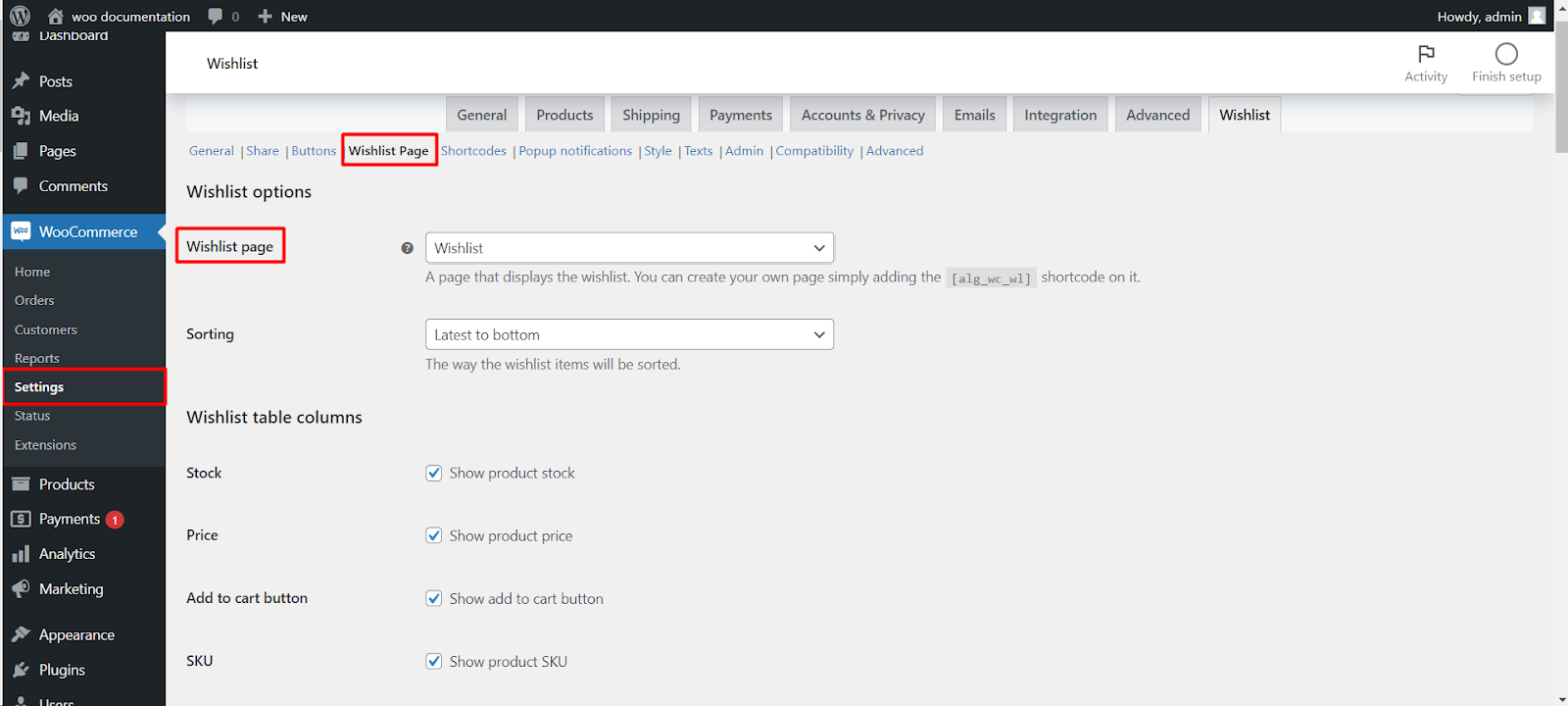
Table columns #
| Label | Option ID | Default | Free/Pro |
|---|---|---|---|
| Stock (Show product stock) | alg_wc_wl_lstock |
No | Free |
| Price (Show product price) | alg_wc_wl_lprice |
Yes | Free |
| Add to cart button | alg_wc_wl_ladd_to_cart_btn |
Yes | Free |
| SKU (Show product SKU) | alg_wc_wl_show_sku |
No | Free |
| Quantity (Show product quantity) | alg_wc_wl_show_quantity |
No | Pro |
| Description (Show product description) | alg_wc_wl_show_prod_desc |
No | Free |
| Attributes | alg_wc_wl_save_attributes |
Yes | Free |
| Subtotal (Show subtotal) | alg_wc_wl_subtotal_column |
No | Free |
| Categories | alg_wc_wl_show_prod_category |
No | Free |
| Taxonomies | alg_wc_wl_taxonomies |
None selected | Free |
Sorting options #
- Sorting (free) sets the order for everyone.
- Dropdown ordering (Pro) adds a sort dropdown for customers, for example by name, date or price. See dropdown sorting.
- Drag and drop Ordering and Arrow ordering (Pro) let customers arrange items themselves. See drag and drop sorting.
What the customer sees #
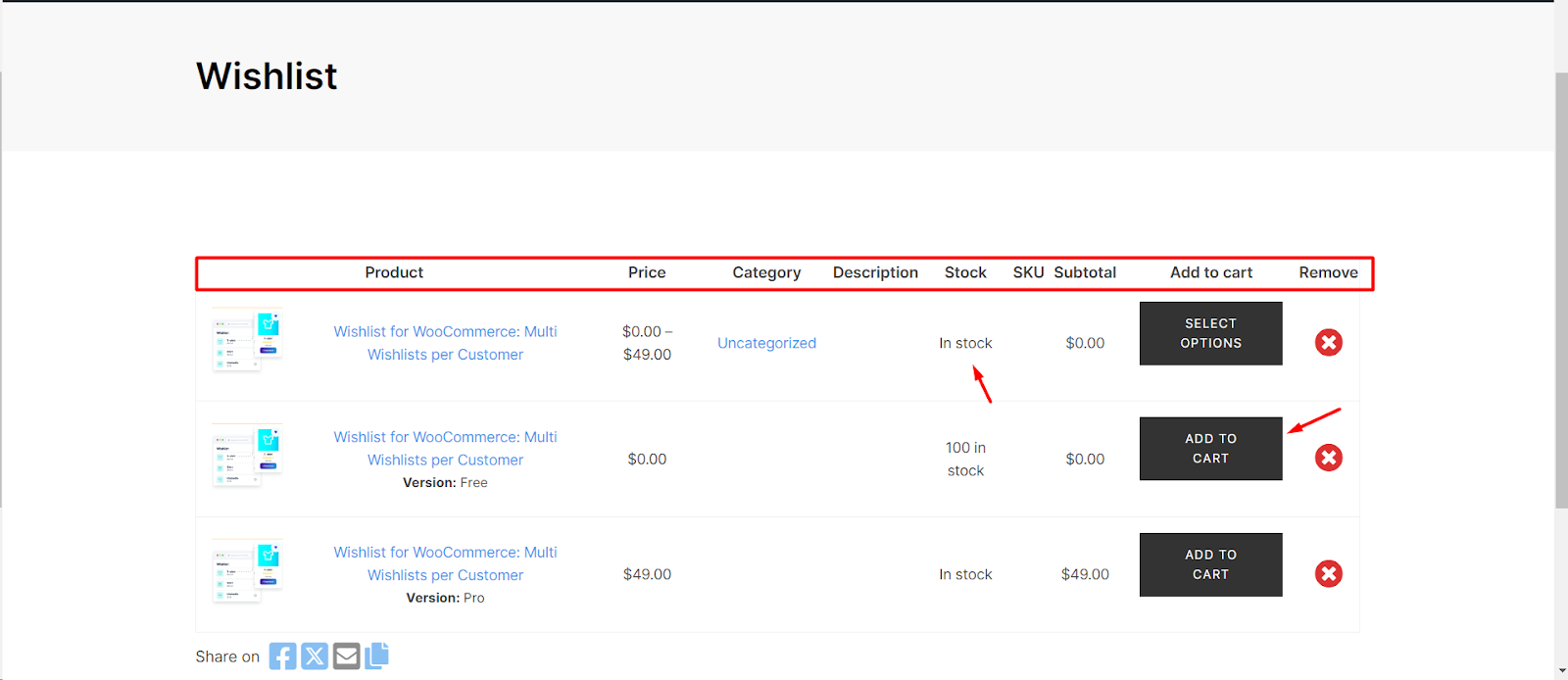
A table of their saved products with the columns you picked, a remove icon per row, and, if enabled, the subtotal of all items before or after the table (after, by default). The Subtotal column shows each row’s value, while Display subtotal shows the sum.
- Note field for customer notes per item (needs the Attributes column).
- Auto remove items after purchase or add to cart.
- Stock alert emails when a saved product is back in stock.
- My account – Wishlist tab to show the same list inside My Account.
If it does not work #
- The page shows the shortcode as text: the
[alg_wc_wl]toggle on the Shortcodes tab is off. - Links point to the wrong page: the popup’s “See your wishlist” link and the menu icon use the page selected in Wishlist page.
- Attributes are empty: the customer must select a variation before adding it, and General > Variable products must be on.
- The page returns 404: see wishlist page returns 404.
FAQ #
Can I use a different page as the wishlist page? #
Yes. Add [alg_wc_wl] to any page and select it in Wishlist page.
Which columns are Pro? #
Only Quantity. All other columns are free.
Can customers sort the list themselves? #
Yes, with Pro: dropdown, drag-and-drop or arrow sorting.
Related guides #
- Display subtotals on the wishlist page
- Add dropdown sorting to the wishlist page
- Customize the wishlist layout
Get more control #
This feature is free. Wishlist for WooCommerce Pro adds drag-and-drop, arrow and dropdown sorting, copying a wishlist, hiding buttons by product tag, extra shortcodes and CSV wishlist import. See what Pro unlocks.
Need a hand? Our team answers every ticket on the Wishlist for WooCommerce support forum.
