Table of Contents
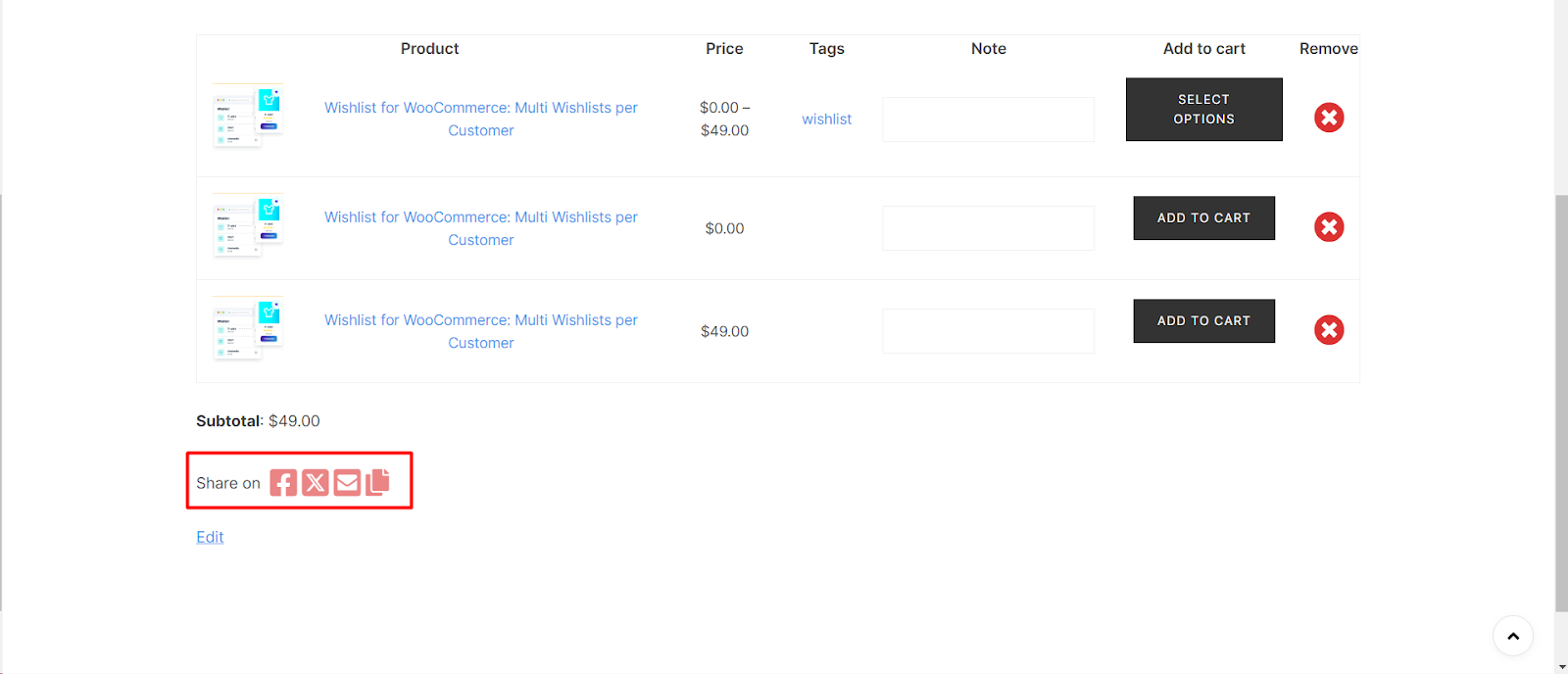
To change the social icons color on the wishlist page in Wishlist for WooCommerce, go to WooCommerce > Settings > Wishlist, open the Style tab, and enable the Custom style section. Then scroll to Social icons colors, click Select Color to pick a color, and save your changes.
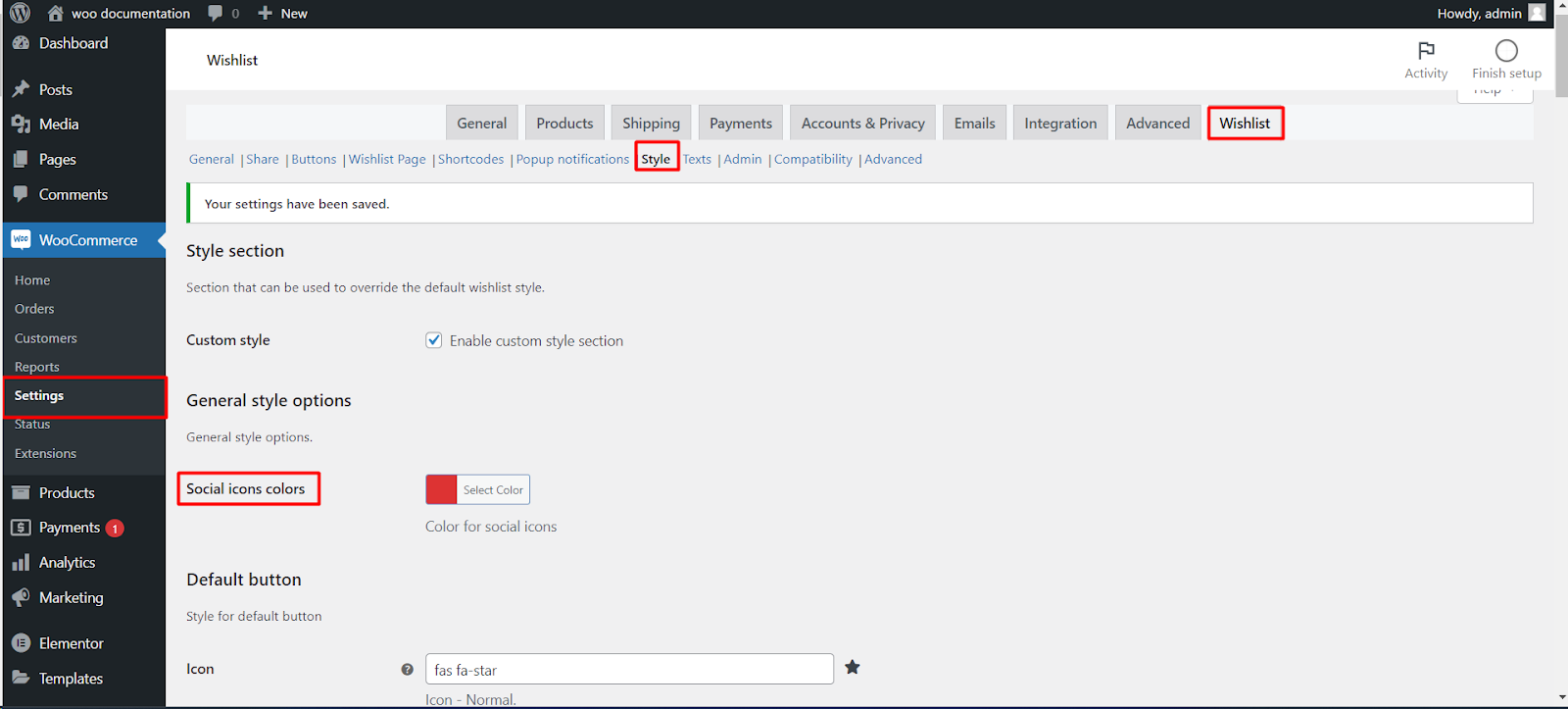
Step 1: Navigate to WooCommerce Wishlist Settings #
- Log in to your WordPress dashboard.
- Find and click on “WooCommerce“ in the left-hand menu.
- Locate the “Wishlist“ tab under WooCommerce settings.
Step 2: Access Wishlist Style Settings #
- Within the Wishlist settings, click on the “Style“ tab.
Step 3: Enable Custom Style Section #
- Look for the “Custom style” section. Enable this to access advanced customization options.
Step 4: Customize Social Icons Colors #
- Scroll down to the “Social icons colors” section.
- Click on “Select Color“ to choose the desired color for social icons on the Wishlist page.
Step 5: Save Changes #
- Save your changes to apply the customized color to the social icons.
Now, your WooCommerce Wishlist page will showcase social icons in the selected color, creating a cohesive and branded appearance.
