To change the wishlist icon color in WooCommerce, go to WPFactory > Wishlist > Style in Wishlist for WooCommerce, tick Custom style, then set Icon color – Normal, Icon color – Added and Icon color – Hover in the Thumb button section. For the text button, the icon follows Default button > Text color. All of this is free.
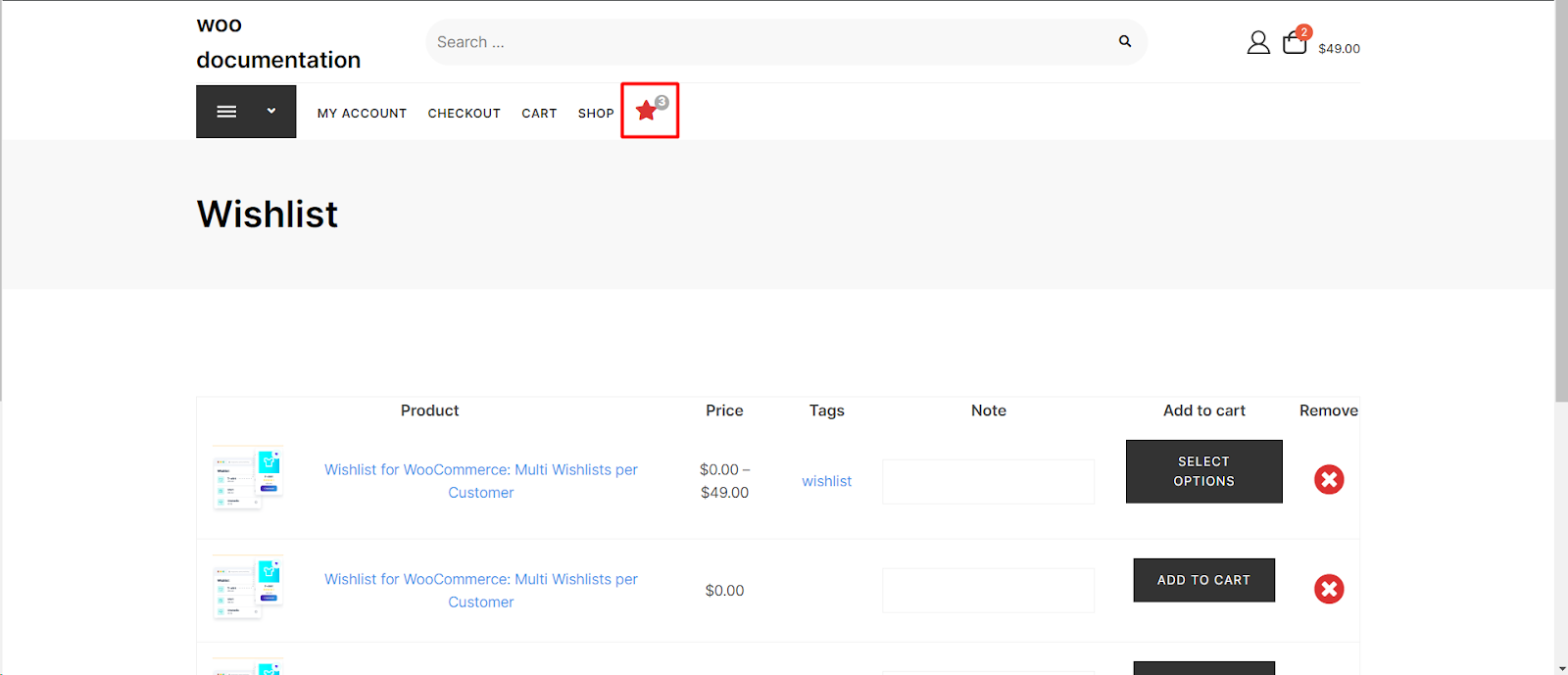
Note: none of the Style tab settings apply until Custom style (Enable custom style section) is ticked. It is off by default, which is the most common reason a new color “does nothing”.
Step-by-step #
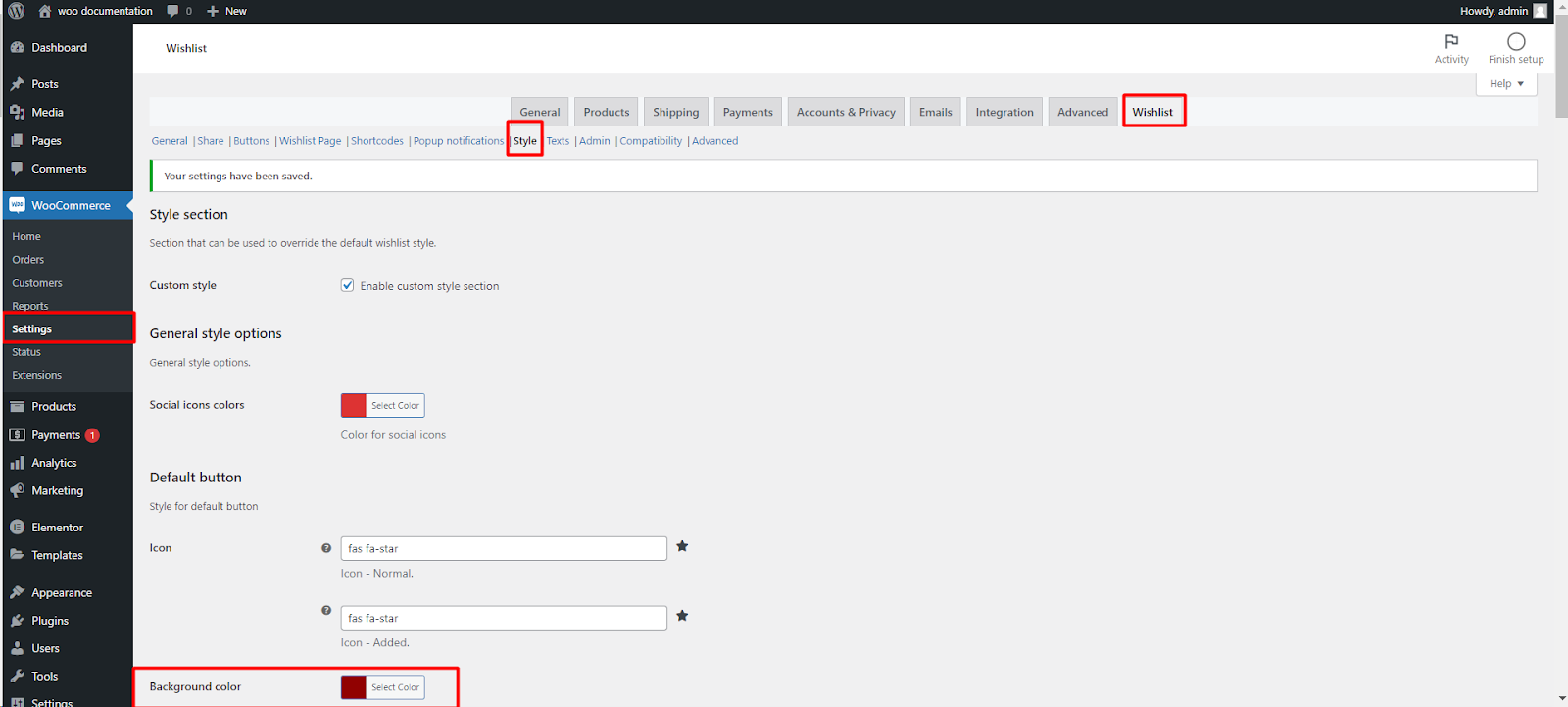
- Go to WPFactory > Wishlist (also reachable at WooCommerce > Settings > Wishlist) and open the Style tab.
- In Style section, tick Custom style.
- In Thumb button, click the color field for Icon color – Normal (product not in the wishlist yet) and pick a color.
- Set Icon color – Added (product already saved) and Icon color – Hover (mouse over).
- For the text button, set Default button > Text color, which colors both the text and the icon, plus its background colors.
- Click Save changes and clear any page or CSS cache.
Color options and defaults #
| Section | Label | Option ID | Default |
|---|---|---|---|
| Thumb button | Icon color – Normal | alg_wc_wl_style_thumb_btn_color |
#afafaf |
| Thumb button | Icon color – Added | alg_wc_wl_style_thumb_btn_color_enabled |
#333333 |
| Thumb button | Icon color – Hover | alg_wc_wl_style_thumb_btn_color_hover |
#7d3f71 |
| Thumb button – Back layer | Enable / Background Color | alg_wc_wl_style_thumb_btn_back_l_enable / alg_wc_wl_style_thumb_btn_back_l_bkg |
No / #ffffff |
| Default button | Text color (text and icon) | alg_wc_wl_style_default_btn_txt_color |
#ffffff |
| Default button | Background color / Hover | alg_wc_wl_style_default_btn_bkg / alg_wc_wl_style_default_btn_bkg_hover |
#919191 / #bfbfbf |
| Wishlist page remove item button | Icon color – Normal / Hover | alg_wc_wl_style_wish_list_remove_btn_icon_color / ..._color_hover |
#DC3232 / #DC3232 |
Custom style and every option in this table are free.
What the customer sees #
- The thumb icon over product images uses the Normal color, switches to the Added color once the product is saved, and to the Hover color on mouse over. The same colors apply on product pages and shop pages.
- The wishlist icon in your navigation menu uses the thumb button’s Added and Hover colors.
- The back layer, if enabled, draws a circle behind the thumb icon so it stays visible on busy product photos.
Change the icon itself #
Next to the colors, Icon – Normal and Icon – Added set which Font Awesome icon is used for each button (both default to fas fa-star). See customizing the thumb icon and managing Font Awesome icons.
If it does not work #
- No change at all: tick Custom style and save.
- Your theme wins: a theme rule can be stronger than the plugin’s. Add your own rule in Style customization > Add customized css, which also needs Custom style ticked.
- Old colors still show: clear your cache plugin and any CSS minification or combining.
- No icon, only an empty square: Font Awesome is not loading; keep General > Font Awesome > Load FontAwesome ticked.
FAQ #
Can the icon have a different color on the product page and the shop page? #
Not with the settings: the colors are shared. Sizes, padding and offset can differ between single product and loop.
Can I color the popup notification? #
Yes, in the Popup notifications section of the Style tab (background, text and progress bar colors). See popup notifications.
Is custom styling Pro? #
No, the whole Style tab is free.
Related guides #
Get more control #
This feature is free. Wishlist for WooCommerce Pro adds drag-and-drop, arrow and dropdown sorting, copying a wishlist, hiding buttons by product tag, extra shortcodes and CSV wishlist import. See what Pro unlocks.
Need a hand? Our team answers every ticket on the Wishlist for WooCommerce support forum.
