Table of Contents
Introduction #
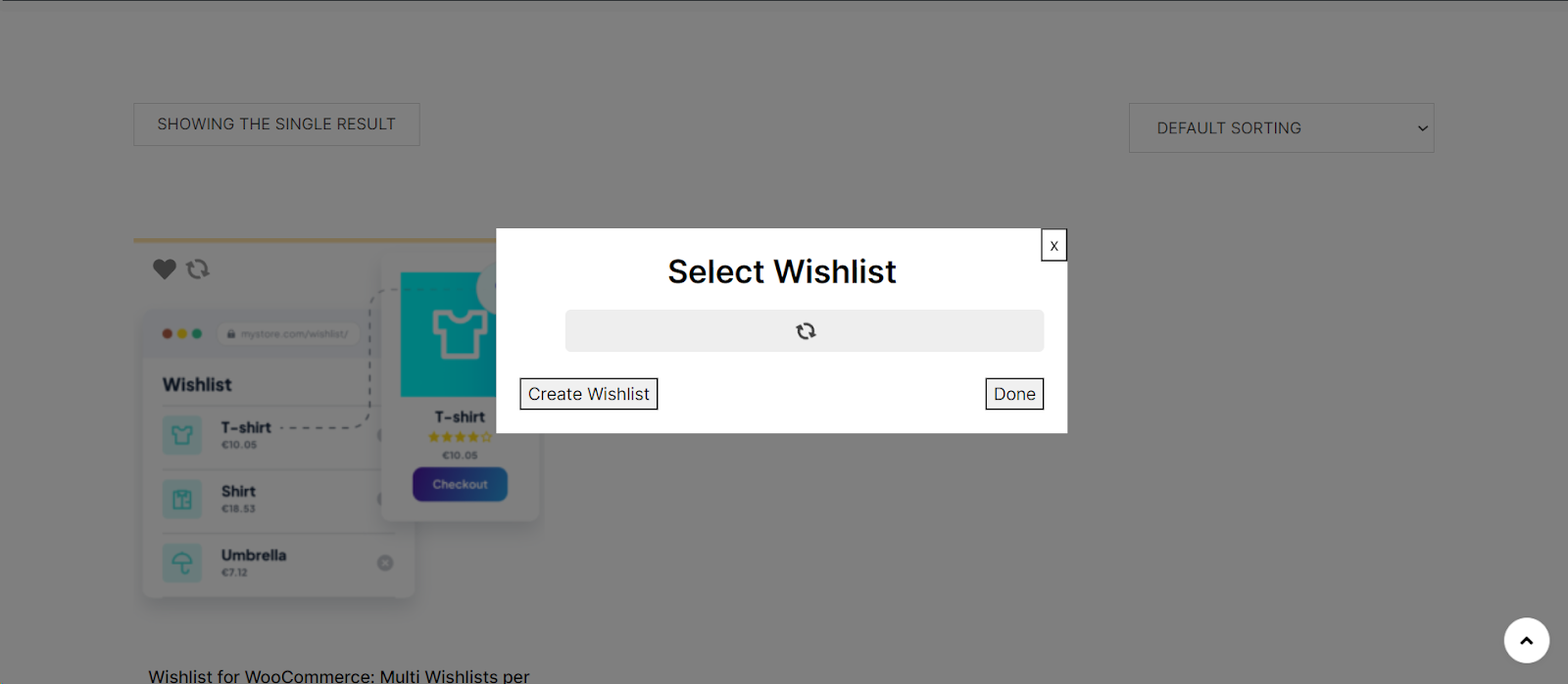
To enable the loading icon in Wishlist for WooCommerce, go to WooCommerce > Settings > Wishlist, open the Buttons tab, find the Loading icon setting, check Show loading icon after clicked, while waiting response, and click Save changes. The icon shows customers that the add to wishlist action is being processed.
Step by Step Guide to Enabling the Loading Icon #
Step 1: Access WooCommerce Settings #
- Log into your WordPress dashboard.
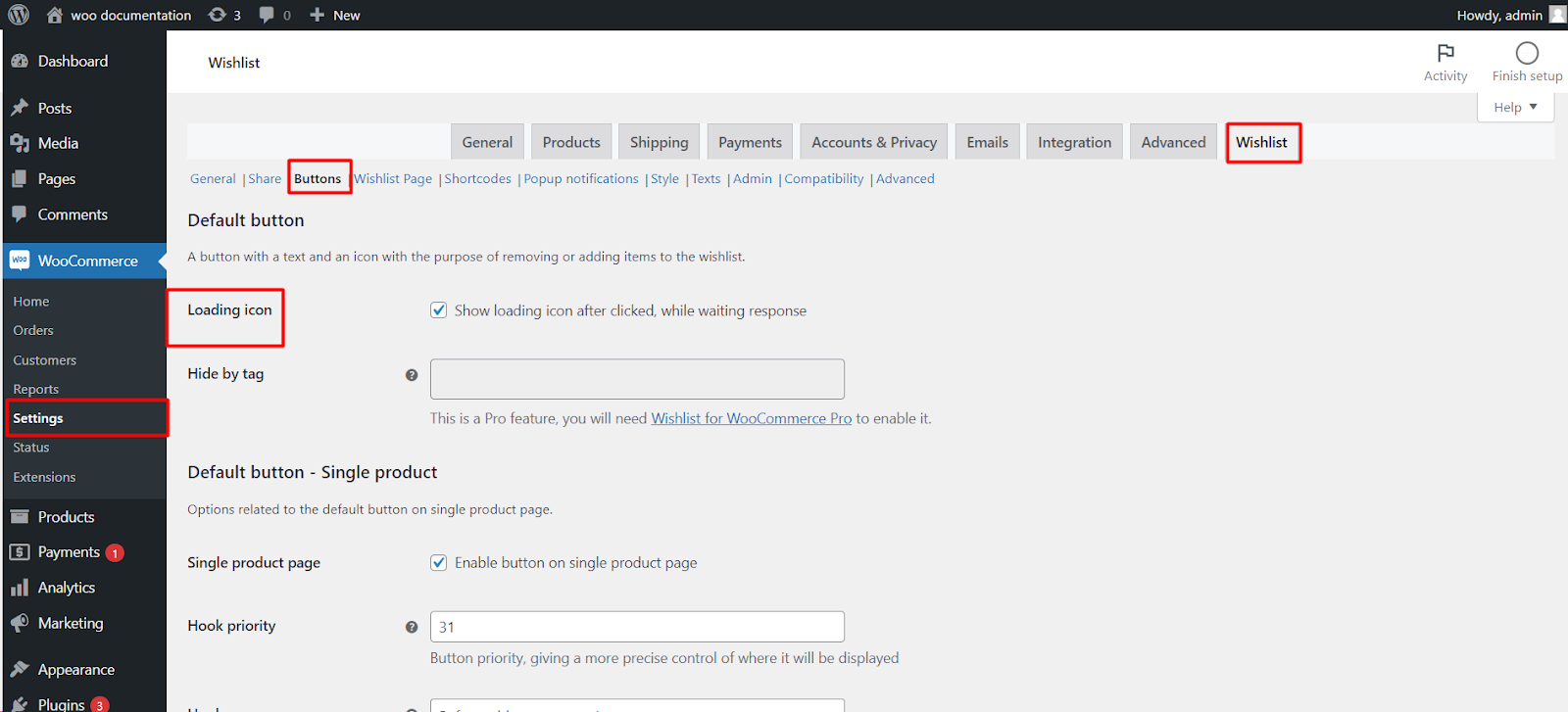
- Click on ‘WooCommerce’ on the sidebar and select ‘Settings’.
Step 2: Navigate to the Wishlist Settings #
At the top of the WooCommerce settings, you will find several tabs. Click on the ‘Wishlist‘ tab.
Step 3: Go to the Buttons Tab #
Within the Wishlist settings, locate and click on the ‘Buttons’ tab.
Step 4: Enable the Loading Icon #
- Look for the ‘Loading icon’ setting.
- Check the box to ‘Show loading icon after clicked, while waiting response’.
Step 5: Save Your Changes #
- Click on the ‘Save changes’ button to apply your new settings.
- Tips for a Better Customer Experience
- Test the Functionality: After enabling the loading icon, test to ensure it works correctly on different browsers and devices.
- Customize the Icon: If possible, choose a loading icon that matches your website’s design for a more integrated look.
- Inform Your Customers: Update your website or send a newsletter to inform customers about the improved functionality.
