To enable multiple wishlists in WooCommerce, go to WPFactory > Wishlist > General in Wishlist for WooCommerce and tick Multiple Wishlist. Each customer can then create named lists, for example one for a birthday and one for the holidays, and choose which list a product goes into. The option is free and off by default.
Step-by-step setup #
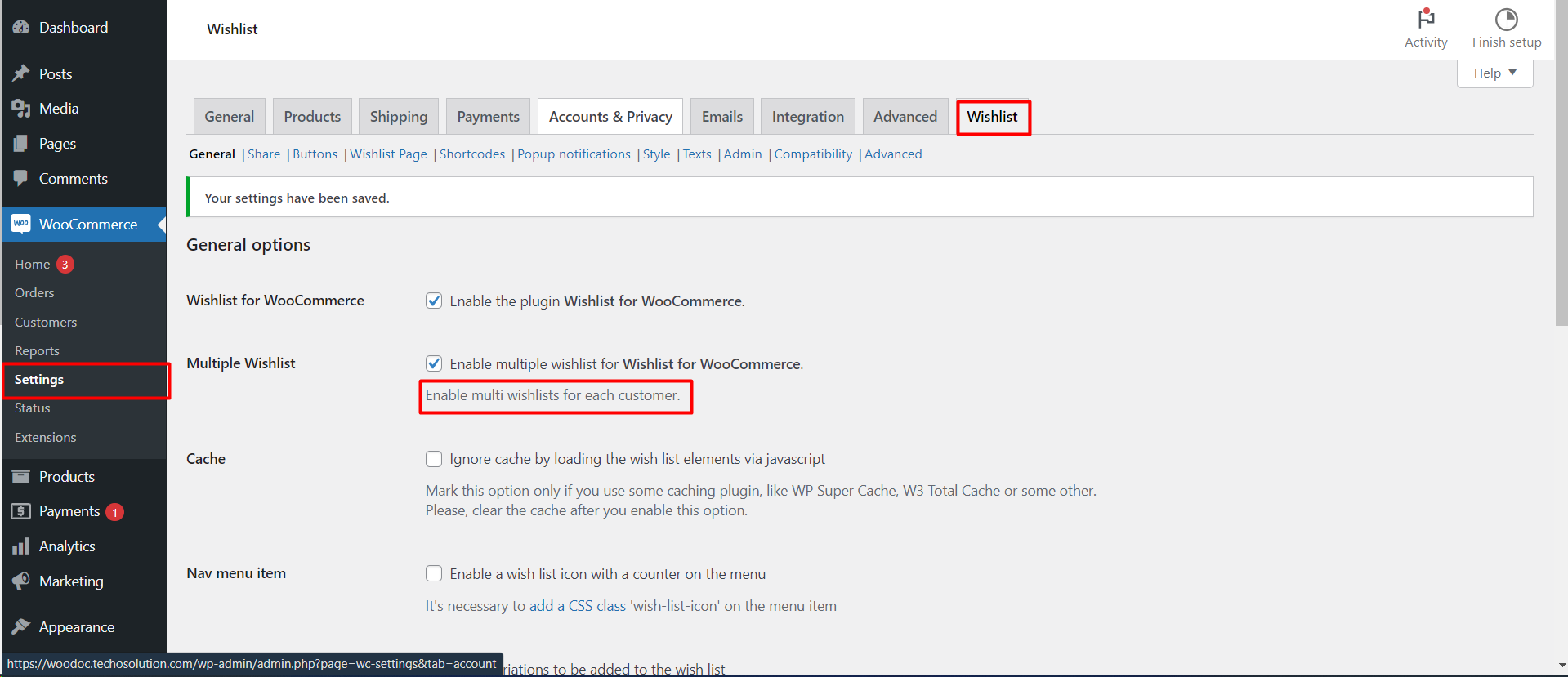
- Go to WPFactory > Wishlist (also reachable at WooCommerce > Settings > Wishlist).
- Open the General tab.
- In the General options section, find Multiple Wishlist (
alg_wc_wl_multiple_wishlist_enabled, default No). - Tick Enable multiple wishlist for Wishlist for WooCommerce.
- Save changes.
What customers can do #
- Choose a list when saving: clicking the wishlist button on a product opens a Select Wishlist popup listing their wishlists, with a Done button to confirm.
- Create and name lists: Create Wishlist in the same popup asks for a Wishlist Name.
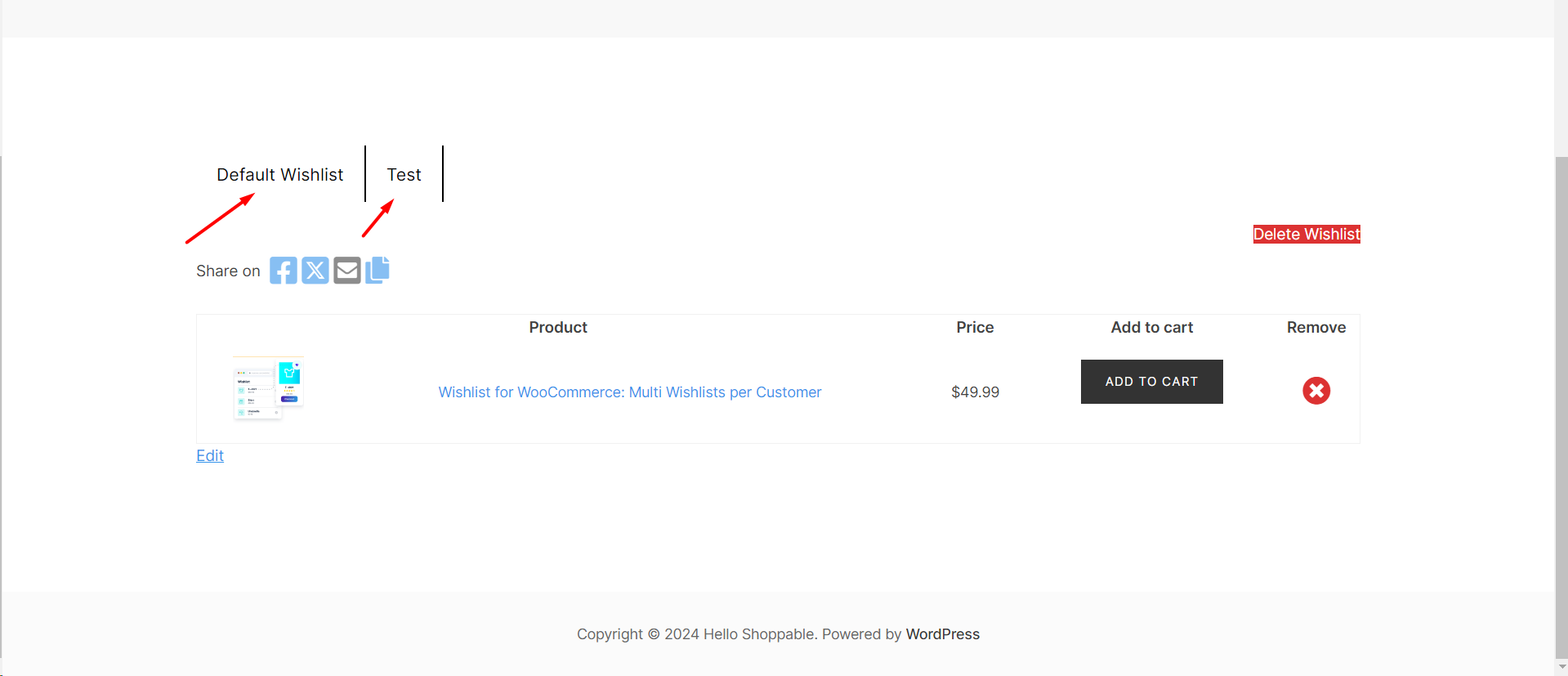
- Browse lists as tabs: the wishlist page shows one tab per list, starting with the default list.
- Add, remove and move products between lists.
- Delete wishlists that are no longer needed.
Texts and styling #
- On the Texts tab, the Multiple Wishlist section sets the Saved to wishlist message (default “Wishlist successfully saved.”) and the name of the Default Wishlist tab.
- On the Style tab, Multiple wishlist – Modal color option styles the popup and Multiple wishlist – Tab color styles the tabs. Both need Custom style ticked.
How it works with other features #
- The menu icon and
[alg_wc_wl_counter]count each product once, even if it sits in several lists. - Auto remove items > When added to cart removes the product from every list that holds it. See remove wishlist items automatically.
- In Pro, Duplicate Functionality adds a COPY button so logged-in customers can copy a list. See let customers copy a wishlist.
If it does not work #
- No popup when clicking the button: check the browser console for JavaScript errors and clear any page cache.
- Popup or tab colors do not change: tick Style > Custom style.
- Lists do not save: see multiple wishlists not working.
FAQ #
Is Multiple Wishlist a Pro feature? #
No. The option is free; Pro adds copying a wishlist and the sorting tools.
What happens to existing wishlists when I turn it on? #
Products customers already saved stay in their default list, shown as the first tab.
Can I rename the default list? #
Yes, with Texts > Multiple Wishlist > Default Wishlist.
Related guides #
- Let customers copy a wishlist
- Multiple wishlists not working
- Set up the wishlist page and its columns
Get more control #
This feature is free. Wishlist for WooCommerce Pro adds drag-and-drop and arrow sorting, dropdown sorting, and the ability to copy a wishlist. See what Pro unlocks.
Need a hand? Our team answers every ticket on the Wishlist for WooCommerce support forum.
