To let customers add a specific variation of a WooCommerce variable product to their wishlist, keep Variable products (Allow variations to be added to the wish list) ticked under WPFactory > Wishlist > General in Wishlist for WooCommerce. It is on by default and free: once a size or color is chosen, the wishlist button saves that exact variation.
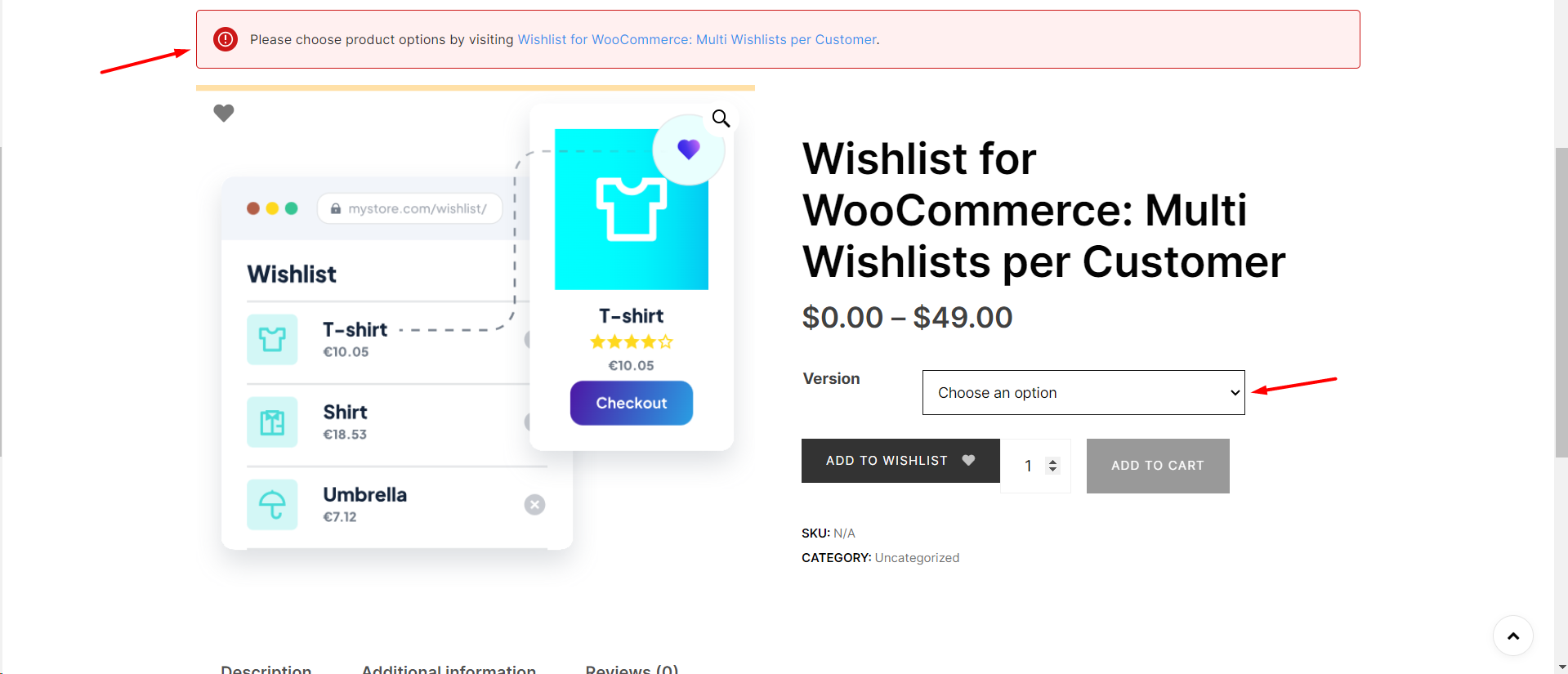
Accessing the wishlist settings #
- Go to WPFactory > Wishlist (also reachable at WooCommerce > Settings > Wishlist).
- Open the General tab.
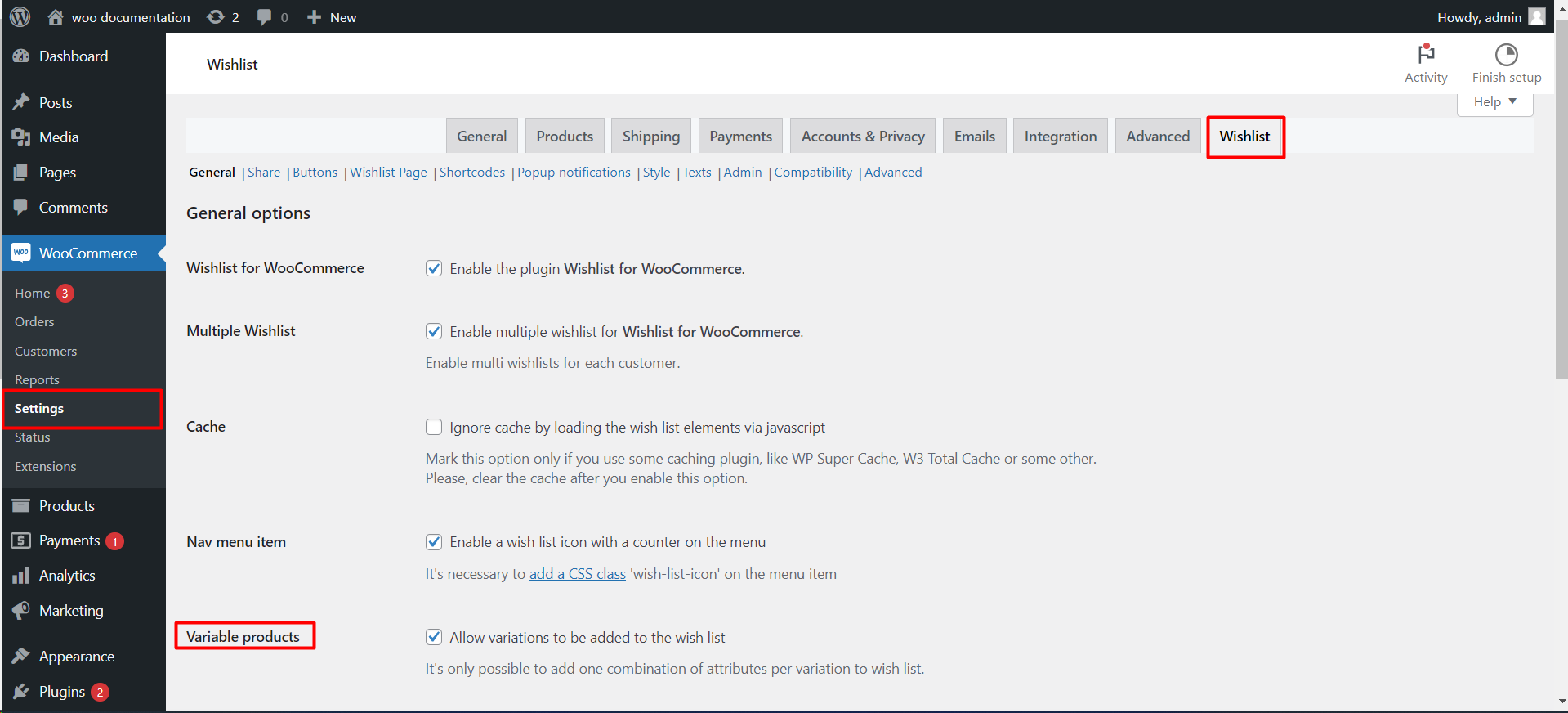
Enabling the option #
- In General options, find Variable products.
- Make sure Allow variations to be added to the wish list is checked (the default).
- To show the chosen attributes in the wishlist, open Wishlist Page and keep Wishlist table columns > Attributes (Show products attributes on the wish list) ticked, also on by default.
- Click Save changes.
Options #
| Label | Tab | Option ID | Default | Free/Pro |
|---|---|---|---|---|
| Variable products | General | alg_wc_wl_allow_variations |
Yes | Free |
| Attributes (column) | Wishlist Page | alg_wc_wl_save_attributes |
Yes | Free |
What this means for your customers #
- Add specific variations: on the product page, after a customer picks the attributes, the wishlist button switches to that variation. Its state shows whether that exact variation is already saved.
- No variation chosen yet: clicking the button saves the parent product instead.
- See the details later: with the Attributes column on, the wishlist shows the saved size, color or other attributes, so customers do not have to remember them.
- One combination per variation: as the settings note, only one combination of attributes can be saved for each variation.
Shop and archive pages #
Buttons in product listings do not have a variation selector, so they save the parent product. To let customers save an exact variation, they need to use the button on the product page.
If it does not work #
- The parent is saved instead of the variation: the customer clicked before choosing all attributes. Check that the option is ticked.
- The button does not follow the selected variation: the plugin listens to WooCommerce’s standard variation form. A theme or swatches plugin that replaces that form may not send the usual events; test with a default theme.
- Attributes column is empty: the variation was saved before the option was on, or the Attributes column is unticked.
- A bought variation stays on the list: the “When purchased” auto-remove rule matches the parent product; “When added to cart” also checks the variation. See remove wishlist items automatically.
FAQ #
Is variation support a Pro feature? #
No. It is free and enabled by default.
Can a customer save two variations of the same product? #
Yes. Each variation is a separate wishlist item.
Do I need the Attributes column? #
Only to display the chosen attributes. It is also required for the note field.
Related guides #
- Set up the wishlist page and its columns
- Add note fields to the wishlist page
- Customize the wishlist button placement
Get more control #
This feature is free. Wishlist for WooCommerce Pro adds drag-and-drop, arrow and dropdown sorting, copying a wishlist, hiding buttons by product tag, extra shortcodes and CSV wishlist import. See what Pro unlocks.
Need a hand? Our team answers every ticket on the Wishlist for WooCommerce support forum.
