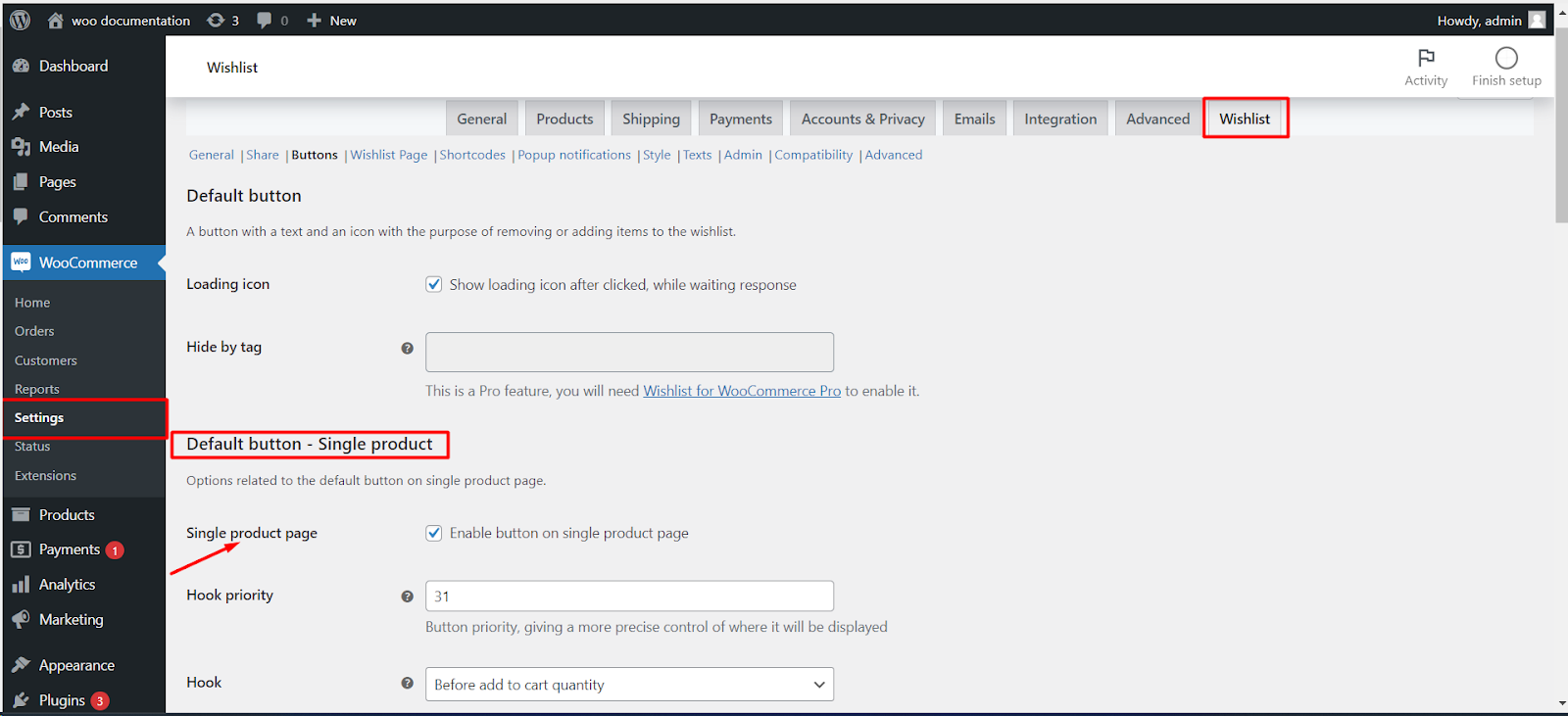
To show, hide or move the wishlist icon on WooCommerce product pages, go to WPFactory > Wishlist > Buttons in Wishlist for WooCommerce. The icon over the product image is the thumb button (Thumb button – Single product > Product page, on by default); the text button is Default button – Single product > Single product page (off by default).
Two buttons on the product page #
- Thumb button: an icon placed over the product image. Enabled by default.
- Default button: a button with text (“Add to Wishlist” / “Remove from Wishlist”) and an icon, placed near the Add to cart button. Disabled by default.
Single product options #
| Label | Option ID | Default | Free/Pro |
|---|---|---|---|
| Product page (thumb button) | alg_wc_wl_tbtn_single_enable |
Yes | Free |
| Image wrapper guessing level | alg_wc_wl_img_wrapper_guess_levels_single |
2 (range 1 to 3) | Free |
| Single product page (default button) | alg_wc_wl_dbtn_single_enable |
No | Free |
| Hook priority | alg_wc_wl_dbtn_single_pri |
31 (right after Add to cart) | Free |
| Hook | alg_wc_wl_dbtn_single_pos |
On single product summary | Free |
| Custom Hook | alg_wc_wl_dbtn_single_pos_ovr |
Empty | Pro |
| Hide by tag (either button) | alg_wc_wl_dbtn_hide_by_tag, alg_wc_wl_tbtn_hide_by_tag |
Empty | Pro |
Hide or show the icon #
- Go to WPFactory > Wishlist (also reachable at WooCommerce > Settings > Wishlist) and open the Buttons tab.
- To remove the icon over the image, untick Thumb button – Single product > Product page (Enable the button on single product page).
- To show the text button, tick Default button – Single product > Single product page (Enable button on single product page). Untick it to remove it.
- Click Save changes.
Move the text button #
Choose where the default button prints with Hook: On single product summary, Before single product summary, After single product summary, After product thumbnail, Before add to cart form, After add to cart form, Before add to cart quantity, or After add to cart quantity. Fine-tune the order within that area with Hook priority: 31 places it right after the Add to cart button, and a lower number moves it earlier. In Pro, Custom Hook accepts any action name and overrides Hook. More detail: wishlist button placement on the product page.
Change the icon or its color #
On the Style tab, tick Custom style, then set Icon – Normal and Icon – Added for each button (both default to a star, fas fa-star). Colors are covered in customizing the wishlist icon color.
Shop and archive pages #
The same two buttons have separate switches for product listings: Thumb button – Loop > Product loop (on by default) and Default button – Loop > Loop (off by default). See how to add the wishlist button to shop pages.
If it does not work #
- The text button does not appear: your theme may not run the selected hook. Try another Hook value, or use Custom Hook (Pro).
- The thumb icon sits in the wrong place: change Image wrapper guessing level (1 to 3), or adjust Guide image selector in the Thumb button section.
- Empty squares instead of icons: Font Awesome is not loading; keep General > Font Awesome > Load FontAwesome ticked.
- A new icon or color does not apply: Style > Custom style is not ticked.
FAQ #
How do I remove the wishlist from product pages completely? #
Untick both Product page (thumb) and Single product page (default). To switch the whole plugin off, untick General > Wishlist for WooCommerce.
Can I hide the icon on some products only? #
Yes, with Hide by tag in Pro: tag the products and select the tag. See how to hide the wishlist button.
Can I show both buttons? #
Yes. They work independently and stay in sync when a product is added or removed.
Related guides #
- Customize the wishlist button placement
- Customize the wishlist icon color
- Hide or remove the wishlist button
Get more control #
This feature is free. Wishlist for WooCommerce Pro adds drag-and-drop, arrow and dropdown sorting, copying a wishlist, hiding buttons by product tag, extra shortcodes and CSV wishlist import. See what Pro unlocks.
Need a hand? Our team answers every ticket on the Wishlist for WooCommerce support forum.
