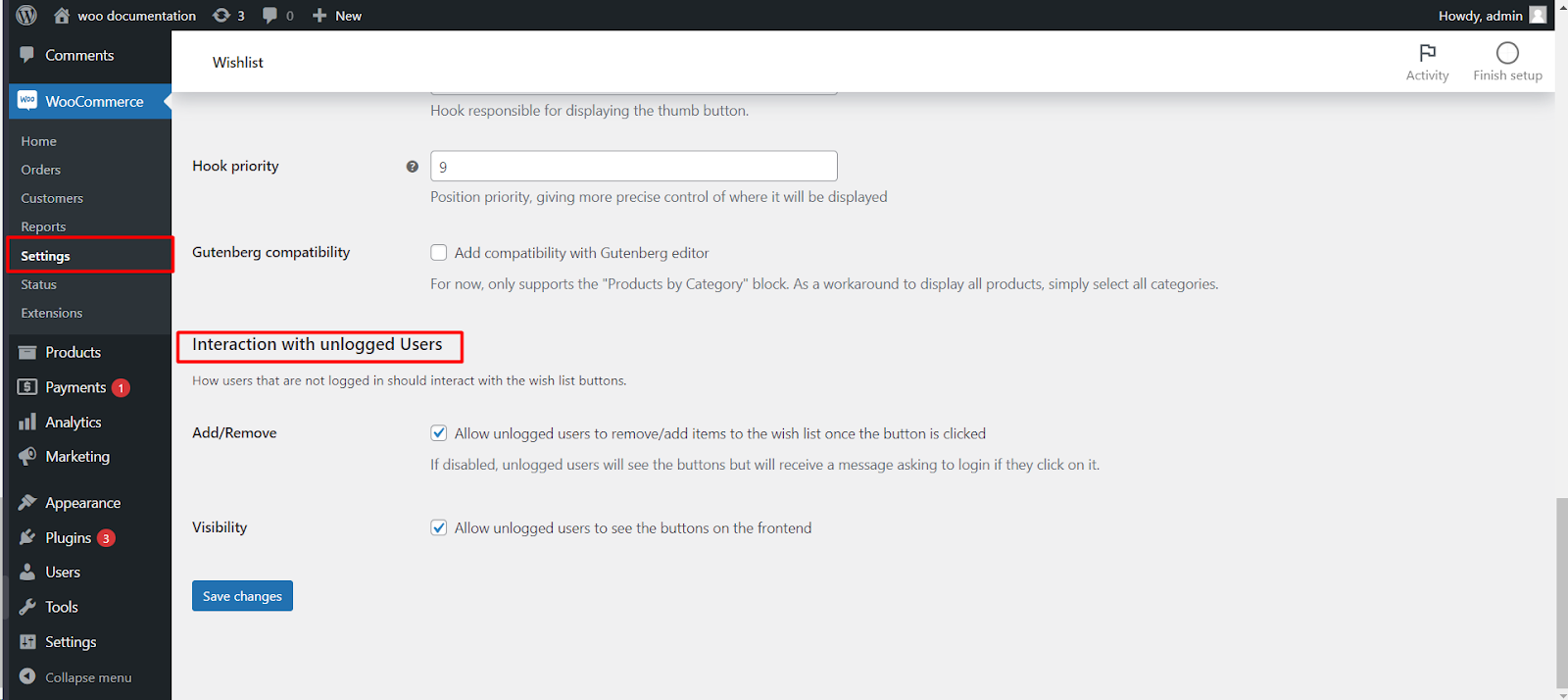
To let non-logged-in customers use the wishlist in WooCommerce, go to WPFactory > Wishlist > Buttons in Wishlist for WooCommerce and keep Add/Remove and Visibility ticked under Interaction with unlogged Users. Both are on by default, so guests can save products without an account, and their list moves into their account when they log in.
Guest wishlist options #
| Label | Tab | Option ID | Default | Free/Pro |
|---|---|---|---|---|
| Add/Remove | Buttons | alg_wc_wl_allow_unlogged |
Yes | Free |
| Visibility | Buttons | alg_wc_wl_unlogged_can_see_buttons |
Yes | Free |
| Guest user data type | Advanced | alg_wc_wl_guest_user_data_type |
Cookie | Free |
| Expire time / Unit | Advanced | alg_wc_wl_guest_user_expire_time_number / alg_wc_wl_guest_user_expire_time_unit |
1 / Months | Free |
| Disallow Unlogged (message) | Texts | alg_wc_wl_texts_disallow_unlogged |
Please {login} if you want to use the Wishlist | Free |
Step-by-step #
- Go to WPFactory > Wishlist (also reachable at WooCommerce > Settings > Wishlist) and open the Buttons tab.
- Scroll to Interaction with unlogged Users.
- Keep Add/Remove ticked (Allow unlogged users to remove/add items to the wish list once the button is clicked).
- Keep Visibility ticked (Allow unlogged users to see the buttons on the frontend).
- Optionally open Advanced to choose how guest lists are stored and how long they last.
- Click Save changes.
How guest wishlists work #
- Each guest gets an anonymous ID, kept in a browser cookie or in the WooCommerce session, depending on Guest user data type.
- Their products are stored on your site and expire after the Expire time you set (1 month by default). The settings screen notes that object caches or server actions can clear this data earlier.
- When the guest logs in or registers, the saved products are copied into their account wishlist (without duplicates) and the guest copy is cleared.
- A guest list belongs to one browser: it does not follow the visitor to another device until they log in.
Require a login instead #
- Untick Add/Remove: guests still see the buttons, but clicking one shows the Disallow Unlogged message with a login link to your My Account page. Edit that text on the Texts tab; keep the
{login}placeholder for the link. - Untick Visibility: guests do not see the wishlist buttons at all.
Show the button on shop and archive pages too #
Guests and customers alike can save products straight from listings. On the Buttons tab, the thumb button already appears on the product loop by default. To add the text button, go to Default button – Loop, tick Loop (Enable button on product loop), and choose a Hook priority: 9 – Before add to cart button or 11 – After add to cart button (the default). Save changes. Full guide: add the wishlist button to shop and archive pages.
If it does not work #
- A guest’s wishlist empties on its own: a caching layer is dropping the cookie or serving cached pages. Set Guest user data type to WooCommerce Session, which the settings recommend for caching issues, and enable General > Cache.
- Lists expire too soon: raise Expire time or switch Unit to Weeks, Months or Years. See guest wishlists and their expiration.
- Guests see a login message: Add/Remove is unticked.
- Guests see no buttons: Visibility is unticked.
FAQ #
Is guest wishlisting free? #
Yes. All guest options are in the free version.
Can I add a wishlist to WooCommerce without a plugin? #
WooCommerce has no built-in wishlist, so a plugin such as Wishlist for WooCommerce is needed.
Does a guest keep the list after closing the browser? #
Yes, as long as the browser keeps the cookie or session and the expire time has not passed.
What happens to the list when a guest creates an account? #
It is copied into the new account’s wishlist automatically.
Related guides #
- Configure guest wishlists and their expiration
- Add the wishlist button to shop and archive pages
- Troubleshoot the wishlist with cache plugins
Get more control #
This feature is free. Wishlist for WooCommerce Pro adds drag-and-drop, arrow and dropdown sorting, copying a wishlist, hiding buttons by product tag, extra shortcodes and CSV wishlist import. See what Pro unlocks.
Need a hand? Our team answers every ticket on the Wishlist for WooCommerce support forum.
