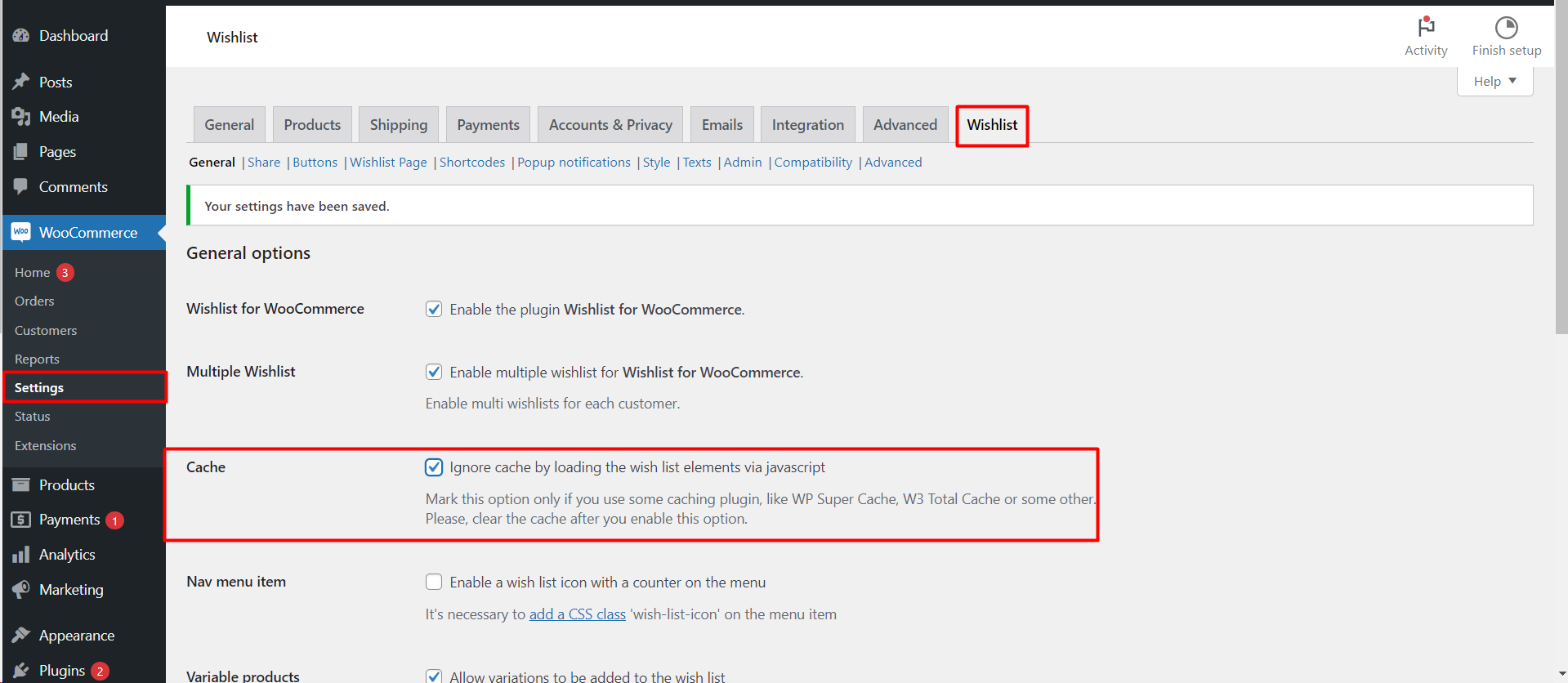
To make Wishlist for WooCommerce work with cache plugins such as WP Rocket, WP Super Cache or W3 Total Cache, go to WPFactory > Wishlist > General, tick Cache (Ignore cache by loading the wish list elements via javascript), save, and clear your site cache. The wishlist buttons, counter and table then load live after the cached page.
Why caching breaks a wishlist #
Cache plugins store static copies of your pages to make them load faster. A wishlist is personal and changes with every click, so a cached copy can show the wrong button state, the wrong counter or someone else’s empty list. The buttons also send a security token printed into the page; when a cache serves an old copy, that token can be out of date and the click is rejected.
Steps to bypass the cache for the wishlist #
- Go to WPFactory > Wishlist (also reachable at WooCommerce > Settings > Wishlist).
- On the General tab, find the Cache option.
- Check Ignore cache by loading the wish list elements via javascript.
- Save your changes.
- Clear your site’s cache (and any CDN or server cache).
What the Cache option changes #
- After the page loads, the plugin asks the server for the visitor’s current wishlist and marks each button as added or not.
- The wishlist counter refreshes the same way.
- The wishlist table on the wishlist page and the My Account tab is fetched after the page loads; a loading spinner shows briefly.
Related settings #
| Label | Tab | Option ID | Default | Free/Pro |
|---|---|---|---|---|
| Cache | General | alg_wc_wl_work_with_cache |
No | Free |
| Guest user data type | Advanced | alg_wc_wl_guest_user_data_type |
Cookie | Free |
| Frontend Ajax URL | Advanced | alg_wc_wl_admin_ajax_url |
Empty (uses the standard admin-ajax.php) | Free |
| Javascript update events | Advanced | alg_wc_wl_updater_events_enable |
Off | Pro |
Important note #
After enabling the option, it is crucial to clear your site’s cache. This ensures that the changes take effect immediately, allowing the wishlist to function correctly.
Post-activation checks #
- Test wishlist functionality: after clearing the cache, add items to the wishlist in a private window and confirm the wishlist updates in real time.
- Monitor site performance: loading these elements by JavaScript adds a small request per page, so keep an eye on load times.
- Keep personal pages out of the cache: most cache plugins let you exclude pages; the wishlist page and My Account are good candidates.
If it still does not work #
- Guest wishlists empty themselves: set Advanced > Guest user data type to WooCommerce Session; the settings recommend it when caching causes issues. See guest wishlists and their expiration.
- The list is always empty or items never save: try one of the suggested addresses under Advanced > Frontend Ajax URL.
- Buttons break after filters or infinite scroll: enable Javascript update events (Pro). See refresh the wishlist with JavaScript events.
- An object cache (Redis, Memcached) is active: the Advanced tab notes that guest data stored as transients can be cleared early by an object cache.
FAQ #
Is the Cache option free? #
Yes, it is on the General tab of the free version.
Should I enable it if I do not use a cache plugin? #
No. The settings describe it as an option for sites that use a caching plugin.
Does it slow the site down? #
It adds a small background request on pages with wishlist elements. Pages themselves can stay fully cached.
Related guides #
- “Add to Wishlist” button not working
- Configure guest wishlists and their expiration
- Wishlists not saving properly
Need a hand? Our team answers every ticket on the Wishlist for WooCommerce support forum.
