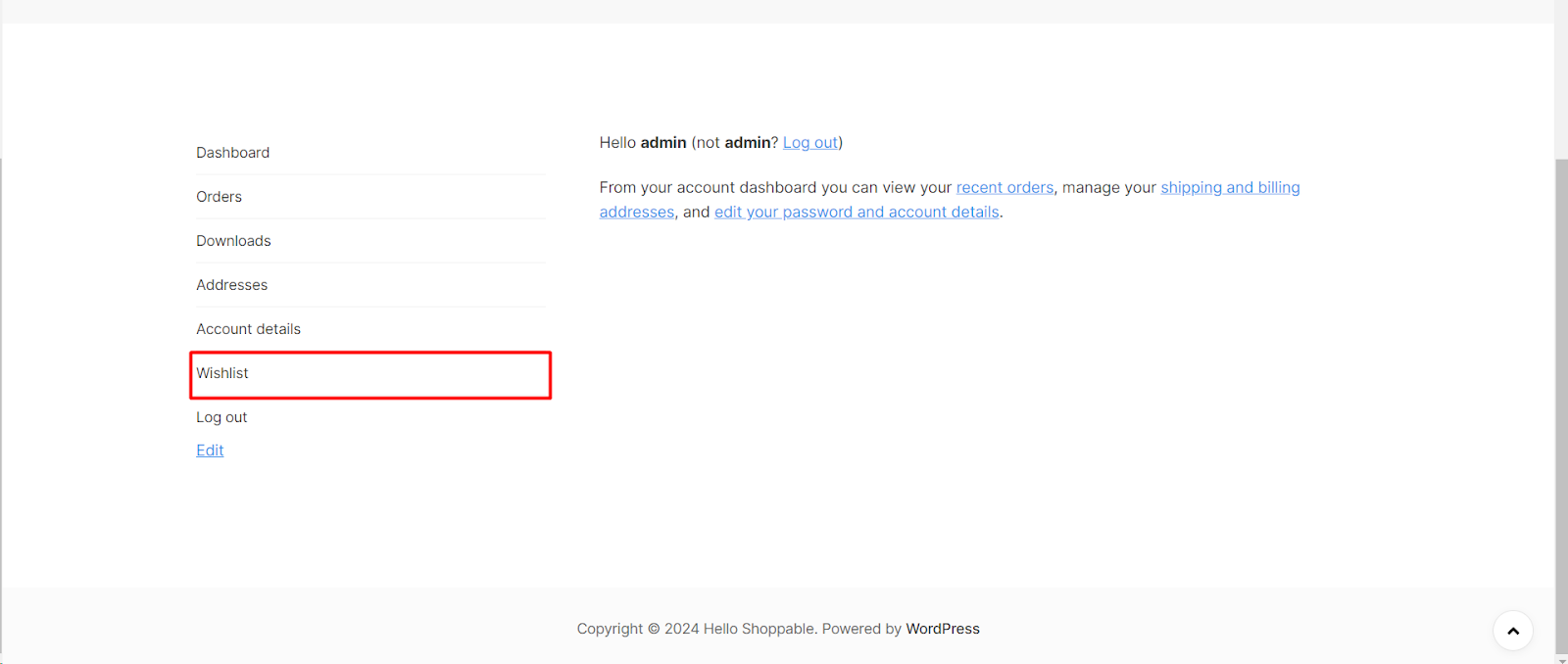
To add a Wishlist tab to the WooCommerce My Account page, go to WPFactory > Wishlist > Wishlist Page in Wishlist for WooCommerce and tick Wishlist tab in the My account – Wishlist tab section. The tab is on by default and free, and it shows the customer’s full wishlist inside their account.
Step-by-step setup #
- Go to WPFactory > Wishlist (also reachable at WooCommerce > Settings > Wishlist).
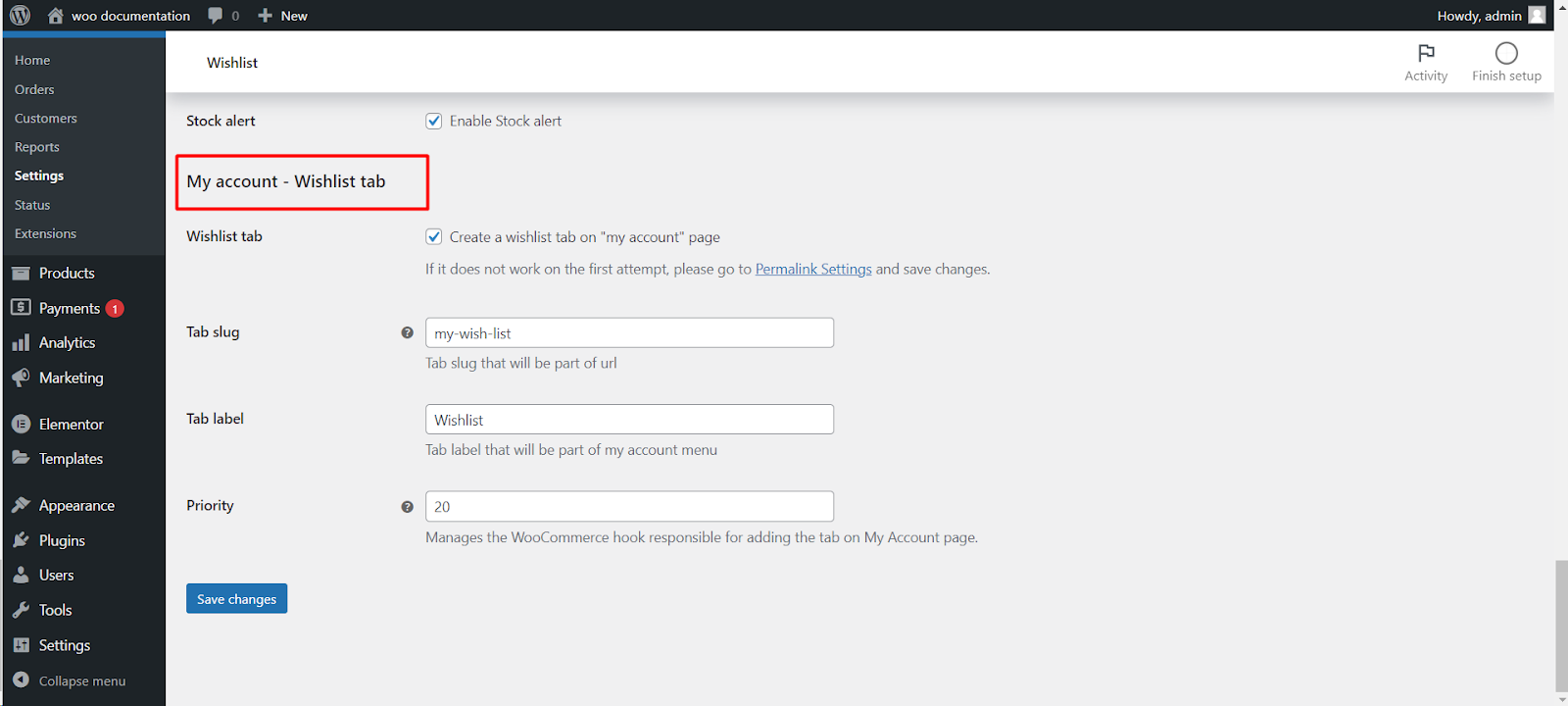
- Open the Wishlist Page tab and scroll to My account – Wishlist tab.
- Tick Wishlist tab (Create a wishlist tab on “my account” page).
- Optionally change the Tab label, Tab slug or Priority (see the table below).
- Click Save changes.
- If the tab does not appear on the first attempt, go to Settings > Permalinks and click Save Changes. This refreshes the permalinks so the new account page resolves.
Tab options #
| Label | Option ID | Default | What it does |
|---|---|---|---|
| Wishlist tab | alg_wc_wl_tab |
Yes | Adds the tab to the My Account menu. |
| Tab slug | alg_wc_wl_tab_slug |
my-wish-list |
The URL part, for example /my-account/my-wish-list/. Must not match any other slug on your site. |
| Tab label | alg_wc_wl_tab_label |
Wishlist | The menu text and the page title. |
| Priority | alg_wc_wl_tab_priority |
20 | Priority of the WooCommerce hook that adds the tab. Try lowering it if another plugin interferes. |
All four options are free.
What the customer sees #
A logged-in customer finds the new item in the My Account menu, placed just above Log out. Opening it shows the same wishlist table as your wishlist page, with the columns you enabled (price, stock, add to cart and so on) and the remove icon for each product.
Common variations #
- Rename the tab: change Tab label, for example to “Saved items”.
- Add an icon next to it: see how to add an icon to the Wishlist tab.
- Remove the tab: untick Wishlist tab. The standalone wishlist page keeps working.
- Multilingual stores: the tab endpoint is registered with WooCommerce Multilingual, so it can be translated there.
If it does not work #
- The tab link shows a 404 page: save Settings > Permalinks once. If it persists, change Tab slug to something unique; see wishlist page returns 404.
- The tab is missing from the menu: another plugin or the theme may rebuild the account menu. Lower Priority and test again.
- The tab icon disappeared after changing the slug: the icon styling targets the default
my-wish-listslug, so keep the default slug if you use the tab icon. - Remove does nothing on this tab: see “Remove from Wishlist” not working on My Account.
FAQ #
Can guests see the Wishlist tab? #
No. The My Account area needs a login, so guests use the standalone wishlist page instead.
Do I still need a wishlist page if I use the tab? #
The tab works on its own, but keep a page selected under Wishlist Page > Wishlist page: the “See your wishlist” link in the popup notification only appears when a page is set.
Is the My Account tab free? #
Yes. The tab and all its options are in the free version.
Related guides #
- Add an icon to the Wishlist tab
- Set up the wishlist page and its columns
- “Remove from Wishlist” not working on My Account
Get more control #
This feature is free. Wishlist for WooCommerce Pro adds drag-and-drop, arrow and dropdown sorting, copying a wishlist, hiding buttons by product tag, extra shortcodes and CSV wishlist import. See what Pro unlocks.
Need a hand? Our team answers every ticket on the Wishlist for WooCommerce support forum.
