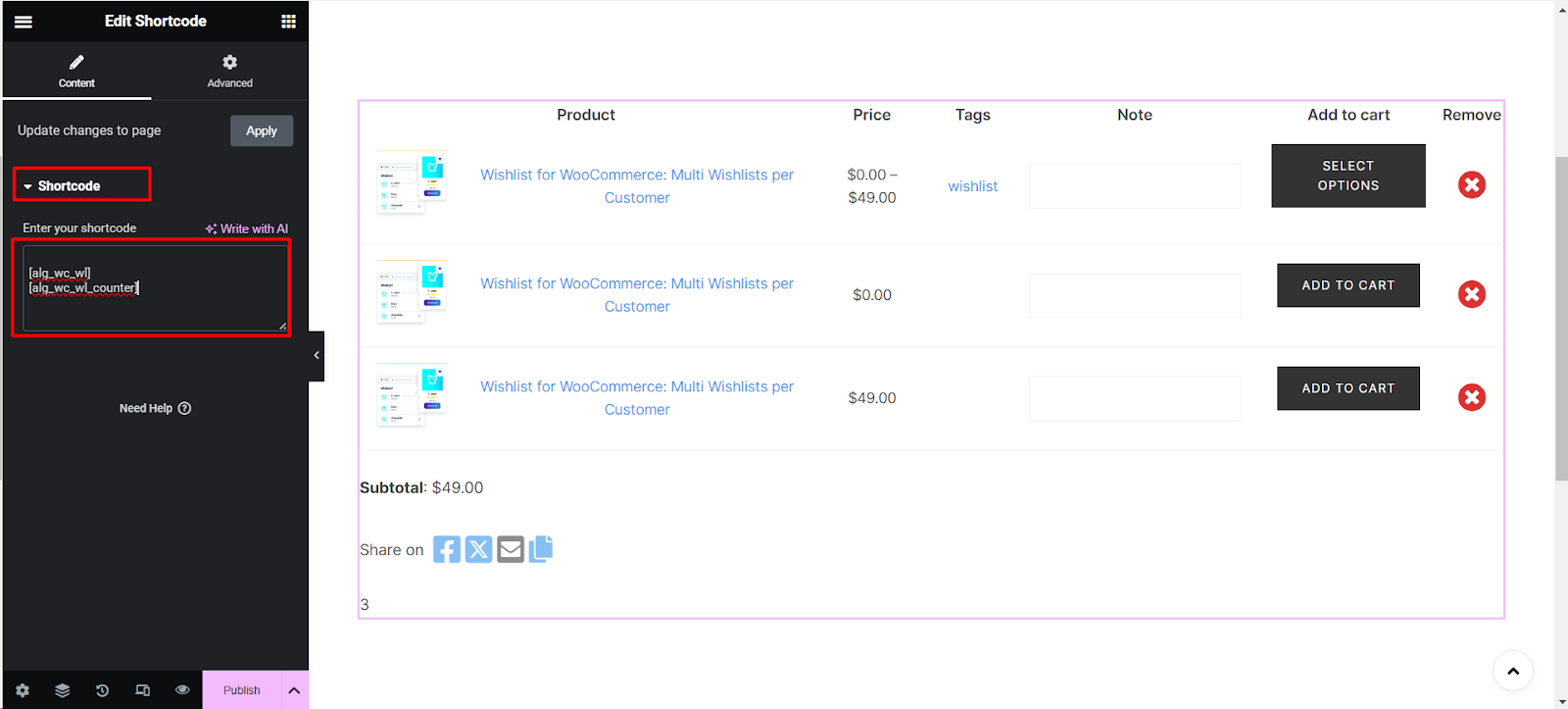
To build a WooCommerce wishlist page with Elementor, design a page in Elementor, drop a Shortcode widget containing [alg_wc_wl] from Wishlist for WooCommerce, then select that page under WPFactory > Wishlist > Wishlist Page > Wishlist page. Elementor controls the layout around the list; the plugin renders each customer’s wishlist. The shortcodes used here are free.
Before you start #
- WooCommerce and Wishlist for WooCommerce active.
- Elementor (the free version includes the Shortcode widget).
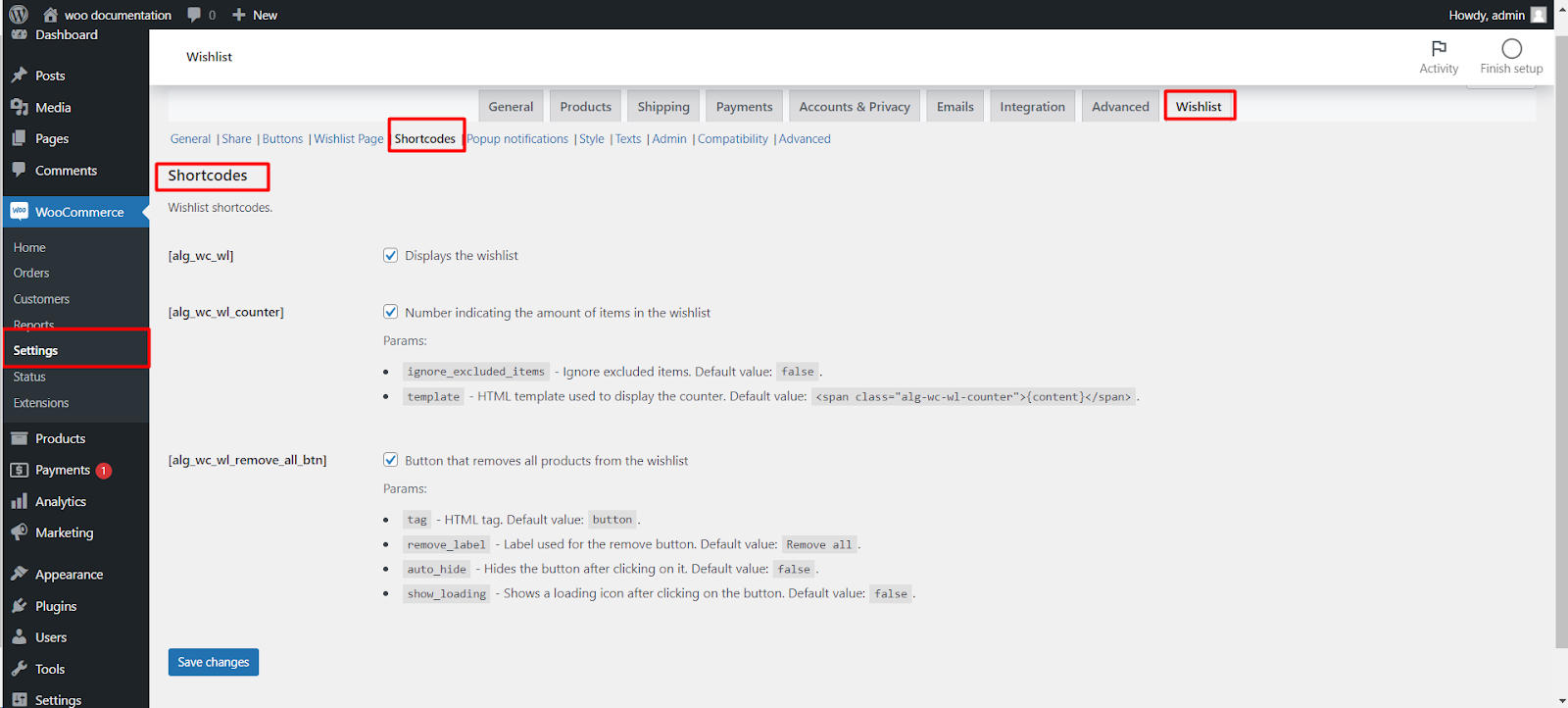
- The shortcodes enabled on the Shortcodes tab of WPFactory > Wishlist (also reachable at WooCommerce > Settings > Wishlist). They are on by default.
Step-by-step #
- Create a new page and click Edit with Elementor.
- Build the layout you want: a heading, a banner, columns for related content.
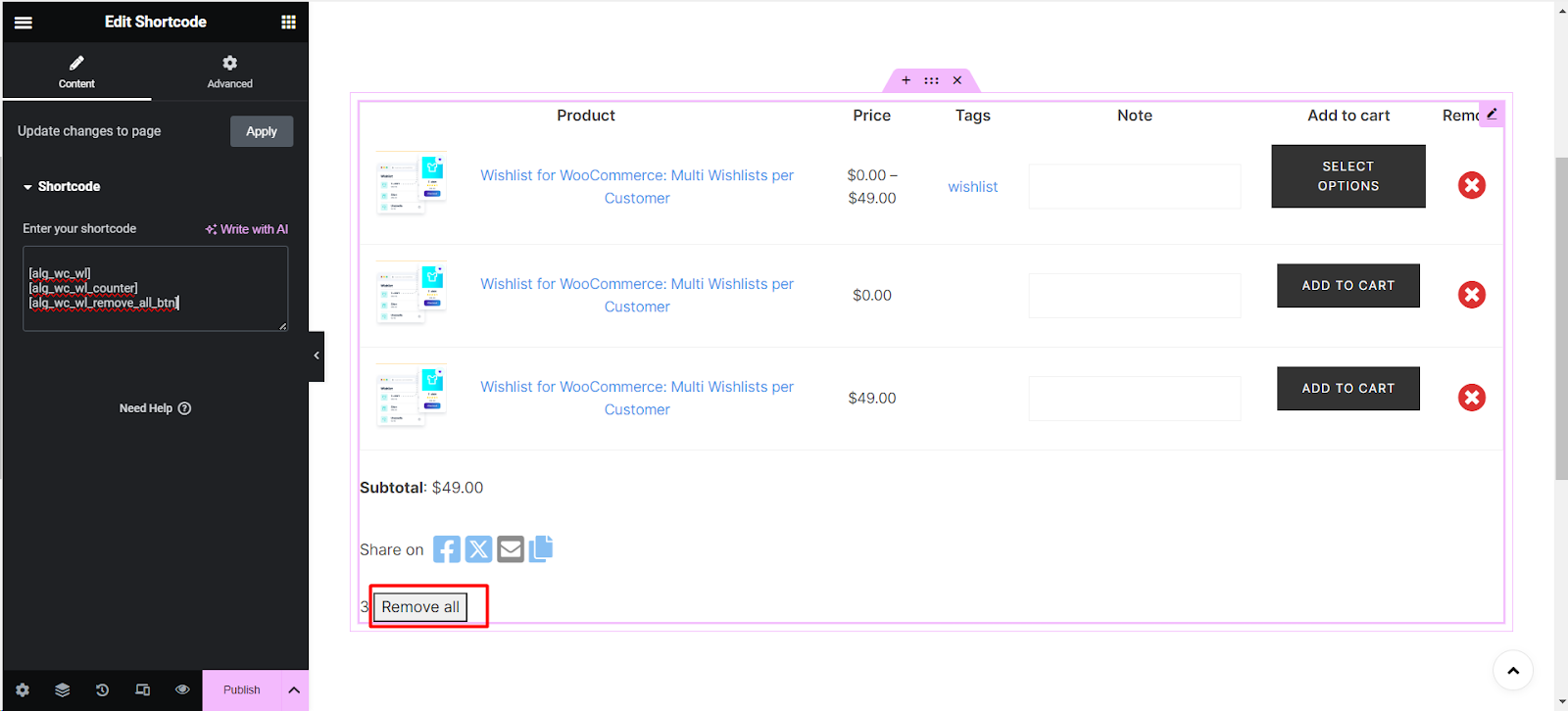
- Add a Shortcode widget where the list should appear and enter
[alg_wc_wl]. - Optionally add more Shortcode widgets for
[alg_wc_wl_counter](item count) and[alg_wc_wl_remove_all_btn](a Remove all button). - Publish the page.
- Go to WPFactory > Wishlist (also reachable at WooCommerce > Settings > Wishlist), open Wishlist Page, and choose your new page in Wishlist page. Save changes.
- Preview the page as a customer: add a product to the wishlist and reload.
Shortcodes you can place in Elementor #
| Shortcode | What it shows | Parameters (default) | Free/Pro |
|---|---|---|---|
[alg_wc_wl] |
The wishlist table | ignore_excluded_items (true) |
Free |
[alg_wc_wl_counter] |
Number of items in the wishlist | ignore_excluded_items (false), template (<span class="alg-wc-wl-counter">{content}</span>) |
Free |
[alg_wc_wl_remove_all_btn] |
Button that empties the wishlist | tag (button), remove_label (Remove all), auto_hide (false), show_loading (false) |
Free |
[alg_wc_wl_icon] |
Wishlist icon with counter | link, counter, ignore_excluded_items |
Pro |
[alg_wc_wl_toggle_item_btn] |
Add/remove button for a product, for example in an Elementor Pro product template | product_id (current product), btn_type (default_btn or thumb_btn) |
Pro |
The full list is in the wishlist shortcodes reference.
What the customer sees #
Your Elementor design, with the wishlist table in place of the shortcode. Each visitor sees their own saved products, and guests see theirs too while guest wishlists are allowed. The columns in the table (price, stock, add to cart, SKU and more) are set on the Wishlist Page tab, and colors on the Style tab once Custom style is ticked.
If it does not work #
- The shortcode prints as plain text: its toggle on the Shortcodes tab is off.
- The list looks empty in the Elementor editor: the editor shows your own admin wishlist. Check the live page with a test customer instead.
- Links still go to the old page: the “See your wishlist” link and the menu icon use the page chosen in Wishlist page, so select the Elementor page there.
- Drag and drop sorting does not appear (Pro): its scripts load only on the selected wishlist page and the My Account tab.
- Visitors see someone else’s or an outdated list: the page is cached. Tick General > Cache so the list loads after the page; see wishlist and cache plugins.
FAQ #
Do I need Elementor Pro? #
No, the Shortcode widget is in free Elementor. Elementor Pro is only needed if you want to design product templates, where the Pro [alg_wc_wl_toggle_item_btn] shortcode adds the wishlist button.
Can I delete the default Wishlist page? #
Yes, once your Elementor page is selected under Wishlist page.
Does this work with other page builders? #
Yes. Any builder or block that renders shortcodes can hold [alg_wc_wl].
Related guides #
Get more control #
This feature is free. Wishlist for WooCommerce Pro adds drag-and-drop, arrow and dropdown sorting, copying a wishlist, hiding buttons by product tag, extra shortcodes and CSV wishlist import. See what Pro unlocks.
Need a hand? Our team answers every ticket on the Wishlist for WooCommerce support forum.
