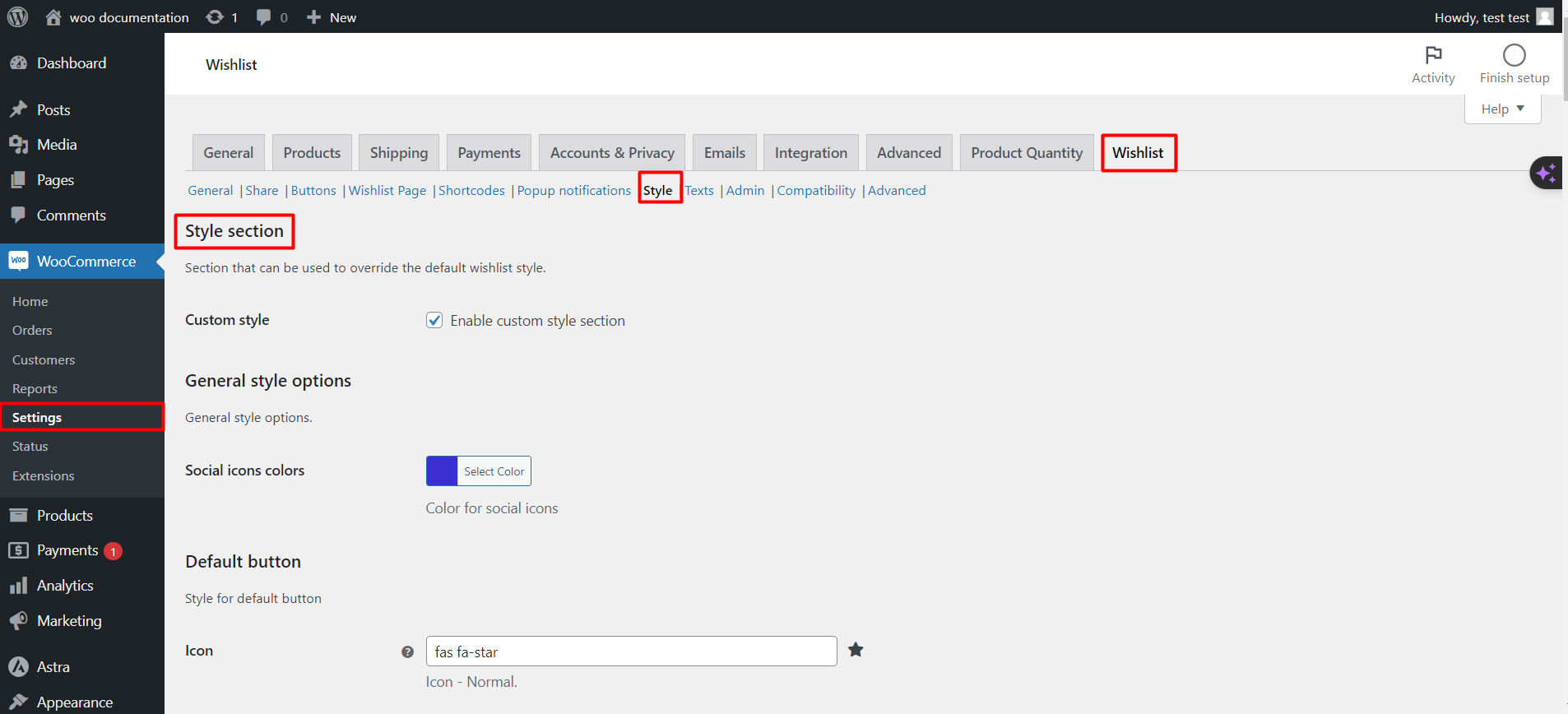
To style the wishlist buttons, popup and page in WooCommerce, go to WPFactory > Wishlist > Style in Wishlist for WooCommerce and tick Custom style (Enable custom style section). That unlocks colors, icons, sizes, alignment and padding for every wishlist element, plus a box for your own CSS. The Style tab is free.
Step 1: Enable custom styles #
Go to WPFactory > Wishlist (also reachable at WooCommerce > Settings > Wishlist), open Style, and tick Custom style. It is off by default, and none of the settings below apply until it is on.
Step 2: Work through the sections #
| Section | What you can set | Key defaults |
|---|---|---|
| General style options | Social icons colors and hover colors | #a0a0a0 |
| Default button | Icon – Normal / Added, background and hover colors, text color (text and icon), font weight, border radius, font size, margin and alignment for single product and loop | Icon fas fa-star, background #919191, font size 15, alignment Left (single) / Center (loop) |
| Thumb button | Icons, pulsate on hover, icon colors (normal, added, hover), position over the image, hover size, offset, padding, font size | Position Top left, hover size 145%, font size 25 (single) / 20 (loop) |
| Thumb button – Back layer | A circle behind the thumb icon: enable, background color, size | Off, #ffffff, 28 px |
| Popup notifications | Add and remove icons, progress bar, colors, timeout, position | Black background, 7000 ms, Center |
| Wishlist page table | Column titles on desktop and mobile, alignment on mobile | Titles shown |
| Wishlist page remove item button | Icon, color, size, hover size | fas fa-times-circle, #DC3232 |
| My account tab | Show an icon on the tab | Off, f004 |
| Multiple wishlist – Modal color / Tab color | Popup and tab colors when multiple wishlists are on | White popup, grey tabs |
| Style customization | Add customized css | Empty |
Step 3: Personalize buttons and icons #
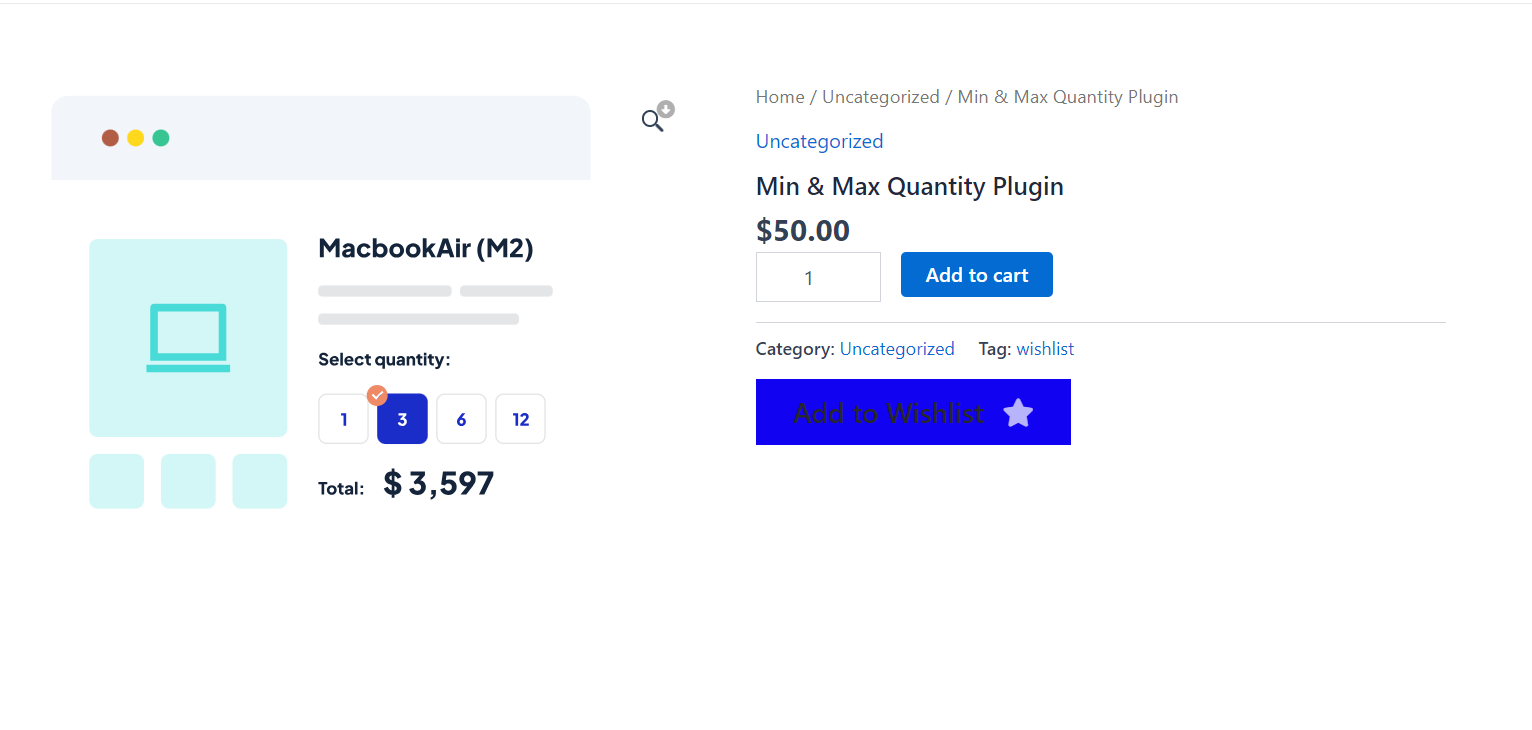
Pick icons for the “not added” and “added” states, set their colors, and turn on Pulsate (Make the icon pulsate on mouse over) for a livelier thumb button. Details: wishlist icon color and thumb icon.
Step 4: Adjust alignment, padding and responsive details #
Margins and padding use CSS shorthand (for example 0 0 15px 0). Single product and loop values are separate, so you can keep the product page roomy and shop tiles compact. Which layout counts as mobile is set in General > Responsiveness.
Step 5: Save your changes #
Click Save changes and clear any cache or CSS optimization so the new styles load.
If it does not work #
- Nothing changes: Custom style is not ticked.
- The theme overrides a value: add a stronger rule in Add customized css.
- Icons show as squares: keep General > Font Awesome > Load FontAwesome ticked.
FAQ #
Is styling a Pro feature? #
No. The whole Style tab is free.
Can I go back to the default look? #
Yes. Untick Custom style; the plugin returns to its built-in styling while keeping your saved values.
Related guides #
Get more control #
This feature is free. Wishlist for WooCommerce Pro adds drag-and-drop, arrow and dropdown sorting, copying a wishlist, hiding buttons by product tag, extra shortcodes and CSV wishlist import. See what Pro unlocks.
Need a hand? Our team answers every ticket on the Wishlist for WooCommerce support forum.
