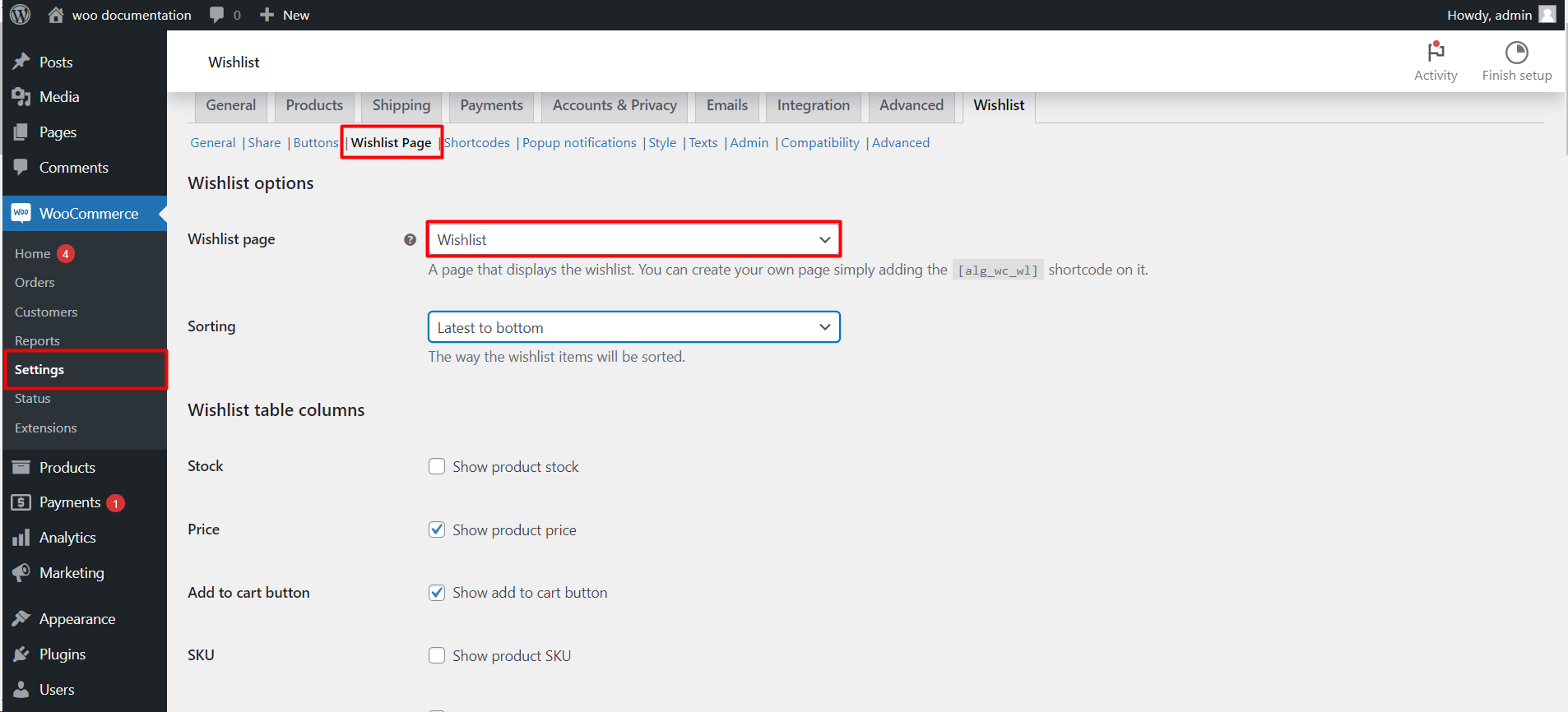
To create a WooCommerce wishlist page, add the [alg_wc_wl] shortcode to any page and select that page in Wishlist for WooCommerce under WPFactory > Wishlist > Wishlist Page (also reachable at WooCommerce > Settings > Wishlist > Wishlist Page). The same tab controls the table columns, sorting, subtotal and auto-remove rules.
Step 1: Create or choose the wishlist page #
When you activate Wishlist, it creates a published page called Wishlist that already contains [alg_wc_wl], unless a wishlist page is already set. You can keep that page or use your own:
- Create or edit a page in Pages and add the
[alg_wc_wl]shortcode (a Shortcode block works in the block editor). Publish the page. - Go to WPFactory > Wishlist and open the Wishlist Page tab.
- Under Wishlist options, pick your page in the Wishlist page dropdown.
- Choose how items are ordered in Sorting: Latest to bottom (default), Alphabetical – ASC or Alphabetical – DESC.
- Click Save changes.
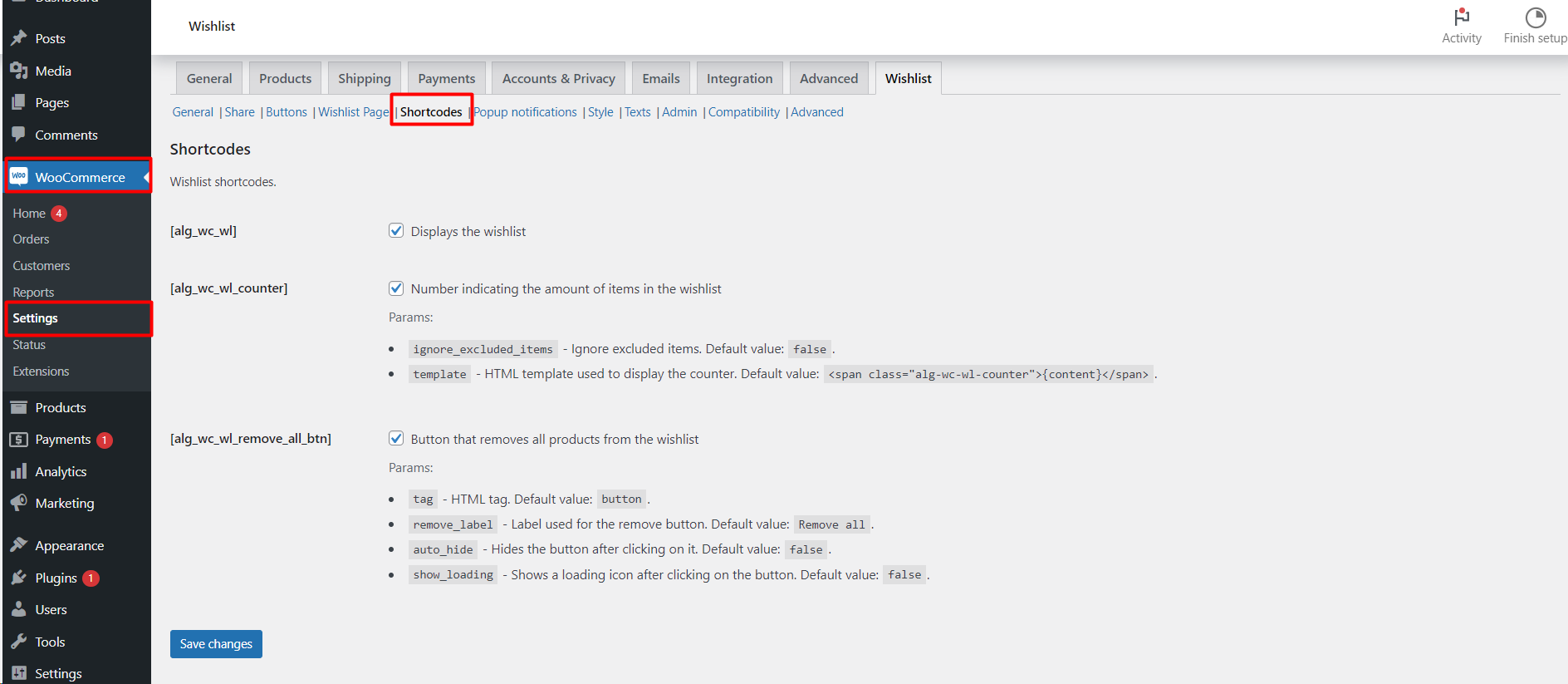
The [alg_wc_wl] shortcode is enabled by default. If the page shows the literal text [alg_wc_wl], check that the shortcode is ticked on the Shortcodes tab. For every shortcode the plugin offers, see the Wishlist Shortcodes Reference.
Step 2: Choose the wishlist table columns #
Under Wishlist table columns, tick the product details you want shoppers to see on the wishlist page.
| Label | Option ID | Default | Free/Pro |
|---|---|---|---|
| Stock | alg_wc_wl_lstock |
No | Free |
| Price | alg_wc_wl_lprice |
Yes | Free |
| Add to cart button | alg_wc_wl_ladd_to_cart_btn |
Yes | Free |
| SKU | alg_wc_wl_show_sku |
No | Free |
| Quantity | alg_wc_wl_show_quantity |
No | Pro |
| Description | alg_wc_wl_show_prod_desc |
No | Free |
| Attributes | alg_wc_wl_save_attributes |
Yes | Free |
| Images on Emails | alg_wc_wl_images_on_emails |
No | Free |
| Quantities on Emails | alg_wc_wl_quantities_on_emails |
No | Free |
| Subtotal (column) | alg_wc_wl_subtotal_column |
No | Free |
| Categories | alg_wc_wl_show_prod_category |
No | Free |
| Taxonomies | alg_wc_wl_taxonomies |
None selected | Free |
Attributes only appear for variable products when the shopper selects a variation before adding it, and General > Variable products must be enabled.
Step 3: Show a wishlist subtotal #
Under Wishlist items subtotal, tick Subtotal (alg_wc_wl_subtotal, off by default) to show the sum of all items in the wishlist. Use Position to place it Before Wish list table, After Wish list table (default) or both. Details: Displaying Subtotals on WooCommerce Wishlist Page.
Step 4: Remove items automatically #
Under Auto remove items (free):
- When purchased (
alg_wc_wl_remove_if_bought, off by default) removes a product from the wishlist once it is bought. The order status list below it decides which statuses count as purchased (default Completed and Processing). - When added to cart (
alg_wc_wl_remove_if_added_to_cart, off by default) removes an item as soon as it goes into the cart.
See Remove Wishlist Items Automatically in WooCommerce.
Step 5: Add notes and stock alerts (free) #
- Note field (off by default) adds a note input to each wishlist item, with Field label (default Note), Field type (Text or TextArea), Max length (default 20) and Note email. The note needs the Attributes column enabled. See How to Add Note Fields to the Wishlist Page.
- Stock alert (on by default) emails users when an out-of-stock product in their wishlist is back in stock. Users can switch it on or off on their wishlist page. See Enabling Stock Alerts on Your WooCommerce Wishlist.
Step 6: Set up the My account Wishlist tab #
Under My account – Wishlist tab, Wishlist tab is on by default and adds the wishlist to the customer’s My account page. You can change the Tab slug (default my-wish-list), Tab label (default Wishlist) and Priority (default 20). If the tab returns a 404 at first, go to Settings > Permalinks and click Save Changes. See Adding Wishlist Tab to My Account Page.
Step 7: Pro ordering and copy options #
These options on the same tab need Wishlist Pro:
- Dropdown ordering: shoppers sort their items from a dropdown. See How to Add Dropdown Sorting to the Wishlist Page.
- Duplicate Functionality: a COPY button on the wishlist page for logged-in users. See How to Let Customers Copy a Wishlist.
- Drag and drop Ordering (with Desktop, Mobile and Jquery UI Touch Punch options) and Arrow ordering (with Desktop and Mobile options). See Drag and Drop with Arrows Wishlist Pro.
- The Quantity table column.
Click Save changes when you are done, then add a product to your wishlist and open the page to check the result. For every option on every tab, see the Wishlist for WooCommerce Settings Reference.
FAQ #
Can I build the wishlist page with Elementor? #
Yes. Place the [alg_wc_wl] shortcode in a Shortcode widget and select that page as the Wishlist page. See How to Create a WooCommerce Wishlist Page with Elementor.
My wishlist page returns a 404 error. What should I check? #
Make sure the selected page is published and contains the shortcode, then resave your permalinks. See Wishlist Page Returns 404 Error.
Get more control #
The wishlist page, columns, subtotal and auto-remove rules are free. Wishlist for WooCommerce Pro adds dropdown, drag-and-drop and arrow ordering, wishlist copying and the quantity column. See what Pro unlocks.
Need a hand? Our team answers every ticket on the Wishlist support forum.
