Table of Contents
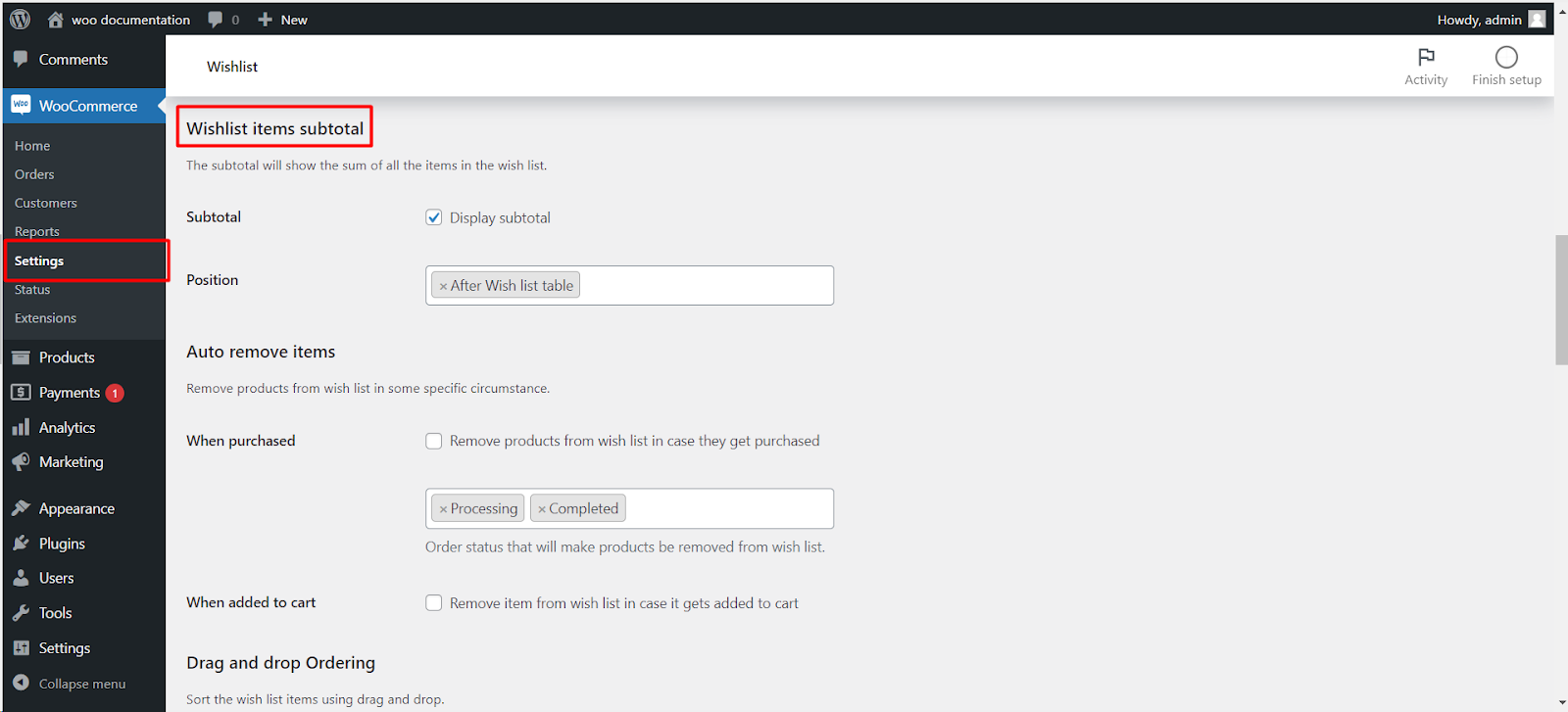
To display item subtotals on the wishlist page in Wishlist for WooCommerce, go to WooCommerce > Settings > Wishlist, find the Wishlist Page settings, enable the Wishlist Item Subtotal option, and save your changes. The wishlist page then shows a subtotal for each item.
Step 1: Navigate to WooCommerce Wishlist Settings #
- Log in to your WordPress dashboard.
- Find and click on “WooCommerce” in the left-hand menu.
- Locate the “Wishlist” tab and click on it.
Step 2: Access Wishlist Page Settings #
- Under the Wishlist tab, look for the “Wishlist Page” or similar option.
Step 3: Enable Wishlist Item Subtotals #
- Within the Wishlist Page settings, find the option labeled “Wishlist Item Subtotal.”
Step 4: Save Changes #
- Don’t forget to save your changes to apply the new settings.
Now, your WooCommerce Wishlist page will show subtotals for each item, providing a clear overview of the accumulated cost of the desired products.

Wishlist for WooCommerce
Get more from Wishlist for WooCommerce
See every feature and the pricing on the Wishlist for WooCommerce plugin page.