Table of Contents
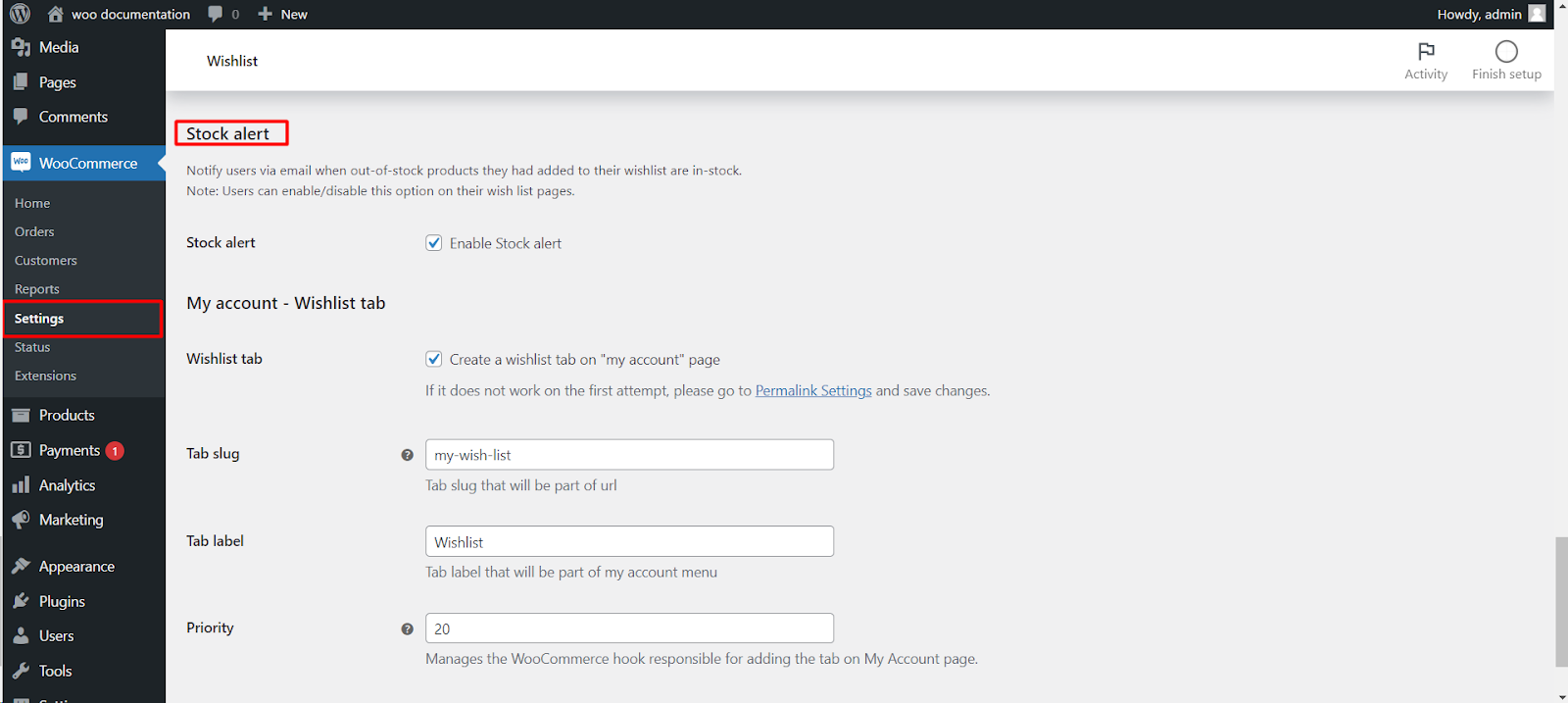
To enable stock alerts in Wishlist for WooCommerce, go to WooCommerce > Settings > Wishlist, find the Wishlist Page settings, enable the Stock Alert option, and save your changes. Customers can then enter their email on the wishlist page for out-of-stock items and receive an email notification when the item is back in stock.
Step 1: Navigate to WooCommerce Wishlist Settings #
- Log in to your WordPress dashboard.
- Find and click on “WooCommerce” in the left-hand menu.
- Locate the “Wishlist“ tab and click on it.
Step 2: Access Wishlist Page Settings #
- Under the Wishlist tab, look for the “Wishlist Page“ or a similar option.
Step 3: Enable Stock Alerts #
- Within the Wishlist Page settings, find the “Stock Alert“ or a similar option.
- Enable this option to allow customers to receive stock alerts for wishlist items.
Step 4: Customer Email Input #
- Once enabled, customers will have the option to input their email address on the wishlist page.
- When a product is out of stock, users can subscribe to stock alerts by entering their email.
Step 5: Receive Email Notifications #
- When a previously out-of-stock item is replenished, customers who subscribed to stock alerts will receive email notifications.
Step 6: Save Changes #
- Don’t forget to save your changes to activate the stock alert feature.
Now, your WooCommerce Wishlist page is equipped with a stock alert system, ensuring that customers stay informed about the availability of their desired items.
