Table of Contents
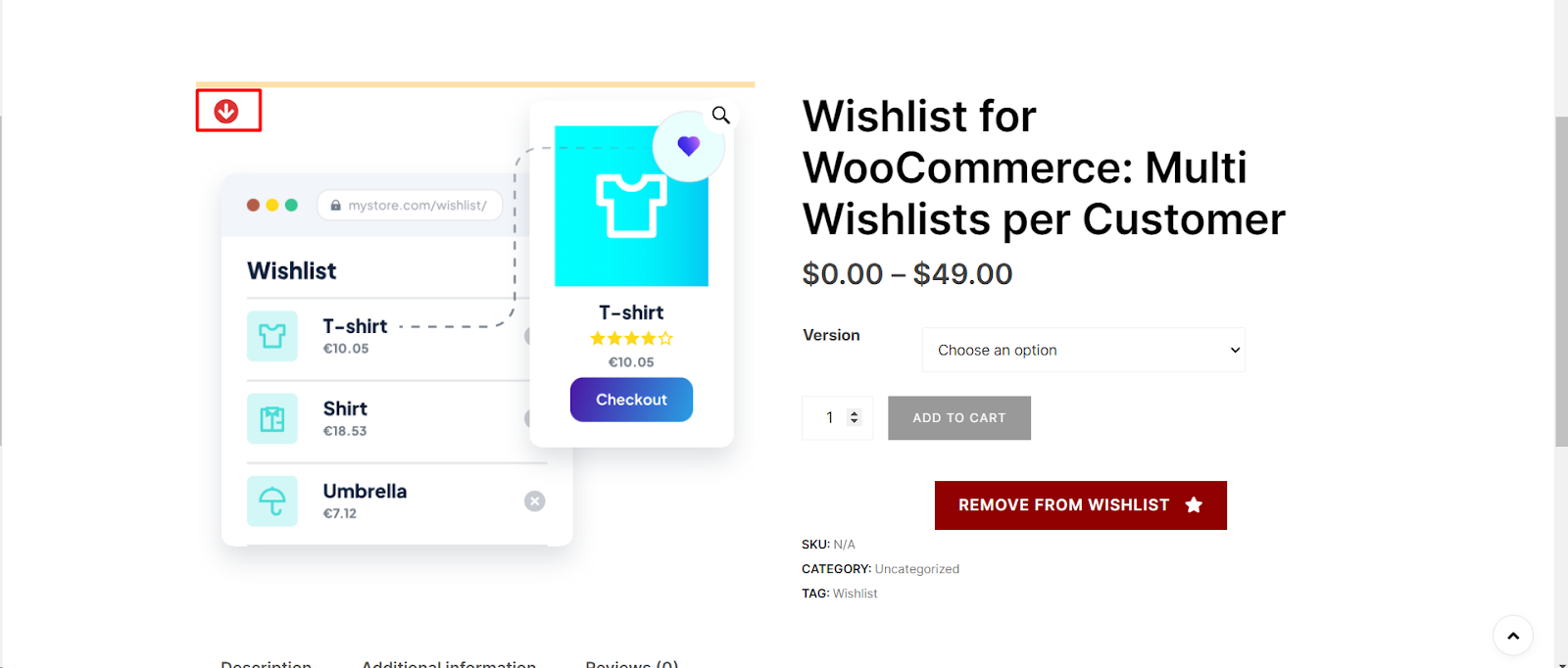
To customize the thumb icon in Wishlist for WooCommerce, go to WooCommerce > Settings > Wishlist, open the Style tab, and find the Thumb button section. Set Icon – Normal and Icon – Added, choose icon colors for the normal, added, and hover states, adjust the position and size, and save your changes.
Step 1: Navigate to WooCommerce Wishlist Settings #
- Log in to your WordPress dashboard.
- Click on “WooCommerce“ in the left-hand menu.
- Locate the “Wishlist“ tab under WooCommerce settings.
Step 2: Access Wishlist Style Settings #
- Within the Wishlist settings, click on the “Style“ tab.
Step 3: Customize Thumb Icon #
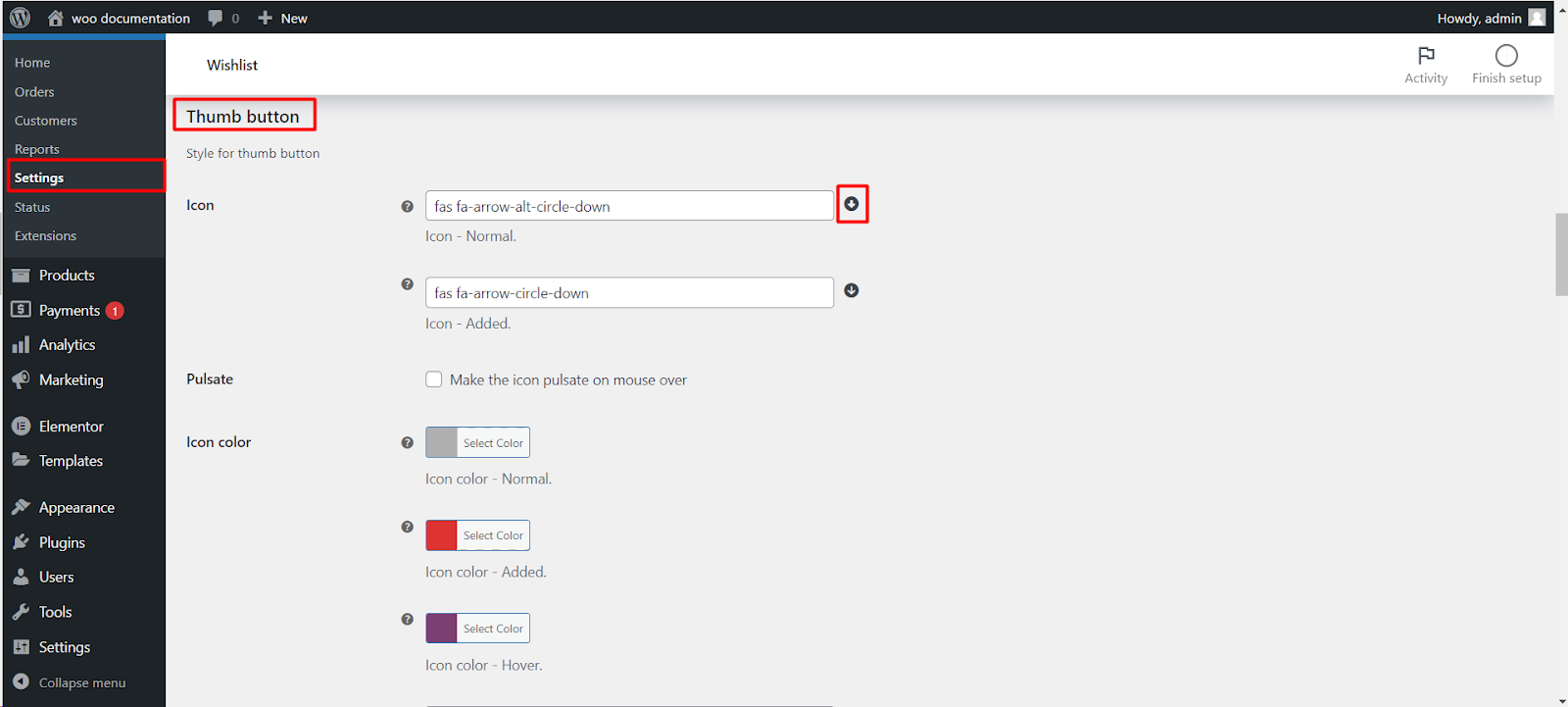
- Find the “Thumb button“ section under “Style for thumb button.”
- Customize the normal icon using the “Icon – Normal“ option. For example, you can use `fas fa-arrow-alt-circle-down`.
- Similarly, customize the added icon using the “Icon – Added“ option. Consider using `fas fa-arrow-circle-down`.
- Adjust the “Pulsate“ option if you want the icon to pulsate on mouseover.
Step 4: Set Icon Colors #
- Choose colors for the normal, added, and hover states of the icon using the “Icon color – Normal,” “Icon color -Added,” and “Icon color – Hover” options respectively.
Step 5: Position the Thumb Button #
- Set the position of the thumb button relative to the product thumbnail. Options include “Top left.”
Step 6: Adjust Size and Styling #
- Fine-tune the size, offset, padding, font size, and hover size options to ensure the thumb icon complements your product pages.
Step 7: Customize Back Layer (Optional) #
- If desired, enable the back layer and customize its appearance using options like background color and size.
Step 8: Save Changes #
- Save your changes to apply the customized thumb icon settings.
Now, your WooCommerce product pages, shop pages, and archive pages will feature a thumb icon that aligns with your store’s visual identity.
