To show a popup notification when customers add or remove wishlist items, go to WPFactory > Wishlist > Popup notifications in Wishlist for WooCommerce and tick Desktop, Mobile or both. Desktop popups are on by default, mobile ones off. You can also add a link to the wishlist and an OK button. All options are free.
Setting up popup notifications #
- Go to WPFactory > Wishlist (also reachable at WooCommerce > Settings > Wishlist) and open the Popup notifications tab.
- Tick Desktop (Enables popup notifications on desktop) and, if wanted, Mobile (Enables popup notifications on mobile).
- Keep Wishlist link ticked to show a link to the wishlist after a product is added.
- Tick Ok Button to give customers one more way to close the popup.
- Click Save changes.
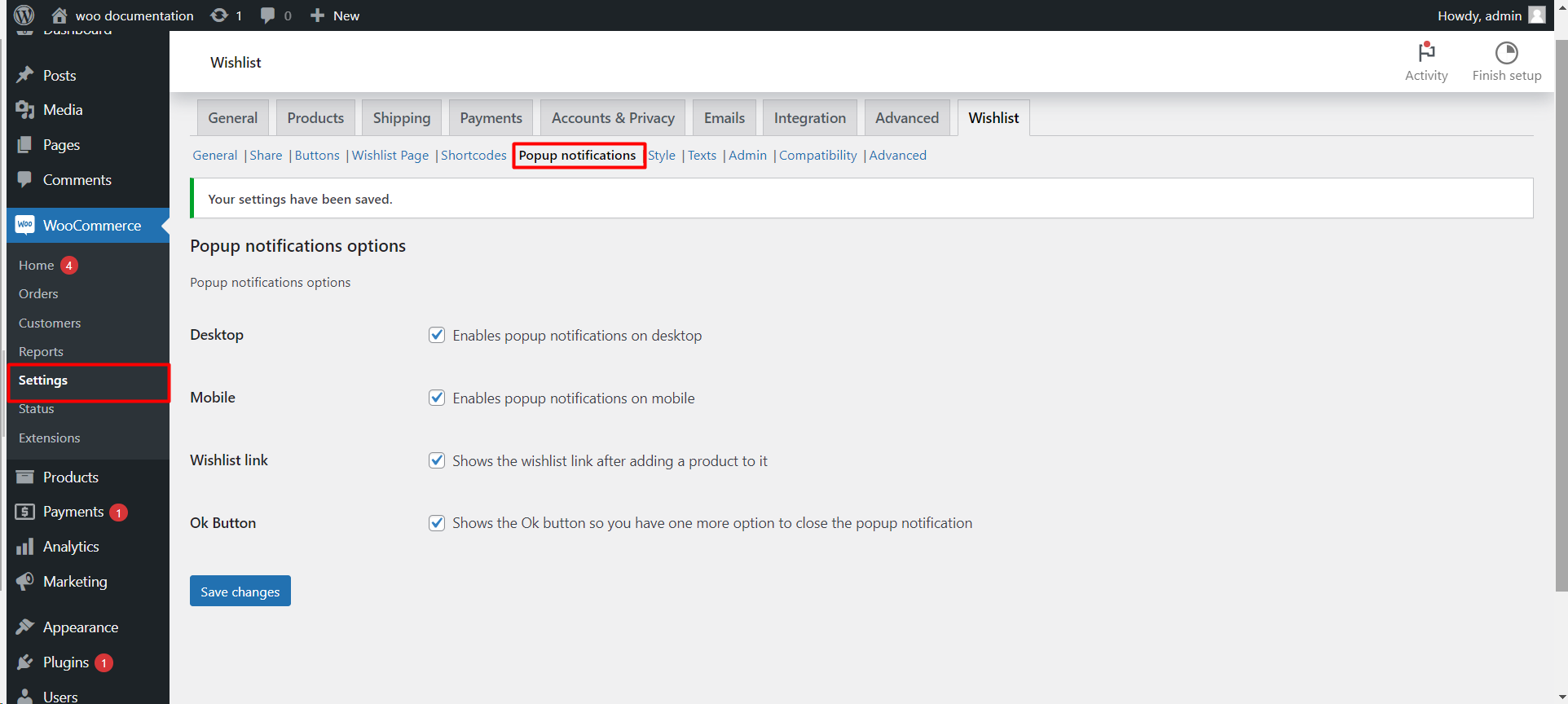
Options #
| Label | Option ID | Default | What it does |
|---|---|---|---|
| Desktop | alg_wc_wl_notification_desktop |
Yes | Shows popups on larger screens. |
| Mobile | alg_wc_wl_notification_mobile |
No | Shows popups on small screens (window up to 800 px wide or 600 px tall). |
| Wishlist link | alg_wc_wl_notification_wish_list_link |
Yes | Adds a “See your wishlist” link after adding. Needs a page selected in Wishlist Page > Wishlist page. |
| Ok Button | alg_wc_wl_notification_show_ok_btn |
No | Adds an OK button that closes the popup. |
What the customer sees #
After clicking a wishlist button, a small popup confirms the action, for example “Blue Hoodie was successfully added to wishlist”, with the “See your wishlist” link below it. Removing shows “… was successfully removed from wishlist”. If a guest is not allowed to use the wishlist, the popup shows the login message instead. Customers can close it with the close icon, the OK button if enabled, or the Esc key.
Change the wording #
The messages come from the Texts tab: Added to wishlist, Removed from wishlist, See your wishlist, Error and Disallow Unlogged. See customizing wishlist texts.
Change the look #
On the Style tab, tick Custom style, then use the Popup notifications section:
| Label | Default |
|---|---|
| Add Icon / Remove Icon | fas fa-check / fas fa-trash |
| Progress bar / Progress bar color | On / #ffffff |
| Background color / Text color | #000000 / #ffffff |
| Timeout (ms before closing automatically) | 7000 |
| Notification position | Center (also Bottom right, Bottom left, Bottom center, Top right, Top left, Top center) |
More on icons: customizing wishlist popup icons.
If it does not work #
- No popup on phones: Mobile is off by default.
- No “See your wishlist” link: no page is selected in Wishlist page, or Wishlist link is unticked.
- Style settings ignored: tick Style > Custom style.
- No popup and the button does nothing: the request is failing; see “Add to Wishlist” button not working.
FAQ #
Can I turn popups off completely? #
Yes. Untick both Desktop and Mobile. The wishlist keeps working; the button still changes state.
Are popup notifications free? #
Yes, the tab and the popup styling are free.
Related guides #
- Customize wishlist popup icons
- Customize text in the wishlist
- Style the wishlist buttons, popup and page
Get more control #
This feature is free. Wishlist for WooCommerce Pro adds drag-and-drop, arrow and dropdown sorting, copying a wishlist, hiding buttons by product tag, extra shortcodes and CSV wishlist import. See what Pro unlocks.
Need a hand? Our team answers every ticket on the Wishlist for WooCommerce support forum.
