To add a wishlist icon to your WooCommerce navigation menu, go to WPFactory > Wishlist > General in Wishlist for WooCommerce and tick Nav menu item, then give a menu item the CSS class wish-list-icon under Appearance > Menus. That item then shows a heart icon with a live counter of saved products. The feature is free.
Step 1: Enable the nav menu icon #
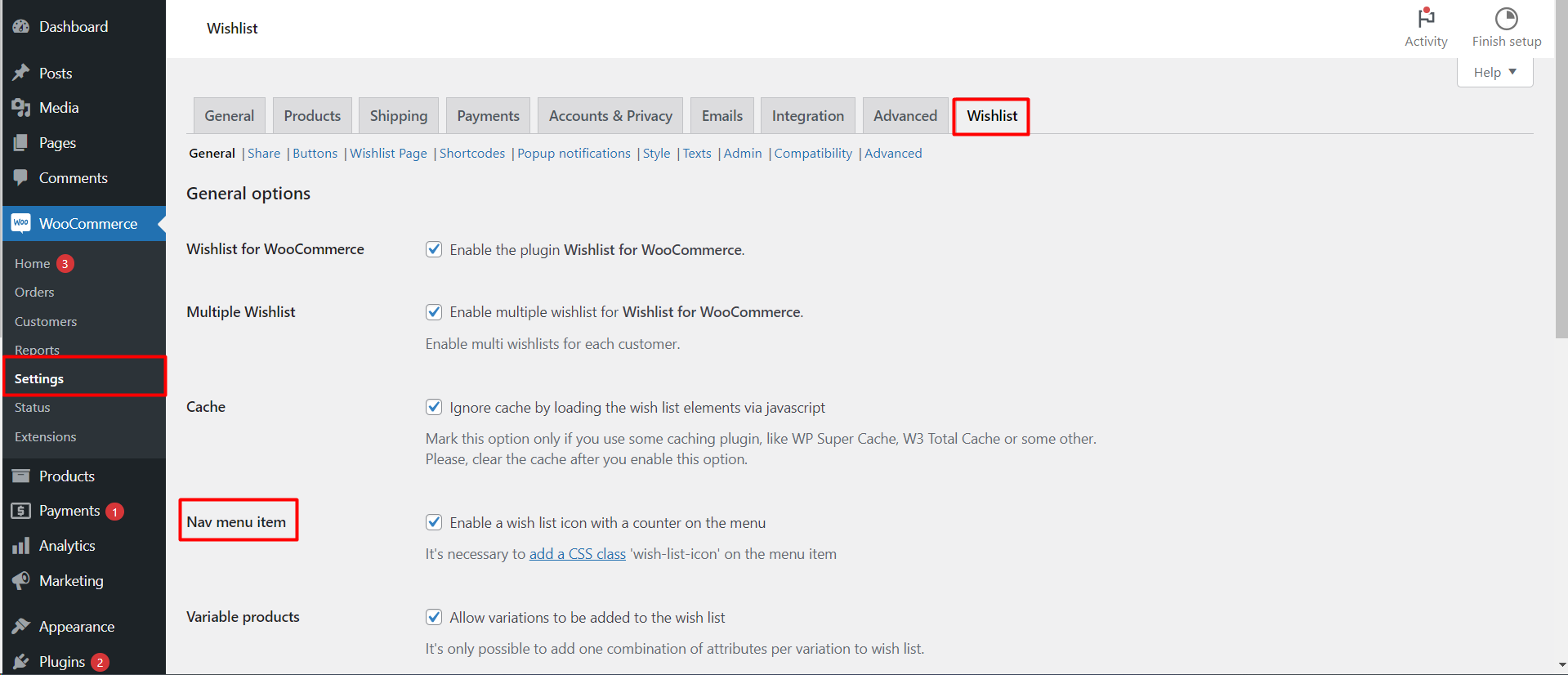
- Go to WPFactory > Wishlist (also reachable at WooCommerce > Settings > Wishlist).
- Open the General tab and find Nav menu item (
alg_wc_wl_nav_menu_item, default No). - Check Enable a wish list icon with a counter on the menu.
- Save changes.
Step 2: Add the CSS class to a menu item #
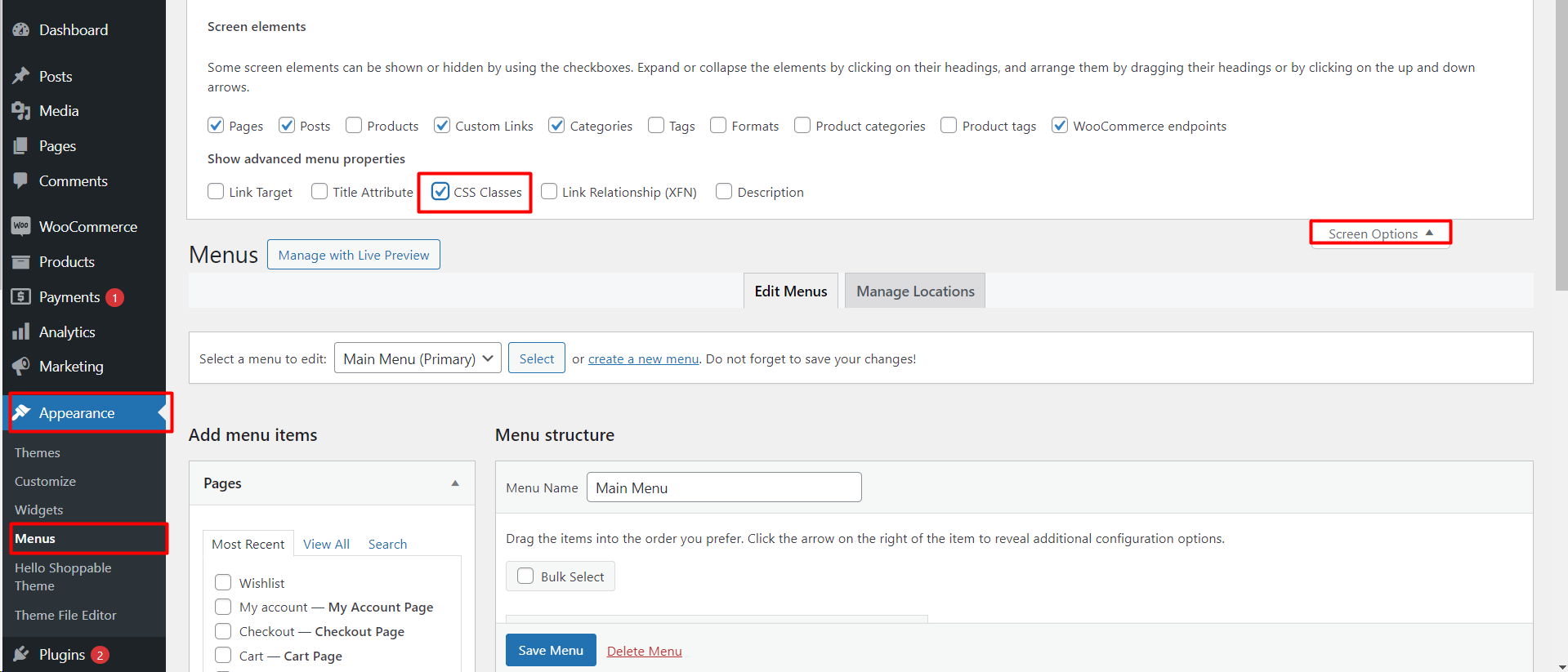
- Go to Appearance > Menus.
- Add a menu item that links to your wishlist page (the plugin creates a page called Wishlist on activation), or pick an existing item.
- Click Screen Options at the top right and enable CSS Classes.
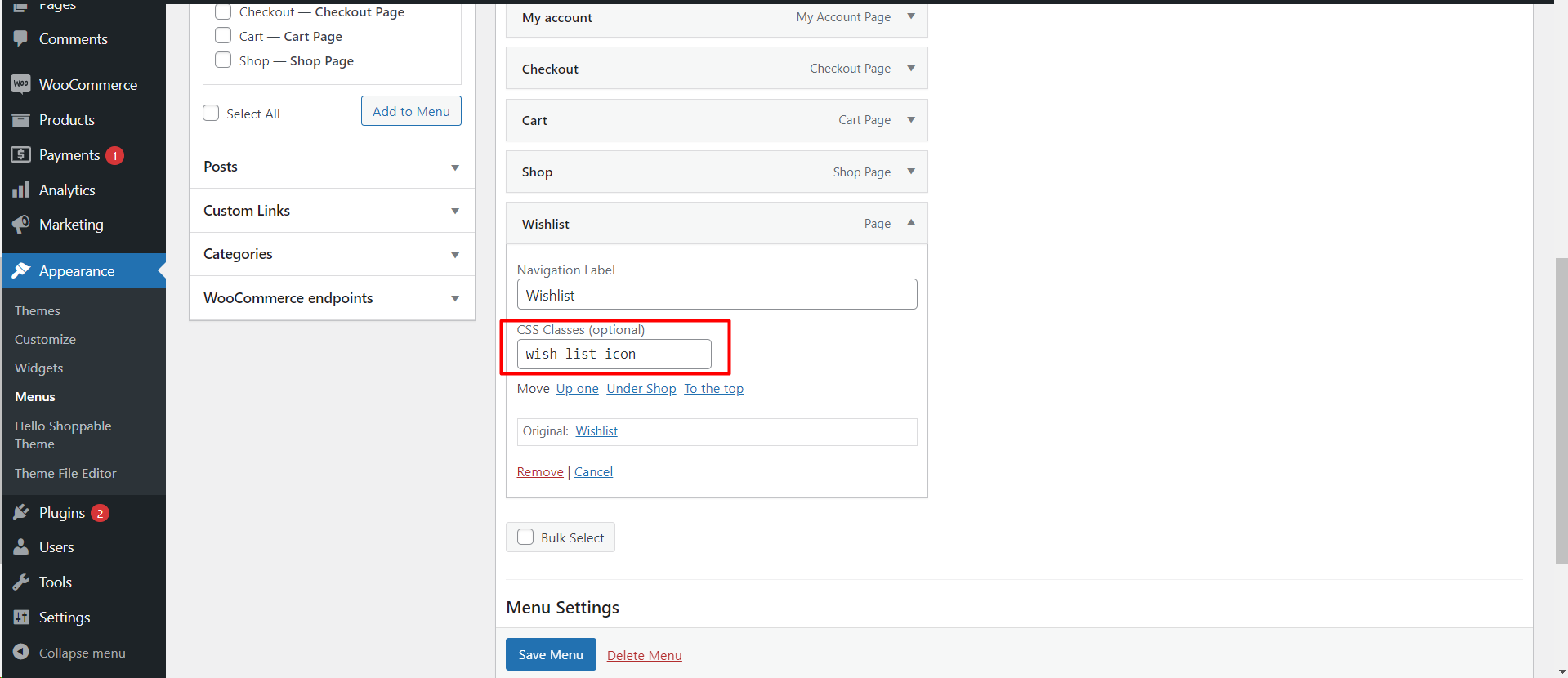
- Expand the menu item that should carry the icon.
- In the CSS Classes (optional) field, enter
wish-list-icon. - Click Save Menu.
Confirm it works #
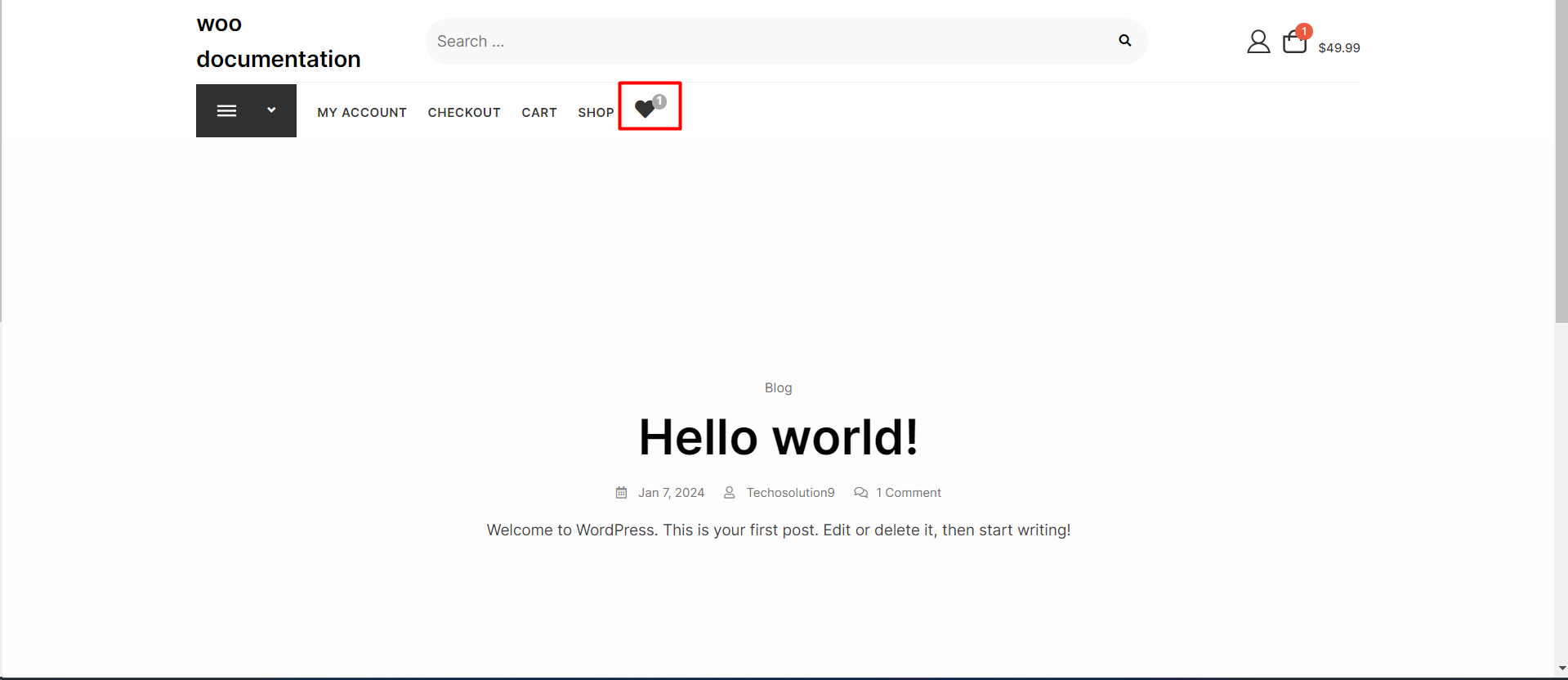
Visit your store’s front end. The wishlist icon should appear on that menu item, with a counter showing how many products are saved.
How the menu icon behaves #
- It replaces the item label. The icon and counter take the place of the menu item’s text, and the item keeps its own link. That is why the item should point to your wishlist page.
- The counter updates live. It changes as soon as a customer adds or removes a product, without a page reload. With multiple wishlists enabled, it counts each product once across all lists.
- The icon is a heart by default. To change it, go to Style, tick Custom style, and set Thumb button > Icon – Added. The icon then also uses the thumb button’s Icon color – Added and Icon color – Hover.
Adding the wishlist button to products #
The menu icon only links customers back to their list. The button that saves products is set on the Buttons tab: the thumb button over the product image is on by default for product pages and shop pages, and the text button is off by default. See how to add the wishlist button to shop and archive pages and how to change the button placement on the product page.
If it does not work #
- No icon at all: check the class is exactly
wish-list-iconand that Nav menu item was saved. - A block theme: menus built with the Navigation block do not use Appearance > Menus, so the class method does not apply. Use the Pro
[alg_wc_wl_icon]shortcode in a Shortcode block instead. - An empty square instead of a heart: Font Awesome is not loading. Make sure General > Font Awesome > Load FontAwesome is ticked (the default).
- Shortcode text shows in the menu: the
[alg_wc_wl_icon]toggle on the Shortcodes tab is off. The menu icon uses that shortcode behind the scenes; the toggle is on by default. - The counter is wrong for some visitors: a page cache is serving an old copy. Enable General > Cache; see wishlist and cache plugins.
FAQ #
Is the menu icon free? #
Yes. The Nav menu item option is free. The [alg_wc_wl_icon] shortcode, which places the same icon anywhere, is Pro.
Can I hide the counter? #
Not with the menu option: it always shows the counter. The Pro [alg_wc_wl_icon] shortcode accepts counter="false".
Where does the icon link to? #
To whatever URL the menu item has. Point it to the page selected under Wishlist Page > Wishlist page.
Can I show it in more than one menu? #
Yes. Add the wish-list-icon class to an item in each menu.
Related guides #
- Add the wishlist button to shop and archive pages
- Manage Font Awesome icons
- Wishlist shortcodes reference
Get more control #
This feature is free. Wishlist for WooCommerce Pro adds drag-and-drop, arrow and dropdown sorting, copying a wishlist, hiding buttons by product tag, extra shortcodes and CSV wishlist import. See what Pro unlocks.
Need a hand? Our team answers every ticket on the Wishlist for WooCommerce support forum.
