You can have a WooCommerce sales and stock report emailed to you on a schedule, so you never have to open the dashboard to know how the store is doing. WooCommerce Advanced Reporting and Statistics sends this report daily, weekly or monthly to any address you choose.
Set it up #
- Go to WPFactory > Reporting & Statistics.
- Open the Settings tab, then the Email section.
- Set Send Completed Orders Report to Yes.
- Choose an Email Frequency: Daily, Weekly or Monthly.
- Enter the recipient in Emai for Report. It defaults to your site’s admin email.
- Click Save changes.
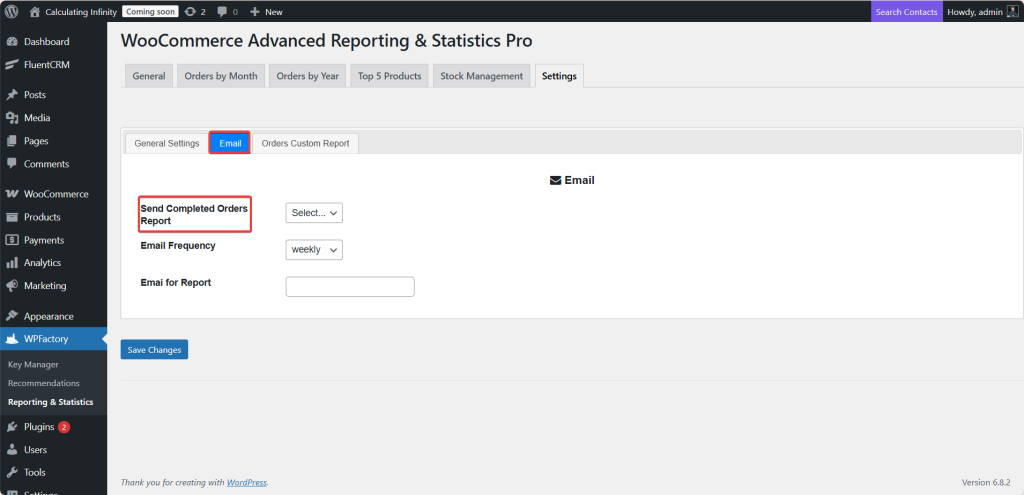
Options reference #
| Label | Option ID | Values | Default |
|---|---|---|---|
| Send Completed Orders Report | webdWoocommerceReportingStatisticsProsendReport |
Yes / No | No |
| Email Frequency | webdWoocommerceReportingStatisticsProemailFrequency |
Daily / Weekly / Monthly | Weekly |
| Emai for Report | webdWoocommerceReportingStatisticsProemailForReport |
Any email address | Site admin email |
Note: the recipient field is labeled Emai for Report in the plugin (spelled that way in the interface). It is the correct field for the report address.
What the email contains #
Each report bundles four sections into one HTML email:
- A sales summary for the current month (Total Sales, Net Sales, Shipping, Taxes, Refunds, Discount, products purchased, orders, average net sales per day, sales every).
- A sales summary for the last 7 days, in the same format.
- The Sold Products Low Stock reminder (last 30 days).
- The General Stock Monitoring low-stock list.
So a single email gives you both recent performance and the products you may need to reorder.
How scheduling works #
The report is sent by a scheduled task at the frequency you pick. Because it relies on WordPress scheduled events (WP-Cron), the email goes out the next time the schedule is due after a visit to your site. On very low-traffic stores, where scheduled tasks can lag, consider a server-level cron for reliable timing. Setting Send Completed Orders Report to No cancels the schedule.
Troubleshooting #
- No email arrives: confirm Send Completed Orders Report is Yes and the recipient address is correct, and that your site can send email (test with an SMTP plugin if needed).
- Timing is off: WP-Cron depends on site traffic. Use a real server cron for exact schedules.
- Changed the frequency but it did not update: save the settings again, which reschedules the task.
Get the full picture #
WooCommerce Advanced Reporting and Statistics turns your store data into clear, exportable reports, sales forecasts and stock alerts. See everything it can do.