By default the WooCommerce sales report filters by date and order status. WooCommerce Advanced Reporting and Statistics can add extra filter dropdowns, so you can break sales down by billing city, country, payment method, product, category or customer. This guide shows how to switch those filters on.
Turn on the filters you need #
- Go to WPFactory > Reporting & Statistics.
- Open the Settings tab, then General Settings.
- Tick the Query by options you want. Each one adds a matching dropdown to the report toolbar.
- Click Save changes.
- Go back to the General, Orders by Month or Orders by Year tab and the new filters appear next to the date and status controls.
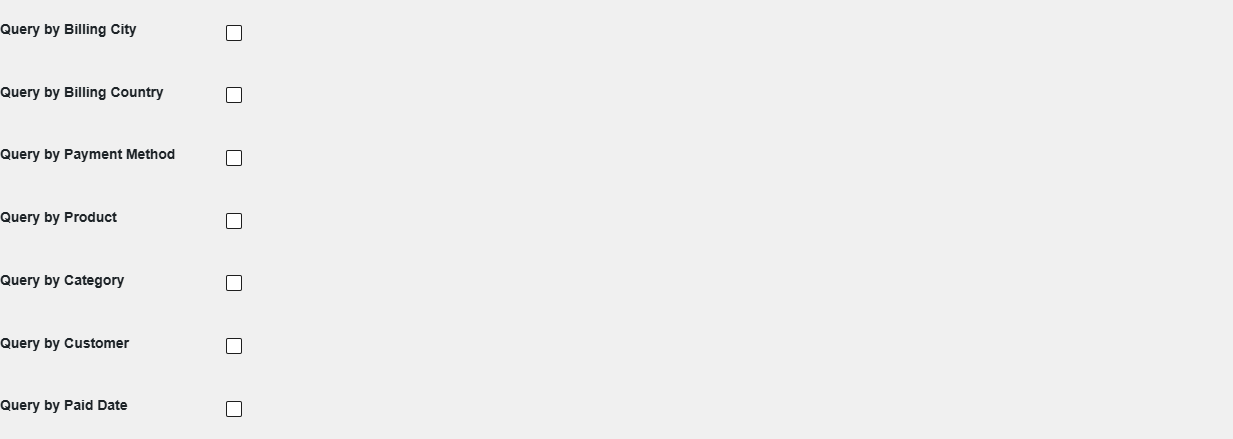
Available filters #
| Setting | Option ID | Adds this filter |
|---|---|---|
| Query by Billing City | webdWoocommerceReportingStatisticsProquerybyCity |
A Billing City dropdown built from your orders. |
| Query by Billing Country | webdWoocommerceReportingStatisticsProquerybyCountry |
A Billing Country dropdown. |
| Query by Payment Method | webdWoocommerceReportingStatisticsProquerybyPayment |
A Payment Method dropdown. |
| Query by Product | webdWoocommerceReportingStatisticsProquerybyProduct |
A product search box (search by name or SKU). |
| Query by Category | webdWoocommerceReportingStatisticsProquerybyCategory |
A product category dropdown. |
| Query by Customer | webdWoocommerceReportingStatisticsProquerybyUser |
A customer dropdown (registered customers). |
| Query by Paid Date | webdWoocommerceReportingStatisticsProquerybyPaidDate |
A “Filter Paid Orders” checkbox that reports by the date an order was paid, and counts only paid orders. |
Note: the dropdowns are built from data that already exists in your orders. A city, country, payment method or customer with no orders will not appear as an option.
How the filters combine #
All active filters are applied together with the date and status filters. For example, you can set the period to Last 3 Months, choose a country, and pick a category to see sales for that category, in that country, over three months. Click Filter Orders to apply.
Query by Paid Date #
Most reports use the date an order was created. Enabling Query by Paid Date adds a Filter Paid Orders checkbox; when ticked, the report is grouped by the date each order was paid and excludes orders that were never paid. This is useful when you want revenue recognized on payment rather than on order creation.
Troubleshooting #
- A filter dropdown is not showing: confirm the matching Query by option is ticked and you saved the settings.
- The dropdown is empty: there are no orders with that value yet.
- Product filter finds nothing: search by the exact product name or SKU; the box matches on both.
Get the full picture #
WooCommerce Advanced Reporting and Statistics turns your store data into clear, exportable reports, sales forecasts and stock alerts. See everything it can do.