The Orders table on the General report is empty until you choose which order fields it should show. WooCommerce Advanced Reporting and Statistics lets you build a custom orders report by picking exactly the columns you need, including custom order meta, and then export it to Excel.
Why the Orders table is empty #
If the Orders tab shows “Please check the settings page for fields to display,” no fields have been selected yet. Pick at least one field and the table fills in.
Choose your columns #
- Go to WPFactory > Reporting & Statistics.
- Open the Settings tab, then the Orders Custom Report section.
- Tick each order field you want as a column. Standard fields (order ID, date created, status, totals, billing and shipping details, payment method, coupon codes and more) are listed alongside any custom meta keys found on your orders.
- Click Save changes.
- Open the General tab, run a report, and the Orders table now shows your chosen columns.
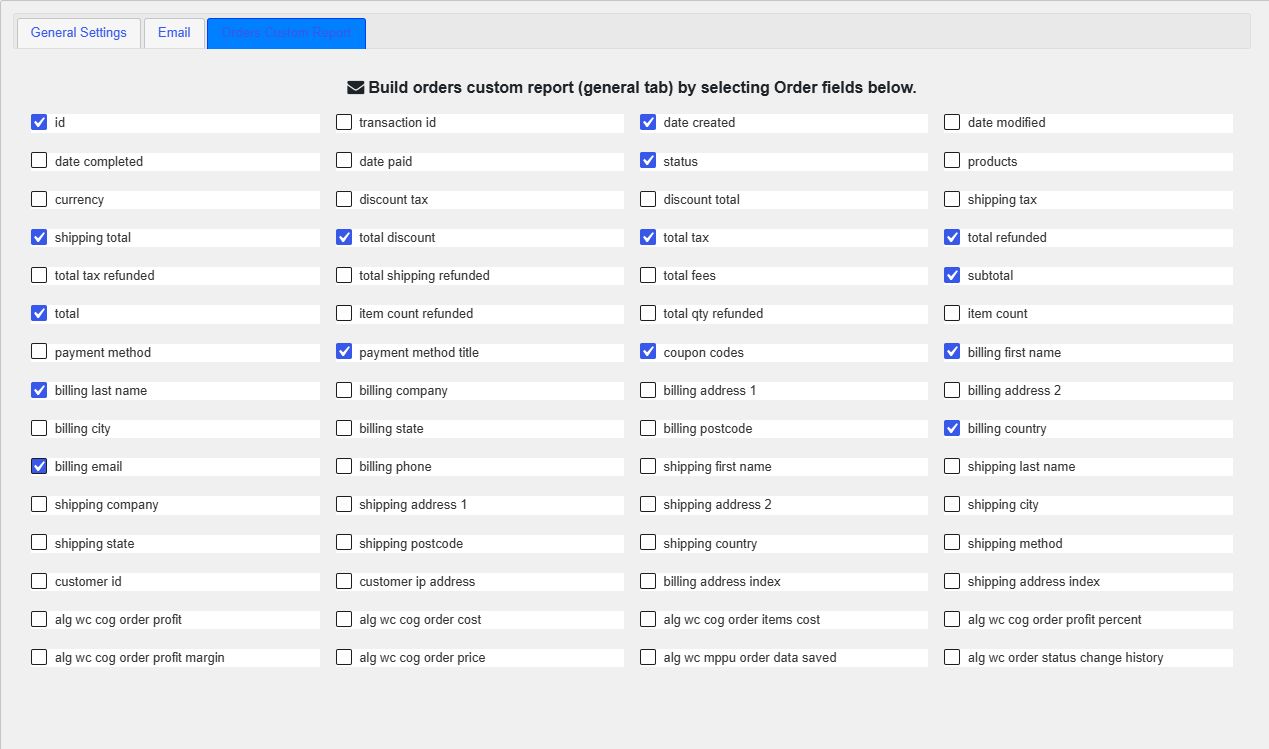
The field list is assembled from your own orders, so custom data added by other plugins can appear as selectable columns too. WooCommerce’s internal keys (such as edit locks and cart hashes) are filtered out to keep the list clean.
Good defaults #
On first activation the plugin pre-selects a practical set of columns: order ID, date created, status, payment method title, coupon codes, billing first and last name, billing country, shipping total, total discount, total tax, total refunded, subtotal and total. You can add to or trim this list at any time.
Export the report #
Once the Orders table is populated, use the Export button above it to download the report as an Excel (.xlsx) file. Only the columns you selected are included, so you get a clean sheet ready for accounting or analysis. See the export reports to Excel guide for more on exporting.
Note on order volume #
How many orders are loaded is controlled by Orders to query each time (webdWoocommerceReportingStatisticsProqueryLimit, default 500) in General Settings. Raise it to include more orders per load on large stores, or lower it if a report is slow to build.
Troubleshooting #
- Table still says to check the settings page: you have not saved any fields. Tick at least one and save.
- A custom column is missing: the plugin only lists meta keys that exist on your current orders. Fields with no data on any order will not appear.
- Report feels slow: lower Orders to query each time or narrow the date range.
Get the full picture #
WooCommerce Advanced Reporting and Statistics turns your store data into clear, exportable reports, sales forecasts and stock alerts. See everything it can do.