To catch products before they run out, use the Stock Management report in WooCommerce Advanced Reporting and Statistics. It flags low-stock products and forecasts how soon your fast movers will sell out, so you can reorder in time and avoid lost sales.
Open the report #
- Go to WPFactory > Reporting & Statistics.
- Click the Stock Management tab.
The tab has two sections, shown as inner tabs: General Stock Monitoring and Sold Products Low Stock.
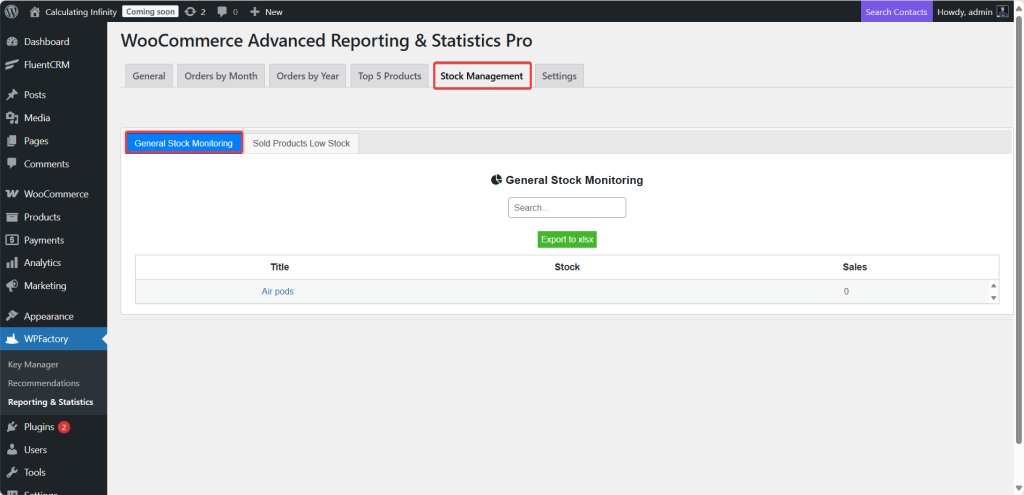
General Stock Monitoring #
This section lists products whose stock is running low, so nothing quietly slips to zero. It shows products with a stock quantity of 10 or fewer, ordered by stock level.
| Column | Meaning |
|---|---|
| Title | Product name, linked to the product. |
| Stock | Current stock quantity. |
| Sales | The product’s total sales count. |
Only products that manage stock and have a stock number appear here, so the list stays focused on items you actually track. The list is paginated in blocks of 100.
Sold Products Low Stock #
This section, titled Last 30 days Sold Products Stock Reminder, is the forecasting view. It reviews the products sold in the last 30 days, checks the current stock of each, and estimates how long each will last.
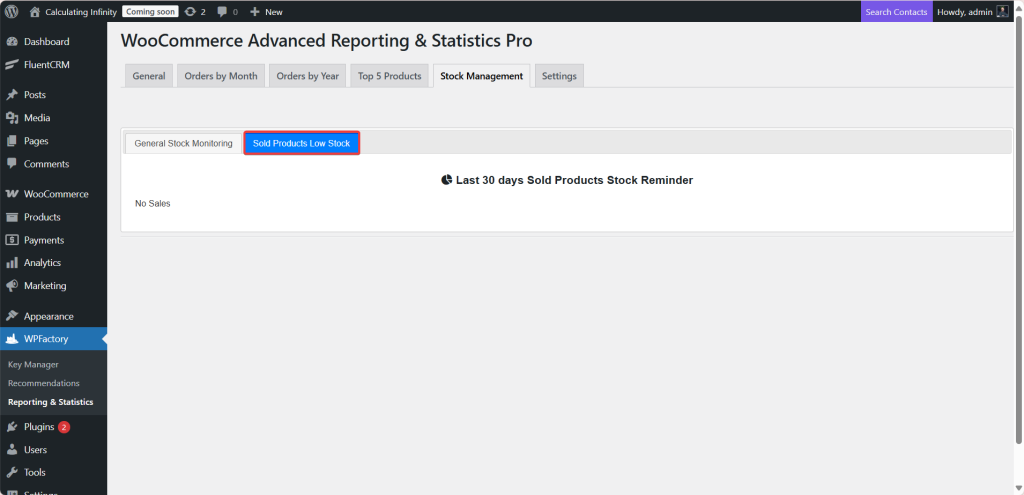
| Column | Meaning |
|---|---|
| Product | Product name. |
| Items Sold | Units sold in the last 30 days. |
| In Stock | Current stock quantity. |
| Sales Amount | Revenue from that product in the period. |
| Sales Every (days) | Average days between sales of the product. |
| Avg Quantity Sold / Order | Average units per order. |
| Next Order Forecasted Quantity | Projected quantity for the next order, based on recent history. |
| Days Left to Out of Stock | Estimated days until the product runs out at the current rate. Anything beyond 50 shows as “> 50”. |
Only products with stock management enabled are included, since the forecast needs a stock number to count down from. Products sold without managed stock will not appear.
Export #
Both stock tables have an Export button that saves the list as an Excel (.xlsx) file, handy for a reorder sheet.
Use cases #
- Reorder before you sell out by watching Days Left to Out of Stock on your fast movers.
- Weekly stock check using General Stock Monitoring to catch anything at or below 10 units.
- Plan purchase quantities from Next Order Forecasted Quantity.
Troubleshooting #
- “No products” in General Stock Monitoring: nothing is at or below 10 units, or the products do not track stock.
- A product is missing from Sold Products Low Stock: it either had no sales in the last 30 days, or it does not have Manage stock? enabled. Turn on stock management under the product’s Inventory tab.
Get the full picture #
WooCommerce Advanced Reporting and Statistics turns your store data into clear, exportable reports, sales forecasts and stock alerts. See everything it can do.