Show a custom notice for each coupon #
Showing a custom notice per coupon lets you replace the generic “Coupon code applied successfully” message with wording tailored to the exact coupon a customer used, so a summer-sale link can say “Enjoy 20% off, summer is on us” while a free-shipping link explains the shipping offer. This is a Pro feature of Coupons & Add to Cart by URL Links for WooCommerce.
Before you start #
- WooCommerce, active.
- URL Coupons Pro (these notice options are disabled in the free version).
Two ways to customize the notice #
The Pro Notice Options give you a global custom notice for all URL coupons, plus an optional per-coupon notice that overrides it for a single coupon. Both live on the Notices sub-tab.
Step-by-step setup #
- Go to WPFactory > Coupons by URL (also reachable at WooCommerce > Settings > URL Coupons).
- Open the Notices sub-tab.
- To set one message for all URL coupons, type it into Custom notice.
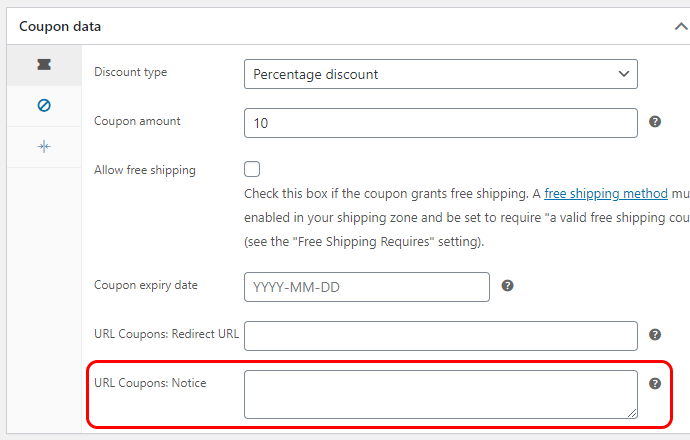
- To set a message for one coupon, tick Notice per coupon > Enable and click Save changes. This adds a URL Coupons: Notice field to every coupon’s edit screen.
- Open the coupon at Marketing > Coupons, fill in URL Coupons: Notice, and update the coupon.
- Decide how the custom notice interacts with the default one using Notice method, and whether it replaces existing notices with the override options below.
Options reference #
| Label | Option ID | Default | Free/Pro |
|---|---|---|---|
| Custom notice | alg_wc_url_coupons_notice |
(empty) | Pro |
| Notice per coupon (Enable) | alg_wc_url_coupons_notice_per_coupon |
No | Pro |
| Override global notice | alg_wc_url_coupons_notice_per_coupon_override |
No | Pro |
| Override default notice | alg_wc_url_coupons_notice_remove_default |
No | Pro |
| Notice method | alg_wc_url_coupons_notice_method |
Add | Pro |
| Notice type | alg_wc_url_coupons_notice_type |
Success | Pro |
| Notice glue | alg_wc_url_coupons_notice_glue |
<br> |
Pro |
Add versus Append: how the notice is placed #
Notice method decides how your custom notice sits next to WooCommerce’s own “coupon applied” message:
- Add (default) shows your custom notice as a separate notice of its own. The Notice type option (Success, Error, or Notice) sets its style. Notice type is only used when the method is Add.
- Append merges your custom notice into the existing coupon message, joined by the Notice glue string (a line break by default). Notice glue is only used when the method is Append.
Controlling which notices show #
- Override global notice: when a coupon has its own per-coupon notice, this removes the global Custom notice so only the per-coupon message shows.
- Override default notice: removes WooCommerce’s default “Coupon code applied successfully” message whenever you have a custom notice to show in its place.
Troubleshooting #
- The per-coupon field is missing. Enable Notice per coupon, save, then reload the coupon edit page.
- Both the default and custom notice appear. Turn on Override default notice to drop the standard message.
- The notice does not appear at all on a landing page. Some pages do not render WooCommerce notices. Add the
[alg_wc_url_coupons_print_notices]shortcode to that page’s content.
Ready to set this up? #
This is a Pro feature of URL Coupons. If you are still on the free version, upgrading takes a couple of minutes and unlocks this along with per-coupon redirects and add-to-cart coupons. Get URL Coupons Pro.