Table of Contents
Set a minimum order quantity #
A minimum order quantity stops customers from buying fewer units than you allow, either per product or across the whole cart. You set it in the Minimum Quantity section of the Min Max Step Quantity Limits Manager for WooCommerce. The store-wide and per-product forms are free.
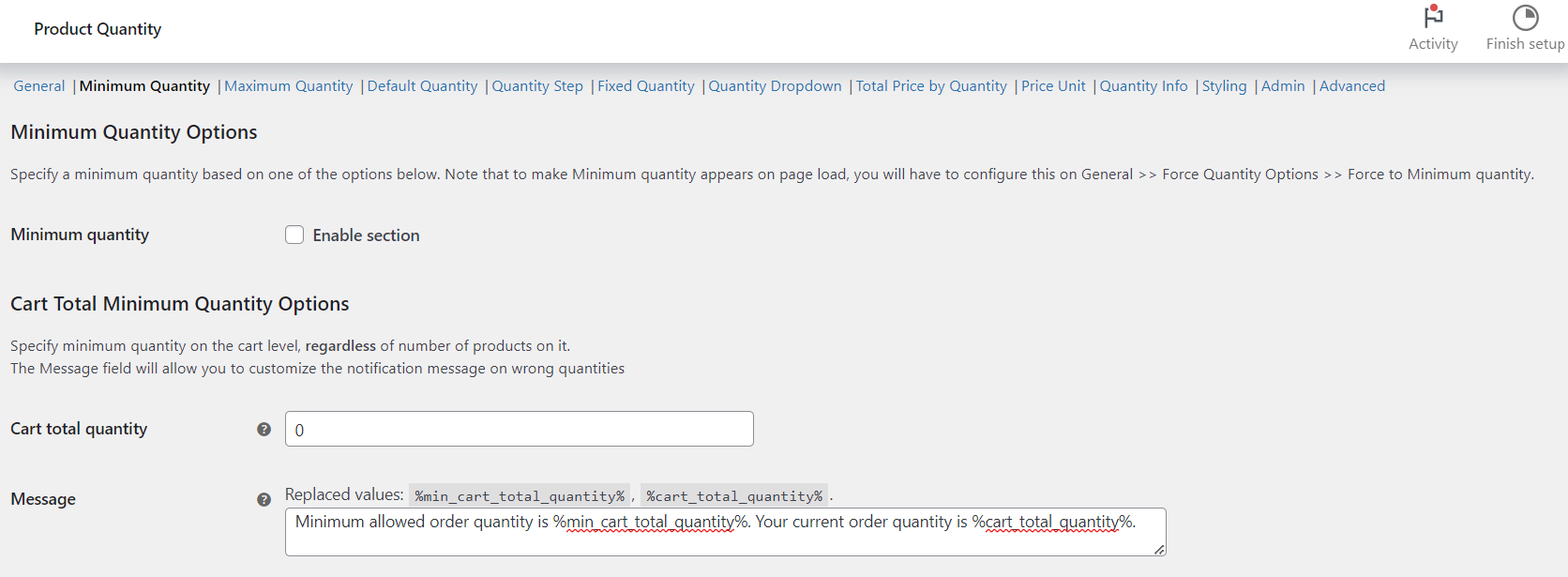
Steps #
- Go to WPFactory > Quantity Manager (also reachable at WooCommerce > Settings > Product Quantity).
- Open the Minimum Quantity section and tick Minimum quantity to enable it.
- To require a minimum for each product, set Per Item Minimum Quantity Options > All products (
wpfmmsq_min_per_item_quantity). Set to 0 to disable. - To require a minimum total across the cart, set Cart Total Minimum Quantity Options > Cart total quantity (
wpfmmsq_min_cart_total_quantity). - Edit the matching Message fields if you want custom wording, then click Save changes.
Options reference #
| Label | Option ID | Default | Free/Pro |
|---|---|---|---|
| Minimum quantity (enable) | wpfmmsq_min_section_enabled |
No | Free |
| All products | wpfmmsq_min_per_item_quantity |
0 | Free |
| Cart total quantity | wpfmmsq_min_cart_total_quantity |
0 | Free |
| Per product | wpfmmsq_min_per_item_quantity_per_product |
No | Free |
Note: when a minimum is active, the quantity field starts at the minimum. If a default quantity is lower than the minimum, the minimum wins on load.
Get more control #
The store-wide and per-product minimums are free. Min Max Step Quantity Limits Manager for WooCommerce Pro adds per-category and per-attribute minimums. See what Pro unlocks.