Table of Contents
Set a maximum order quantity #
A maximum order quantity caps how many units a customer can buy, per product or across the whole cart, which is useful for limited stock and fair-share promotions. You set it in the Maximum Quantity section of the Min Max Step Quantity Limits Manager for WooCommerce. The store-wide and per-product forms are free.
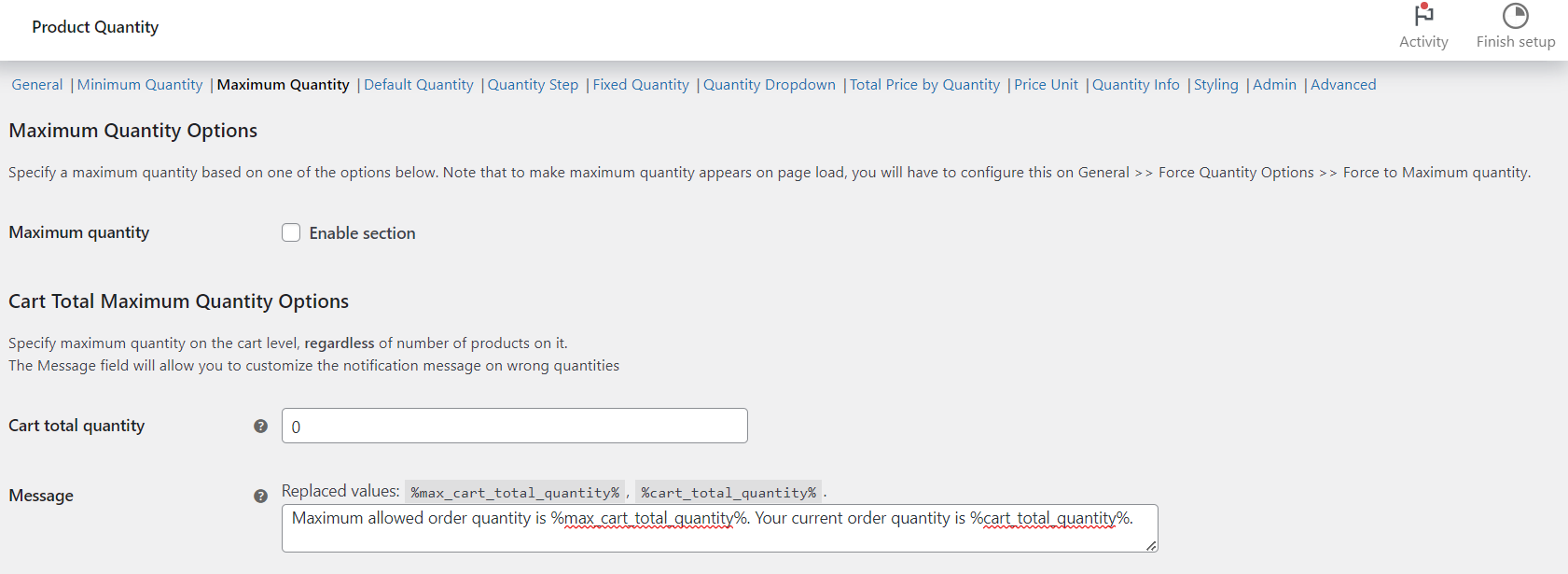
Steps #
- Go to WPFactory > Quantity Manager (also reachable at WooCommerce > Settings > Product Quantity).
- Open the Maximum Quantity section and tick Maximum quantity to enable it.
- To cap each product, set Per Item Maximum Quantity Options > All products (
wpfmmsq_max_per_item_quantity). Set to 0 to disable. - To cap the cart total, set Cart Total Maximum Quantity Options > Cart total quantity (
wpfmmsq_max_cart_total_quantity). - Click Save changes.
Options reference #
| Label | Option ID | Default | Free/Pro |
|---|---|---|---|
| Maximum quantity (enable) | wpfmmsq_max_section_enabled |
No | Free |
| All products | wpfmmsq_max_per_item_quantity |
0 | Free |
| Cart total quantity | wpfmmsq_max_cart_total_quantity |
0 | Free |
| Per product | wpfmmsq_max_per_item_quantity_per_product |
No | Free |
Tip: to show the maximum in the quantity field on load, set General > Initial Quantity Options > Single product page to Max quantity. A maximum of 1 effectively limits customers to a single unit.
Get more control #
The store-wide and per-product maximums are free. Min Max Step Quantity Limits Manager for WooCommerce Pro adds per-category and per-attribute maximums. See what Pro unlocks.